
Some sites must stay on the versions they work with. The update lock keeps them there and records why.
Where to find it: open a site, go to its Updates tab and use the Update lock card.
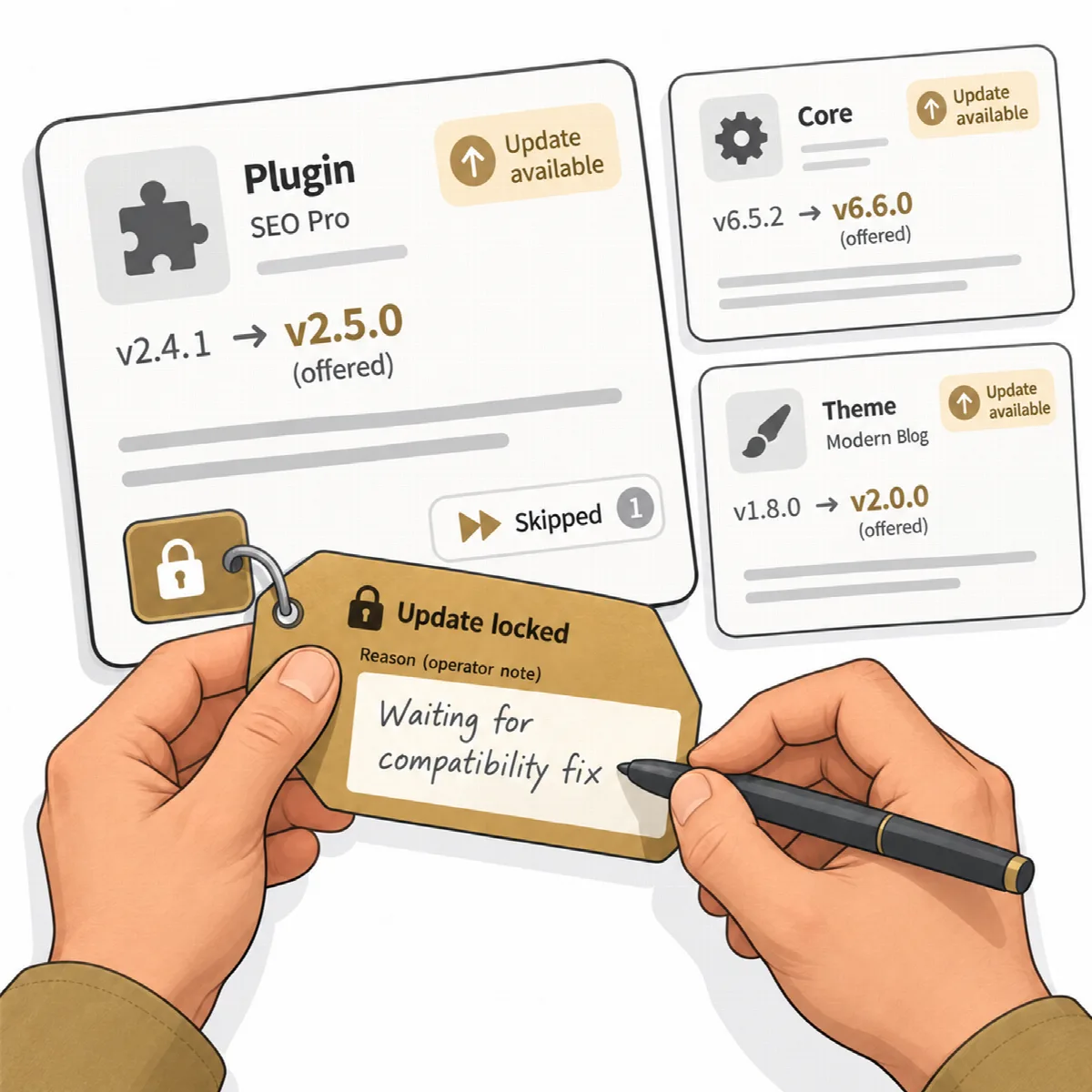
Lock items
- On the site's Updates tab, click Lock updates (or Change lock when something is already locked).
- Tick Lock all updates of this site to lock WordPress core, every plugin and every theme, including ones installed later. Or tick single items under Items: WordPress core, plugins or themes.
- Add a note that explains why, for example "Waiting for a compatibility fix".
- Optionally tick Hide the update offers of locked items in wp-admin.
- Click Apply and confirm.
What the lock does
- Locked items show Locked by operator. They cannot be updated from ARN Connect and are skipped by Update all SAFE.
- On the site, WordPress does not update locked items automatically, and the Agent refuses update commands for them.
- If you chose it, their update offers are hidden in wp-admin, so nobody updates them there by mistake.
- ARN Connect still shows the available updates of locked items, so a security update is not hidden from you.
- The card shows the state on the site and warns when a locked item could still be updated automatically.
Unlocking, or disconnecting the connection that set the lock, restores the site's own behaviour. The Agent never changes the site's own automatic update settings.
On the site, the Agent's screen Settings → ARN Connect lists every locked item with the connection that set it.
Several connections
When several ARN Connect installations are connected to a site, each keeps its own locked items, and an item stays locked while any of them locks it. Items locked by another installation show Locked by another connection; only that installation can unlock them.
Note: A site administrator can still update a locked item another way, for example by uploading a ZIP file in wp-admin. The lock prevents mistakes; it is not access control.