
Cardix needs an active licence. You activate it once, during the installation, with the ARNA activation code from your licence e-mail. The licence is then bound to your installation and to the domain you installed it on.
Activate the licence during setup
- Find your activation code. Your licence e-mail contains an ARNA activation code, for example
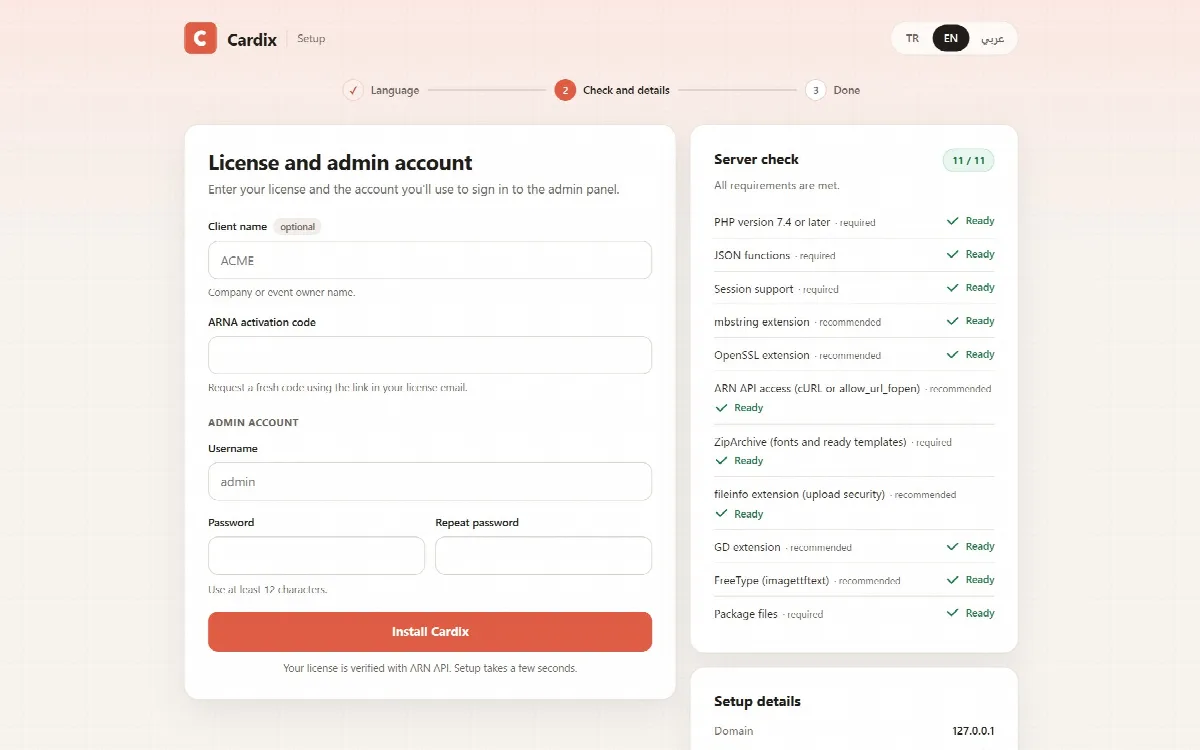
ARNA-XXXX…. The e-mail also has a link to request a fresh code if you need one. - Run the setup. Open
setup.phpof the extracted install package, as described in Install Cardix. - Enter the code. Paste it into ARNA activation code in the License and admin account form, fill in the admin account and click Install Cardix.
- Check the result. Setup verifies the licence with ARN Smart. When the installation is complete, the Cardix is installed page appears.
Setup details on the setup page shows the domain the licence will be bound to. Run the setup on the address Cardix will really use, for example https://cards.example.com/.
An activation code works once
An ARNA code activates one installation. If a later step of the setup fails, setup keeps the signed answer of the activation for one day: run the setup again with the same code within a day and it is not activated a second time. After that, request a fresh code with the link in your licence e-mail.
How Cardix checks the licence
- The admin panel and the drawing of cards check the licence with ARN Smart and keep the signed answer, so not every page contacts ARN Smart.
- License & Updates shows the status of the licence, and Verify now checks it at once. See License & Updates and Get support.
- If ARN Smart's licence server cannot be reached for a while, Cardix keeps working with its last signed answer for a limited time. License & Updates shows until when.
- Requests that arrive under domain names that are not yours do not make Cardix contact ARN Smart for every request; new domain names get at most three checks per minute in total.
When the licence check fails
If the licence is not valid for this installation and domain, for example after it expired or after Cardix was moved to another domain, the admin panel shows License verification failed with the reason, and cards cannot be drawn. Card groups make and publish no new cards either; the cards that already exist stay visible to visitors. Nothing is deleted: your events, designs, cards and data stay on the server.
The page has an Activate the license button. It opens Activate the Cardix license, a page for administrators, in the language of the panel. It asks for:
| Field | What to enter |
|---|---|
| Administrator username | The username of an administrator account |
| Administrator password | Its password |
| Domain | The domain Cardix now runs on; it is filled in for you |
| ARNA activation code | A new activation code: ask for it with the link in your licence e-mail |
An installation that has no key of ARN API yet also shows its two key fields; they are filled in for you. Click Activate the license. When "The license is active on this domain." appears, choose Back to the admin panel. A wrong administrator password on this page counts like a wrong password at the login.
If the page says the code belongs to another licence or customer, or that the signed verification failed, ask ARN Smart support to reset the installation of the licence.
Move Cardix to a new domain
The licence is bound to the domain of the installation. Copy the whole Cardix folder to the new domain, ask for a new ARNA code with the link in your licence e-mail, then open admin.php on the new domain and activate the licence with Activate the license. The old domain stops working. License & Updates describes the same steps, and ARN Smart support can move the licence for you. See License & Updates and Get support.
If activation fails during setup
- Make sure the code is a Cardix code and has not been used for another installation.
- Make sure the server can reach ARN Smart: the server check item ARN API access (cURL or allow_url_fopen) must be Ready.
- Make sure you run the setup on the domain the licence is meant for.
- If the setup says the activation failed, note the error text shown after Setup couldn't finish.
When you contact support, include the error message. Never share your activation code or your admin password in a support request.