
The Statistics screen counts the downloads of your cards. Cardix also deletes collected participant data on its own when its retention period ends.
Where to find it: Statistics in the admin menu.
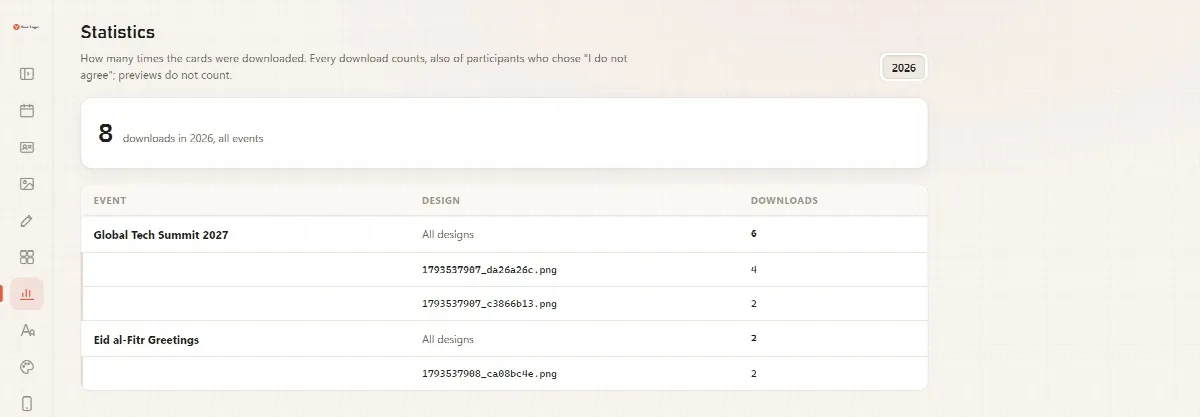
Read the statistics
- Choose the Year.
- The total shows the downloads of that year for all events together, for example "8 downloads in 2026, all events".
- The table shows the Downloads per Event and, under each event, per Design, with a line for All designs. Events that were deleted are marked "deleted".
If there were no downloads in the chosen year, the screen says "No downloads in this year yet."
What counts as a download
- Every download counts, also from participants who chose "I don't agree" for data collection.
- A card made once is reused for downloading, sharing and copying, so it is counted once.
- Previews do not count.
When you delete an event, its download counts stay in the statistics.
How long data is kept
| Data | How long it is kept |
|---|---|
| Collected participant data (name, e-mail, phone) | Until the retention period of its event ends (Keep the records for (days), 90 days by default) |
| Collected rows that no longer belong to an event | 90 days |
| Invitation replies | The retention period of the invitation, counted from the reply or from the invitation date if that is later |
| Business cards | Until you delete the card or its card group |
The admin panel runs this clean-up once a day; participant visits never run it.
Deleting an event, an invitation or a card group asks once, shows how many cards, images, replies and collected data rows go with it, and then deletes all of that data. Its designs and its download counts are kept. An event or invitation with collected data can be deleted by a full administrator only.
Collected data that came in with Import from Cardix 2 stays at least 30 days after the import; see Import your data from Cardix 2.