
An event holds everything participants need to make a card: its fields, its designs, when it is open, its participant page and its data collection settings. Invitations are events of the type Invitation.
Where to find it: Events in the admin menu.
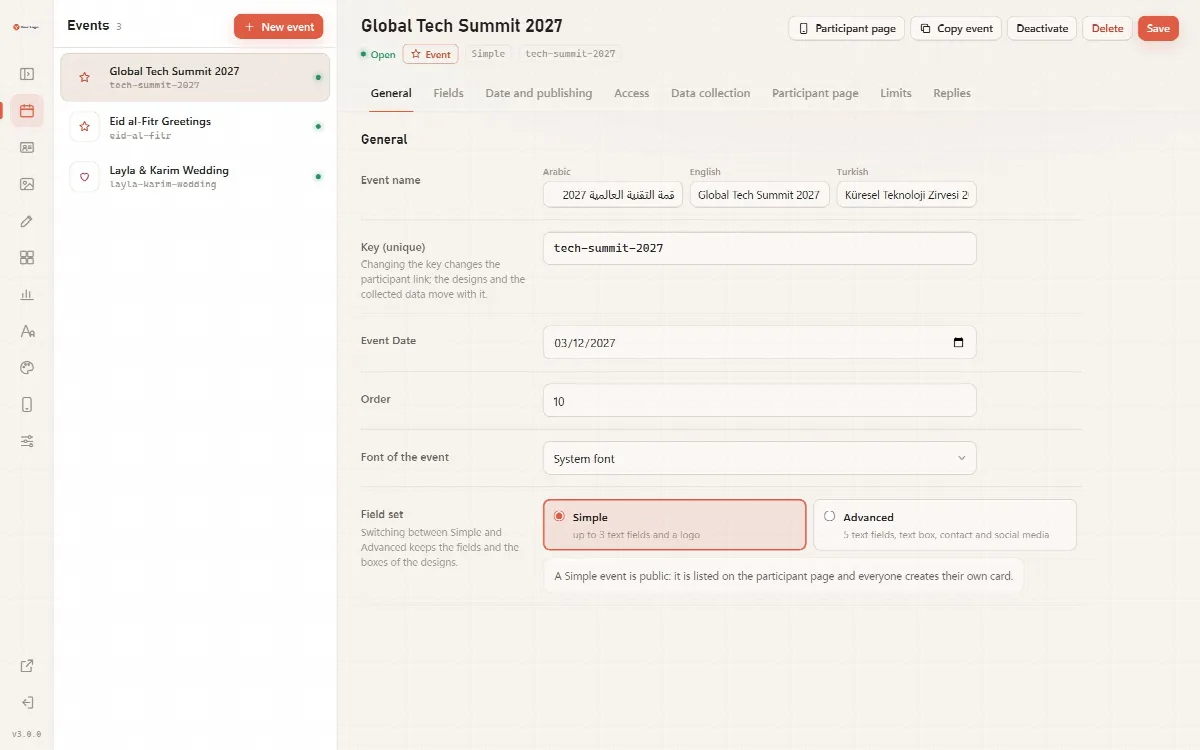
The event list
The left column lists your events and invitations with their name, key and a status mark. Above the list you find New event, the Getting started box of a new installation and reminders, for example when a yearly Hijri event needs the date of its next occurrence.
Click an event to open its settings. The header shows its status, its type (Event or Invitation), its field set and its key, and these buttons:
| Button | What it does |
|---|---|
| Participant page | Opens the participant page of a public event in a new tab |
| Copy event | Makes a copy with every setting, field and design |
| Activate or Deactivate | Switches the event on or off |
| Delete | Deletes the event after one confirmation |
| Save | Saves the settings of all tabs |
The settings are split into tabs: General, Fields, Date and publishing, Access, Data collection, Participant page, Limits and, for invitations, Replies.
Event status
| Status | Meaning |
|---|---|
| Open | Participants can use the event now |
| Open until (date) | Open, and it closes after that day |
| Opens on (date) | Scheduled; it opens on that day |
| Opened early, until (date) | A yearly event you opened before its time |
| Ended on (date) | The date range or this year's occurrence is over |
| Closed: the next date is missing | A yearly Hijri event without the date of its next occurrence |
| Switched off | Closed in every mode until you activate it again |
Create an event
- Click New event.
- Enter the Key (unique), for example
eid2025. Use lower-case letters, digits,-and_. The key is part of the participant link. - Enter the Event name.
- Choose the Field set: Simple or Advanced. See Set up the fields of an event.
- Click Create event.
A new event is switched on, open while it is switched on, and uses the Bright appearance. It has one text field with the label "Name".
General settings
| Setting | What it controls |
|---|---|
| Event name | The title in Arabic, English and Turkish. A title written in only one language is used for all three until you set the others |
| Key (unique) | The key in the participant link. Changing it changes the link; the designs and the collected data move with it |
| Event Date | An optional date of the event |
| Order | The position of the event on the participant page |
| Font of the event | The font of the event's texts; System font uses the default font of the Design screen |
| Field set | Simple or Advanced. Switching keeps the fields and the boxes of the designs |
| Type | Advanced events only: Event (public, listed on the participant page) or Invitation (private link, one invitation page for all guests) |
| Design orientation | Advanced events only: From the design image, Portrait or Landscape. A design that does not match is reported in the editor |
When you change the key, Cardix also moves the event's designs, collected data, download counts, saved cards, invitation replies and limits to the new key.
Copy an event
Copy event copies all settings, fields and designs. The copy gets the key of the original with -copy added and "(copy)" after its name. It starts switched off and, for an invitation, without a private link. Switch it on when it is ready.
Switch an event off
Deactivate closes the event in every publishing mode: participants see that it is not open, and no cards are made for it. Activate opens it again according to its Date and publishing settings.
Delete an event
Delete asks once and lists what is deleted with the event and cannot be restored:
- its cards and their images (their card pages and e-mail signatures stop working);
- its invitation replies;
- its rows of collected data.
The designs of the event stay on the server, and its download counts stay in the statistics, marked as deleted.
An event that has collected data (rows or invitation replies) can be deleted by a full administrator only. A Designer sees a message instead: export the data first if you need it, or ask a full administrator. While an event has collected data, only a full administrator can also shorten Keep the records for (days), or move the date of an invitation with replies earlier or take it away. See Administrator accounts and roles.
A practical event workflow
- Create the event with its key and its names in Arabic, English and Turkish.
- Choose Simple or Advanced and set the label and the language of each field.
- Choose when it opens, for example every year on 1 Shawwal.
- Upload the designs on the Templates screen and place the boxes in the Template Editor.
- Switch on data collection if you need contact details, and write the consent text.
- Open the participant page, make a test card and share the link.