
Cardix runs on a public server, so its admin panel and its pages have protections built in. Cardix 3 went through security reviews by reviewers who did not write the code, with follow-up reviews after the fixes.
Administrator accounts
- The owner account is created during setup; you choose its username and password there. A full administrator can add more accounts with the roles Full administrator, Designer and Data. See Administrator accounts and roles.
- Passwords have at least 12 characters. Every account changes its own password on My account.
- An account can be signed in from several browsers at once. Changing its password ends its other sessions; deleting an account ends its sessions at their next request.
- The role is checked on the server for every action, and screens outside the role are not sent to the browser.
- The admin session is bound to the installation: a session or a copied cookie from another Cardix installation gives no access.
Limits on wrong passwords
Wrong passwords are limited per connection, per network and per username, so nobody can try passwords endlessly.
- One network: 10 wrong passwords for a username from one network within 15 minutes make new browsers on that network wait 15 minutes.
- The username: when a username gets wrong passwords from 10 different networks, or 200 wrong passwords in total, within an hour, new browsers wait before they can try again: 1 minute, doubling each round up to 1 hour.
- Known devices: a browser that has signed in successfully gets a "known device" cookie for 90 days and does not wait. The cookie belongs to that account and stops working when the account's own password changes.
- Unknown usernames: a username that does not exist takes as long to check as a wrong password, so the login page does not tell which usernames exist.
The login page says how long to wait, for example "Too many tries from this connection. Try again in 15 min." While a username waits, Forgot your password? still works.
Forgot your password?
Forgot your password? sets a new password for the owner account. To use it you need access to the files of the installation (FTP or the file manager of your hosting). A full administrator gives the other accounts a new password under System → Accounts.
- On the login page, click Forgot your password?.
- Click Create a code. The page shows a file name, for example
cardix-reset-XXXXXXXX.txt. - In the Cardix folder (where
admin.phpis), create an empty file with exactly that name, with FTP or your hosting file manager. - Back on the page, enter the New Password twice (at least 12 characters) and click Set the new password. The code works once, for 30 minutes.
- Sign in with the new password. You can delete the empty file afterwards.
If the page says "The file was not found in the Cardix folder.", check the name and the folder of the file. If the code has expired, create a new code.
Trusted proxy servers
If your site is behind a CDN or a load balancer, for example Cloudflare, all visitors seem to come from the addresses of that service. Enter those addresses so that the limits count each visitor, not the proxy:
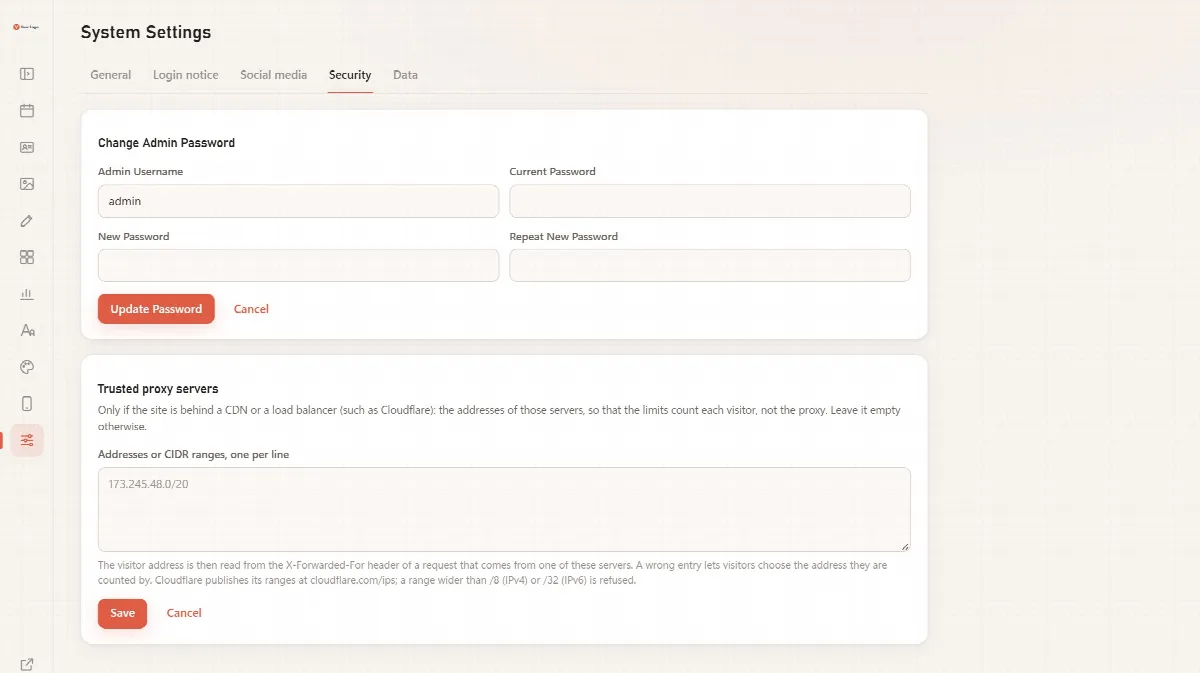
- Open System → Security.
- Under Trusted proxy servers, enter the addresses or CIDR ranges of your proxy servers, one per line (at most 20).
- Click Save.
The visitor address is then read from the X-Forwarded-For header of requests that come from these servers. A range wider than /8 (IPv4) or /32 (IPv6) is refused, because it would let visitors choose the address they are counted by. If your site is not behind a proxy, leave the list empty; without the list, forwarded addresses are never read.
The picture below shows Cardix 3.0.0; since Cardix 3.1.0 the password form is on My account and the Security tab holds the trusted proxy servers.
Protected data folders
Setup gives the data folders random names that cannot be guessed and protects them with .htaccess files. On servers that do not apply .htaccess files, usually Nginx, the panel shows a warning with the lines to add to the server configuration. See Install Cardix.
Other protections
- Browser protections: all pages send a Content Security Policy and other security headers and contain no inline scripts.
- No error details: public pages and the admin entry points never show PHP error details or server paths.
- Closed internal files: Cardix's internal PHP files return an empty "not found" page when opened directly.
- Checked uploads: uploaded images are checked and re-encoded; fonts with a damaged character map are rejected.
- No IP addresses stored: limits count visitors under keyed hashes that cannot be turned back into IP addresses.
- Private links: random, renewable and closed to search engines and caches. Each card's images sit in a random folder that runs no PHP.
- Signed updates: updates are signed by ARN Smart, and an update to the same or an older version is refused. Once Cardix has received a version with the publisher signature of ARN Smart, it refuses versions without one.
- Safe import: the import of Cardix 2 data never runs anything from the ZIP, takes only the data files of Cardix, checks images and fonts before it writes them, and is for full administrators only.
- Hidden designs: a design hidden from participants moves to a folder only the admin panel knows.
Known limitations
- Limits per person count by network address: people who share one internet connection (the same IPv4 address or the same IPv6 /64 network) share one counter.
- While someone is guessing the password of your admin username from many networks, a browser that has never signed in may have to wait up to one hour. Browsers that have signed in before, and Forgot your password?, still work.
- If you add a PIN to an invitation or a card group later, visitors who had already opened its private link keep access until you click Renew link.