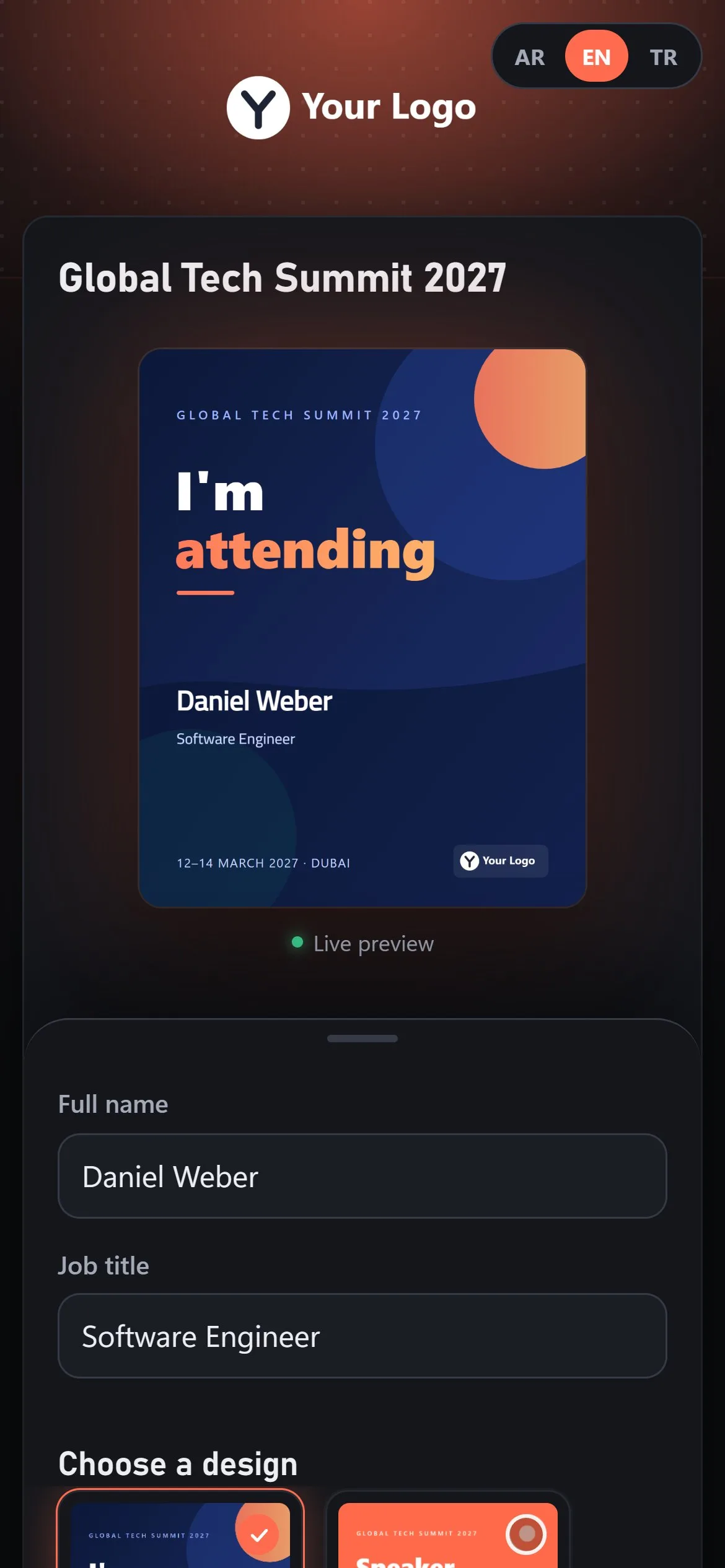
Two screens put your brand on Cardix: Design for the fonts, colours, images and logos, and PWA / Mobile App for the app that participants can add to their home screen.
The Design screen
Where to find it: Design in the admin menu (Design Settings). Each box has its own Save or Upload button.
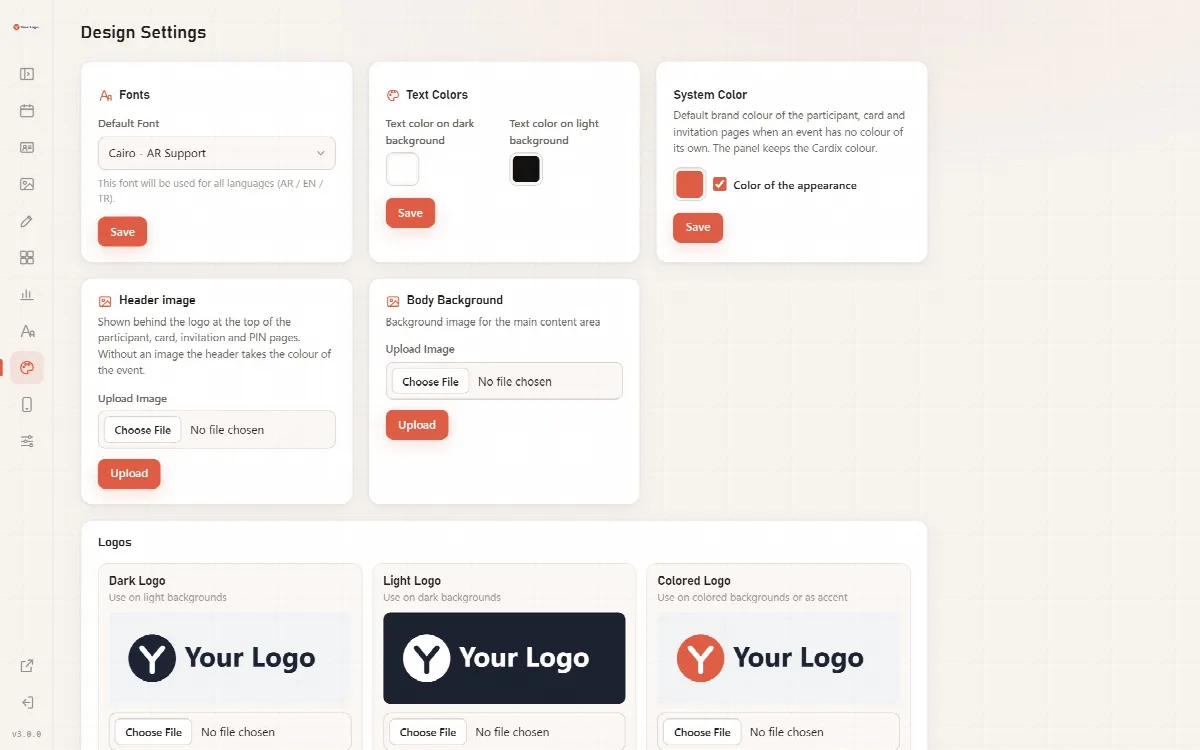
| Box | What it sets |
|---|---|
| Fonts | The Default Font, used for all languages (AR / EN / TR) wherever no other font is chosen |
| Text Colors | Text color on dark background and Text color on light background, used by the Text Variant of designs |
| System Color | The default brand colour of the participant, card and invitation pages when an event has no colour of its own. The panel keeps the Cardix colour |
| Header image | The image behind the logo at the top of the participant, card, invitation and PIN pages. Without an image, the header takes the colour of the event |
| Body Background | A background image for the main content area |
| Logos | Dark Logo (for light backgrounds), Light Logo (for dark backgrounds) and Colored Logo (for coloured backgrounds or as an accent) |
Where the logos are used
- The Logo field of an event draws a logo on the card; its System logo setting picks the Normal, Light or Dark version.
- The Logo Variant of a logo box in the Template Editor picks Auto, Dark, Light, Colored or None.
- The top area of the participant pages shows a logo; on a header image the Light Logo is used when there is one.
The login page and the menu of the admin panel show the Admin Panel Logo of System → General, or without it a logo of the Design screen. Until you upload a logo, they show the Cardix logo. See System settings, languages and panel theme.
The installable app (PWA)
The participant page can be added to the home screen of a phone like an app. The app opens the participant page and always loads the current events and designs. It works online only.
Where to find it: PWA / Mobile App in the admin menu.
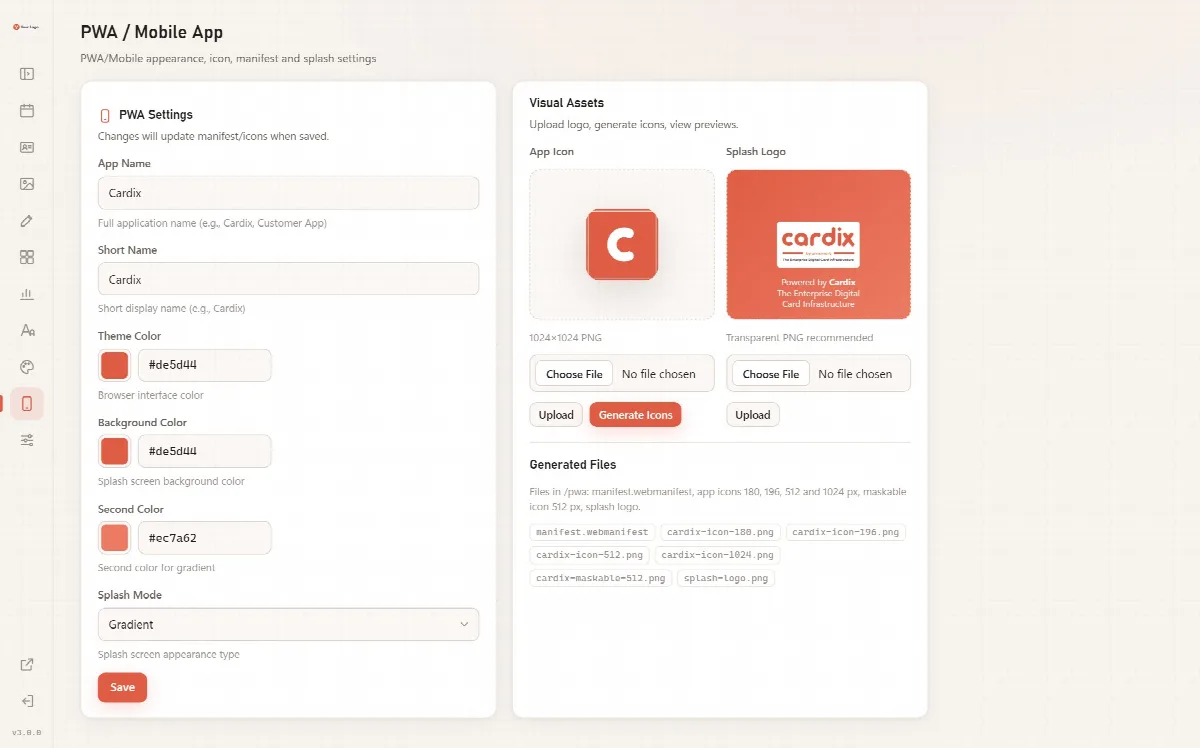
PWA Settings (changes update the manifest and the icons when you save):
| Setting | What it controls |
|---|---|
| App Name | The full name of the app, for example "Cardix" or "Customer App" |
| Short Name | The short name under the icon |
| Theme Color | The colour of the browser interface |
| Background Color | The background of the splash screen |
| Second Color | The second colour of a gradient splash screen |
| Splash Mode | Gradient or Solid |
Visual Assets:
- Under App Icon, upload a square image (1024 × 1024 px PNG is suggested) and click Upload.
- Click Generate Icons. Cardix makes every icon size the app needs.
- Under Splash Logo, upload the logo of the splash screen (a transparent PNG is recommended).
Generated Files lists the files Cardix writes in the pwa folder: manifest.webmanifest, the app icons of 180, 196, 512 and 1024 px, a maskable icon of 512 px and the splash logo. A new installation starts with the Cardix icons and colours.
On the participant's phone
The participant pages are built for phones first: the card, the form and the designs stack in one column. Participants add the page to their home screen from their browser's menu.