
A card group holds the business cards of a team, for example the employees of a company. Each person fills in their details once and gets a card image, a card page with a QR code, an e-mail signature and a contact file.
Where to find it: Cards in the admin menu.
Create a card group
- Open Cards and click New group.
- Enter the Group name and the Key (unique) (lower-case letters, digits,
-and_). The private link of the group is random and does not contain the key. - Choose the Type. Today the type is Business card: name, title, company and contact details, with a card image, a card page, an e-mail signature and a contact file.
- Click Create group. Then add its designs on the Designs tab.
The group header
| Button | What it does |
|---|---|
| Copy link | Copies the private link of the group |
| Copy group | Makes a copy of the group with its settings, fields and designs; the copy starts switched off and without a private link |
| Switch on or Switch off | Opens or closes the group. A group has no publishing dates: its link works while it is switched on |
| Delete | Deletes the group after one confirmation, with its cards and their images |
| Save | Saves the Fields and Settings tabs |
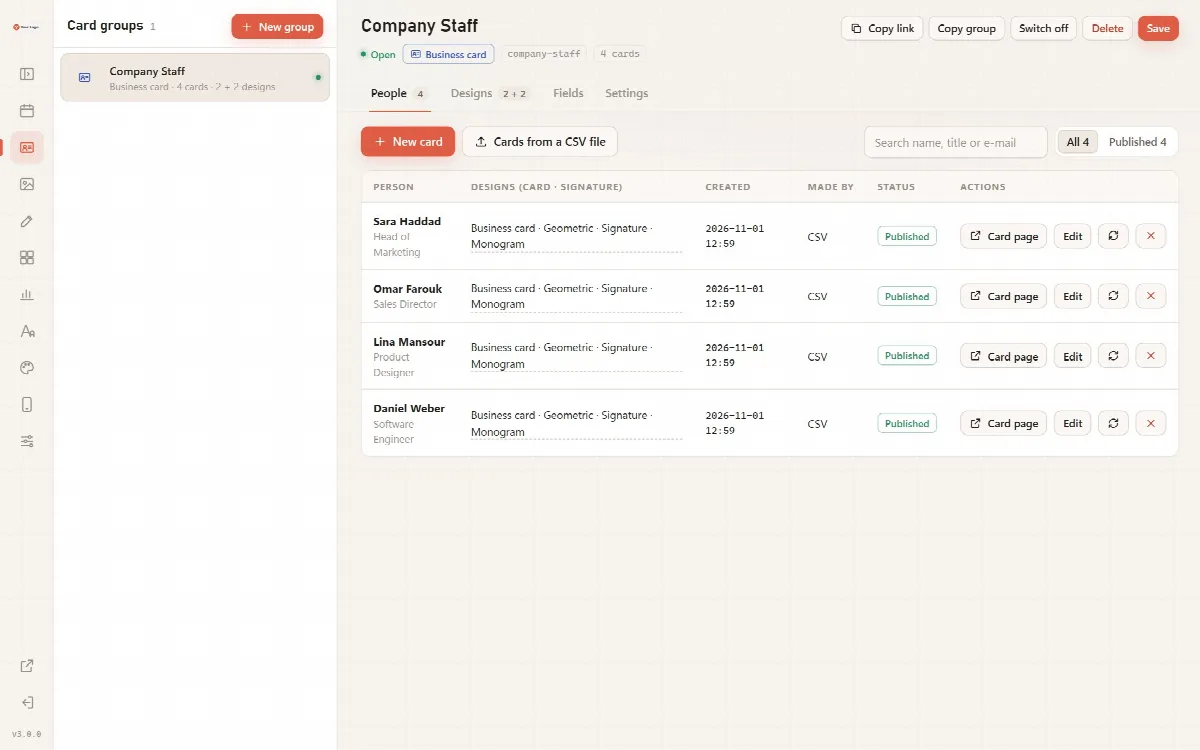
A group opens in four tabs: People, Designs, Fields and Settings.
People
The People tab lists the stored cards of the group, ten per page.
- New card makes a draft card and opens it on the participant page, where you fill it in.
- Cards from a CSV file imports many people at once. See Create cards from a CSV file.
- Draw N cards appears when cards wait to be drawn, for example after an import or after you changed someone's designs.
- Search by name, title or e-mail, and filter by status.
| Column | What it shows |
|---|---|
| Person | Name and details of the person |
| Designs (card · signature) | The business card and e-mail signature designs of this person; click to change them |
| Created | When the card was made |
| Made by | Participant, Administrator or CSV |
| Status | Published, Waits for approval, Not drawn yet or To be drawn again |
| Actions | Approve, Card page, Edit, New edit link and Delete |
New edit link makes a new private edit link for a card; the old one stops working. Delete closes the card page and deletes the signature images, so the signature in e-mails that were already sent can no longer be seen.
Designs
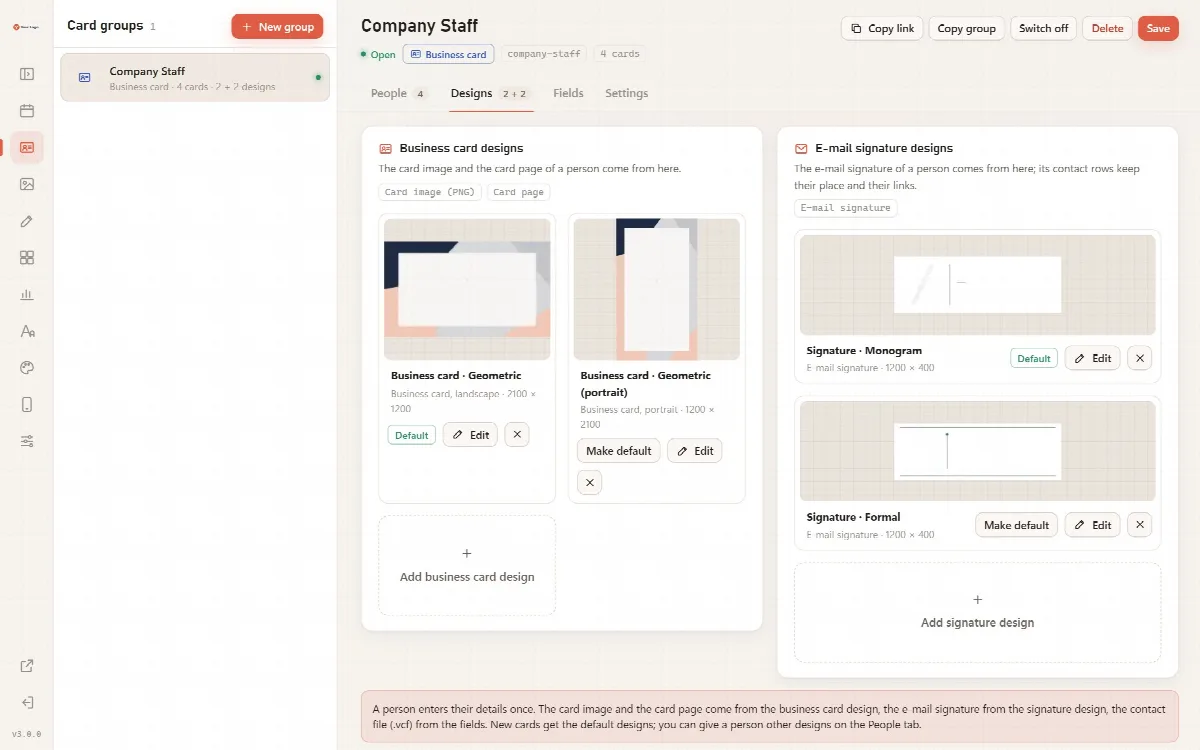
The Designs tab has two lists: Business card designs (the card image and the card page come from here) and E-mail signature designs. Each list has a Default design; new cards get the defaults. Use Make default, Edit and Delete under each design, and Add business card design or Add signature design to add one.
Designs are assigned by the administrator. Participants do not choose a design. To give one person other designs, click the designs of that person on the People tab; their card is drawn again with Draw cards.
See Add designs from uploads, blank and ready templates.
Fields
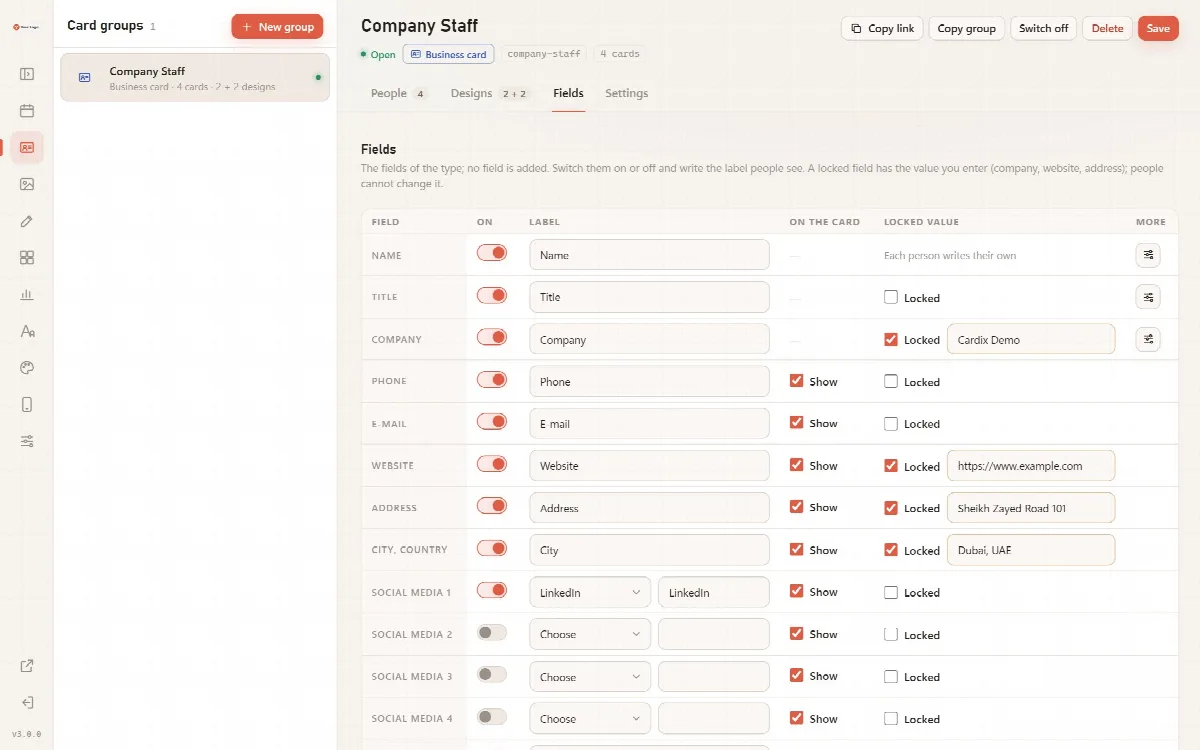
The Fields tab lists the fields of the type; no field is added. For each field:
| Column | What you set |
|---|---|
| On | Whether people fill in the field. The name is always on |
| Label | The label people see |
| On the card | Whether the value is drawn on the card |
| Locked value | A value for everyone, for example the company, the website or the address. People cannot change it |
| More | Language, direction, font and text style |
Name, title and company go into the contact file (.vcf) by themselves. Social media and the address may be left empty; an empty field is not drawn.
Settings
| Box | Settings |
|---|---|
| General | Group name, Key (unique) and Font of the group |
| Access | The private link with Copy, Open and Renew link, Protect with a PIN, and New cards wait for my approval |
| Card page | Appearance (Bright or Night), Language of the page and Main color of the group's pages |
| Keeping the details | Ask people "I agree / I don't agree", the information to keep and Keep the records for (days) |
| Limit of the group | Cards at most (1,000 by default) and Space for their images (MB) (2,048 MB by default) |
With New cards wait for my approval switched on, the card page and the e-mail signature of a new or changed card open only after you click Approve on the People tab.
Limits of a group
- A full group saves no new card. The panel shows the cards and megabytes in use and warns when the group is almost full (at 90%).
- Many new cards in one hour are slowed down to protect the server.
- The same card cannot be saved twice: "A card with these details already exists."
- While the licence is not valid, a card group makes and publishes no new cards; the cards that already exist stay visible to visitors.
A practical business card workflow
- Create a card group and lock the company, the website and the address on the Fields tab.
- Add a business card design and an e-mail signature design, for example from the ready templates.
- Place the name, title, contact block and logo in the Template Editor.
- Import your staff from a CSV file, or share the group's private link.
- Send each person their edit link; they paste the signature into their e-mail program and share their card page.