
A design is the background image of a card. Events and invitations use uploaded images or ready templates. Card groups can also start from a blank template that you design in the editor.
Designs of events and invitations
Where to find it: Templates in the admin menu.
- Choose the event at the top of the screen to see its designs.
- Click Upload Templates.
- Under Select Event, choose the event or invitation.
- Under Template Images (PNG/JPG), choose one or more PNG or JPG images.
- Click Upload.
The designs appear as large thumbnails, eight per page, each with Edit (opens it in the Template Editor) and Delete. Use the refresh button next to the event list to reload them.
Good to know:
- Uploaded designs keep their own resolution. Only a long side above 3000 px is reduced to 3000 px. Downloaded cards have the real size of the design.
- An event takes up to 50 designs.
- If the event has a Design orientation (Portrait or Landscape), images of the other shape are uploaded with a warning, for example "2 images are landscape; this event is portrait."
- The first design of an event is its cover image on the participant page.
- The designs of card groups are not on this screen; they are added on the Cards screen.
Hide a design from participants
Untick Show to participants on a design to keep it out of the participant page: it is not offered, and no cards are made with it for participants. It stays in the panel and in the Template Editor, so you can finish it first. While it is hidden, its image and preview move to a folder only the admin panel knows; they come back when you show the design again.
You can also copy an event card template from Ready templates into an event or an invitation. See Use ARN's ready templates.
Designs of card groups
Where to find it: Cards → your group → Designs tab. The Template Editor has the same dialog under Add template.
- Click Add business card design or Add signature design.
- In the Add template dialog, check the Group and choose the Template type: E-mail signature, Business card, landscape or Business card, portrait.
- Under From where, choose Blank template, Upload an image or Ready template.
- Fill in the details of the source (see below).
- Click Add and open in the editor. The design opens in the Template Editor.
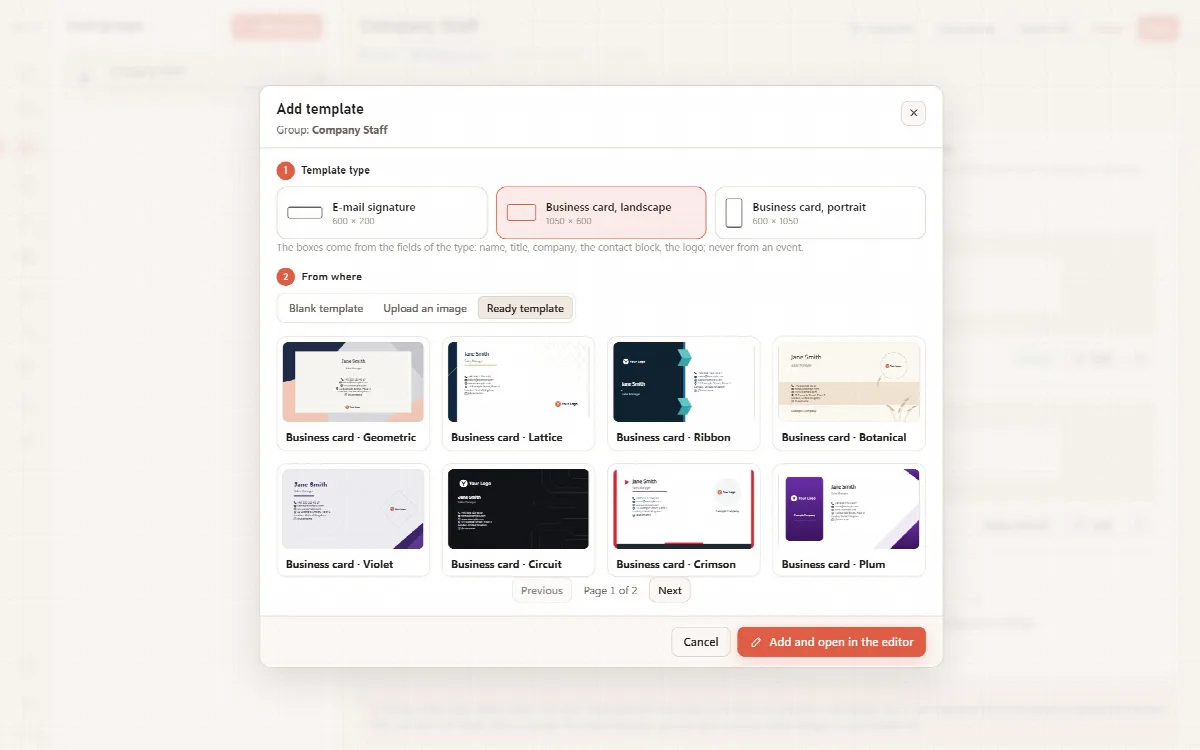
The boxes of a card group design come from the fields of the group type: name, title, company, the contact block and the logo.
Suggested sizes
Each template type starts with a suggested size:
| Template type | Suggested size |
|---|---|
| E-mail signature | 600 × 200 px |
| Business card, landscape | 1050 × 600 px |
| Business card, portrait | 600 × 1050 px |
The three sources
| Source | What you set |
|---|---|
| Blank template | Width and Height (100 to 4000 px; the type's size is filled in) and a Background colour. The card is drawn at two times this size, so it stays sharp |
| Upload an image | Design image (PNG or JPG). An image of the other shape, for example a landscape image as a portrait card, is kept with a warning |
| Ready template | One of ARN Smart's ready templates of the chosen type. If the ready templates are not installed yet, the dialog tells you so |
Default designs
Each group has a default business card design and a default e-mail signature design. Click Make default under a design to make it the default: new cards get it. You can give a person other designs on the People tab. When you delete a design, cards that use it get the default design when they are drawn again.