
When the card is ready, the participant page offers the buttons that work best on the device the participant uses.
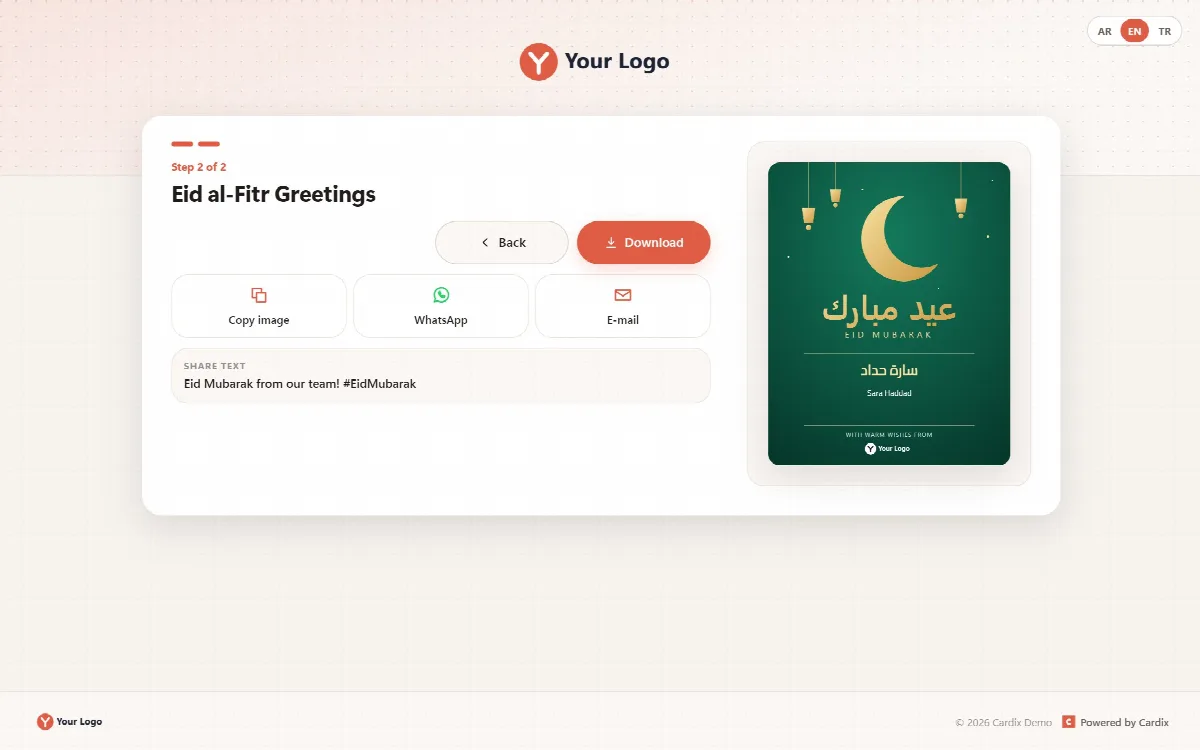
Buttons by device
| Browser | Buttons |
|---|---|
| A browser that can share the card file (phone, tablet, and also some computers) | Share (sends the card image through the device's share menu) and Download |
| A phone browser that cannot share files | Download, WhatsApp and E-mail |
| Other screens | Download, Copy image, WhatsApp and E-mail |
Buttons the browser does not support stay hidden.
- Share: on some devices the card is prepared first; the page then says "Your card is ready. Tap Share once more."
- Copy image: copies the card image so the participant can paste it into a message. If the browser does not allow it, the page suggests downloading the card instead.
- WhatsApp and E-mail open a message with the event's share text.
Share text and hashtag
The Share text box under the buttons shows the text that goes with shared messages: the event's share text, its hashtag and the link of the public page. Copy text beside it copies the text, so the participant can paste it next to the card. Set them on Events → your event → Participant page (Share text and Hashtag); a public event without its own share text uses the default share text of System → Participant texts.
A private link is never put into a shared message. In a card group, sharing shares the person's card page, never the group's private link.
Downloaded files
- The card has the real size of the design.
- The file gets a readable name and a short code that changes with every download, for example
ahmet-yilmaz-bayram-7f3a9c.png.
Drawn and counted once
A card made once is reused for downloading, sharing and copying, so it is drawn and counted only once in the statistics. Previews do not count. See Download statistics and data retention.