
In a card group, every person can get an e-mail signature next to the business card. Cardix draws the signature from a signature design of the group and cuts it into image slices, each contact line with its own link.
Add a signature design
- Open Cards → your group → Designs and click Add signature design.
- The template type is E-mail signature. Choose Blank template, Upload an image or Ready template. A new signature starts at 600 × 200 px; the ready signature templates use the same size.
- Click Add and open in the editor.
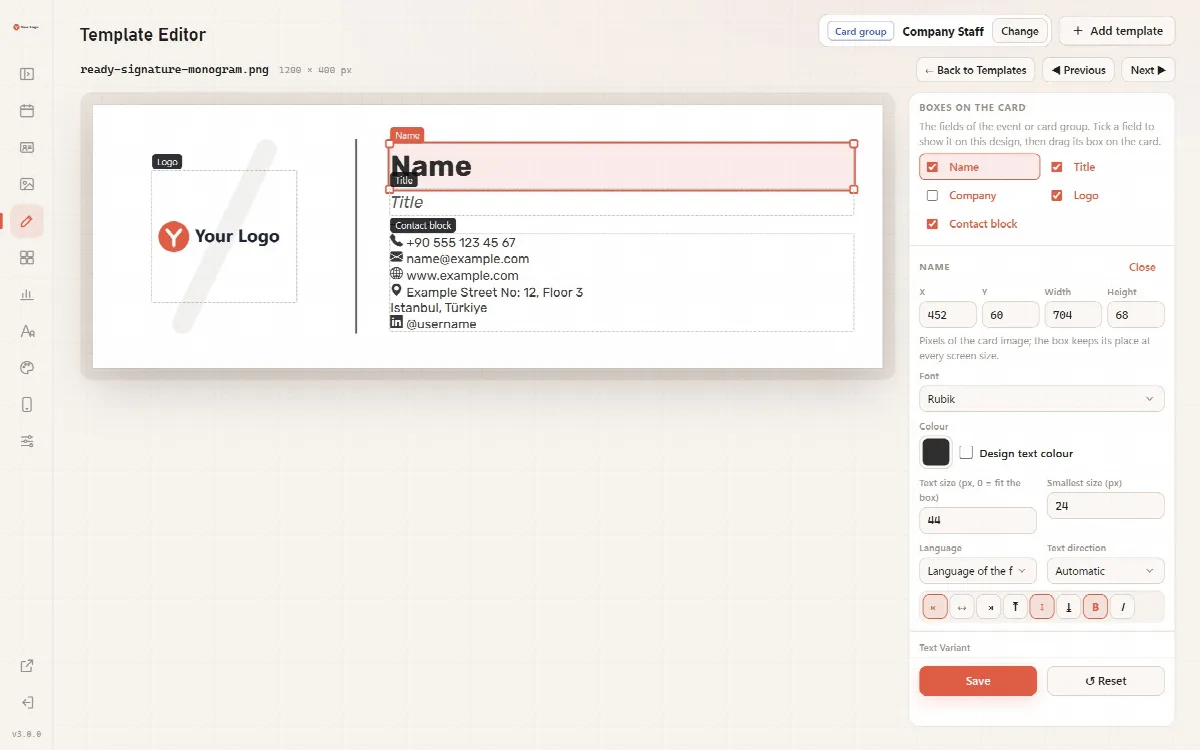
- In the Template Editor, tick the name, the title, the Contact block and the logo under Boxes on the card, place them and click Save.
- Back on the Designs tab, use Make default if new cards should get this signature.
Signature designs are edited like any other design. Blank designs and signature images are drawn at double resolution, so they stay sharp on high-density screens.
What each person gets
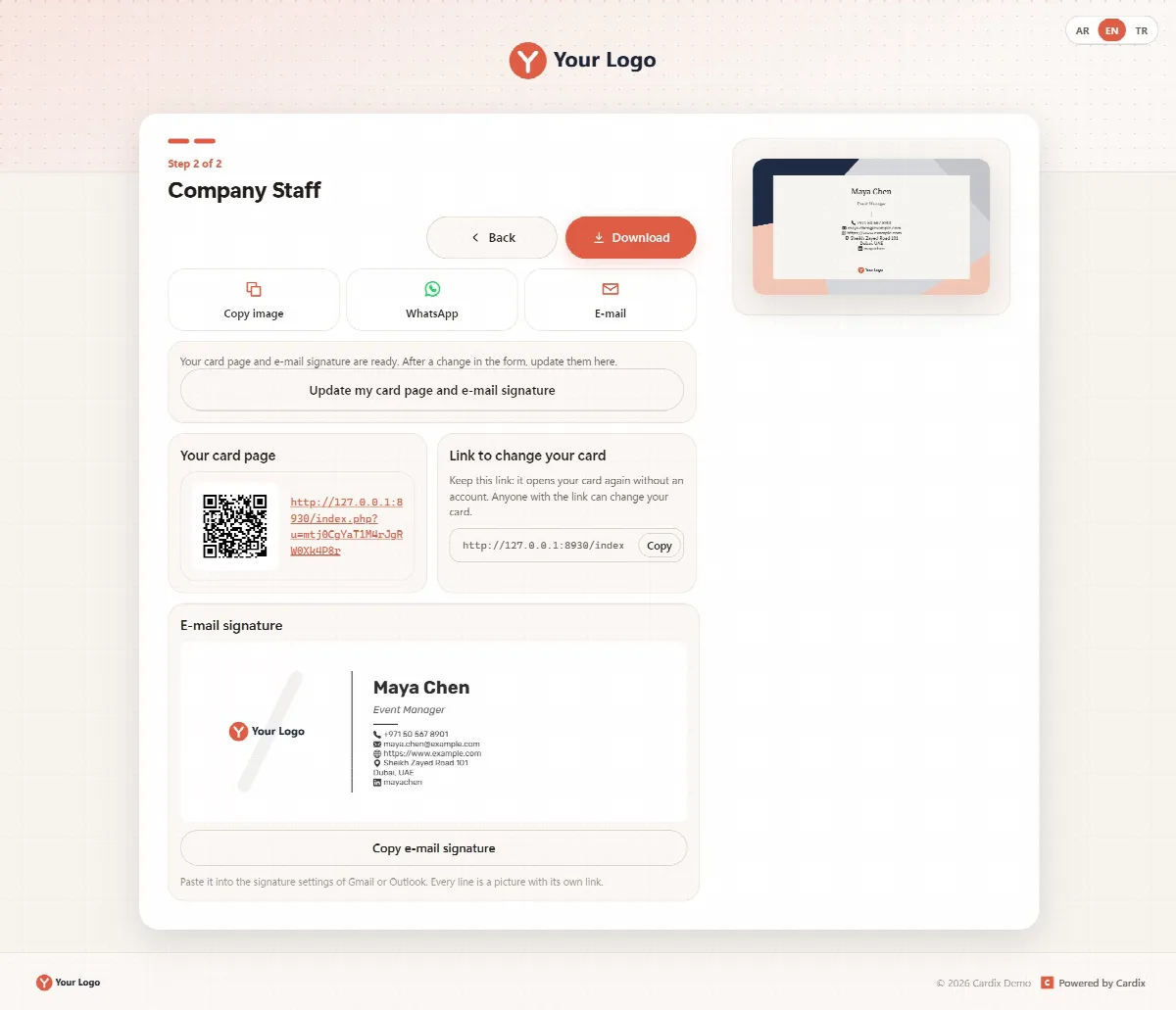
When a person saves the card with Create my card page and e-mail signature (see How people make their own business card), the result panel shows the E-mail signature with a Copy e-mail signature button:
- Click Copy e-mail signature. The signature is put on the clipboard.
- Open the signature settings of your e-mail program, for example Gmail or Outlook, and paste it.
- Save the signature in the e-mail program.
If copying does not work in the browser, the panel says so: "Copying did not work; select it and copy it."
How the signature is built
- The whole signature design is an image cut into slices.
- Each contact line is its own slice with its own link: phone, e-mail, website, social profile or a map search for the address. Its value is the alternative text of the slice.
- Because the signature is made of images, its fonts do not depend on the recipient's computer.
- Only the contact details set to show on the card are included.
Updates and deletion
- The signature images are loaded from your Cardix server when the recipient opens the e-mail.
- When the person saves the card again, Cardix writes the new images to the same addresses, so signatures in e-mails already sent show the new version. If the contact lines changed, an older signature may not line up exactly with the new images.
- When you delete a card, its signature images are deleted too and no longer appear in e-mails that were already sent. The panel warns you before deleting.
Related articles
Still stuck?
Ask the community