
Every event has its own fields: the inputs participants fill in and the texts that appear on the card. The field set decides which fields are available; each field then has its own settings.
Where to find it: Events → your event → Fields tab. The field set is chosen on the General tab.
Simple and Advanced
| Field set | Fields |
|---|---|
| Simple | Up to 3 text fields and a logo. A Simple event is always public: it is listed on the participant page and everyone creates their own card |
| Advanced | 5 text fields, a text box, the logo, phone, e-mail, website, address, city and country, 4 social media fields, and a design orientation. Only an Advanced event can be an invitation |
Switching an event between Simple and Advanced keeps the fields you have already set and the boxes of its designs.
The fields
The Fields tab groups the fields:
| Group | Fields | Longest value |
|---|---|---|
| Text fields | Text field 1 to Text field 5 | 30 characters |
| Text box and logo | Text box; Logo | 200 characters for the text box |
| Contact (Advanced) | Phone, E-mail, Website, Address, City, country | Phone 30, e-mail and website 100, address 120, city 60 |
| Social media (Advanced) | Social media 1 to Social media 4 | 60 characters |
Switch a field on with its switch; its settings then appear. At least one field must be switched on for participants.
Settings of a field
| Setting | What it controls |
|---|---|
| Label | The label participants see above the input (up to 60 characters) |
| Label in each language | The label in English, Turkish and Arabic; participants see the one of the page language. An empty one shows the Label |
| Participants may leave it empty | Makes the field optional; without the tick it is required |
| Language | Any language or one of 54 languages. It sets the letters the font is checked against |
| Text direction | Automatic, Right to left or Left to right |
| Font | Font of the event or any installed font |
| Text style | As written, Capitalize Each Word, UPPER CASE or lower case |
| Platform | For social media fields: Instagram, X, Facebook, TikTok, Snapchat or LinkedIn |
| System logo | For the logo: Normal, Light or Dark. The logos themselves are uploaded on the Design screen |
| Show on the card | For contact and social media fields: whether the value is drawn on the card |
| Locked field | The value you enter is used for every participant |
Language, text direction, font and text style are available for text fields and the text box.
Locked fields
Tick Locked field and enter the value in Value (participants cannot change it), for example your company website or the names of a couple on an invitation. Participants see the field already filled in and cannot change it.
The value is checked according to the field type. Cardix tells you when an e-mail address, a web address or a phone number is not valid, and when a locked field has no value.
Required and optional fields
Every field can be required or optional: tick Participants may leave it empty to make it optional. By default the text box, the social media fields and the address fields are optional and the other fields are required. An empty field is not drawn on the card, and optional fields are marked "(optional)" on the form.
To tell participants what to write in each field, use Instructions on the Participant page tab. See The participant page and its settings.
A practical example
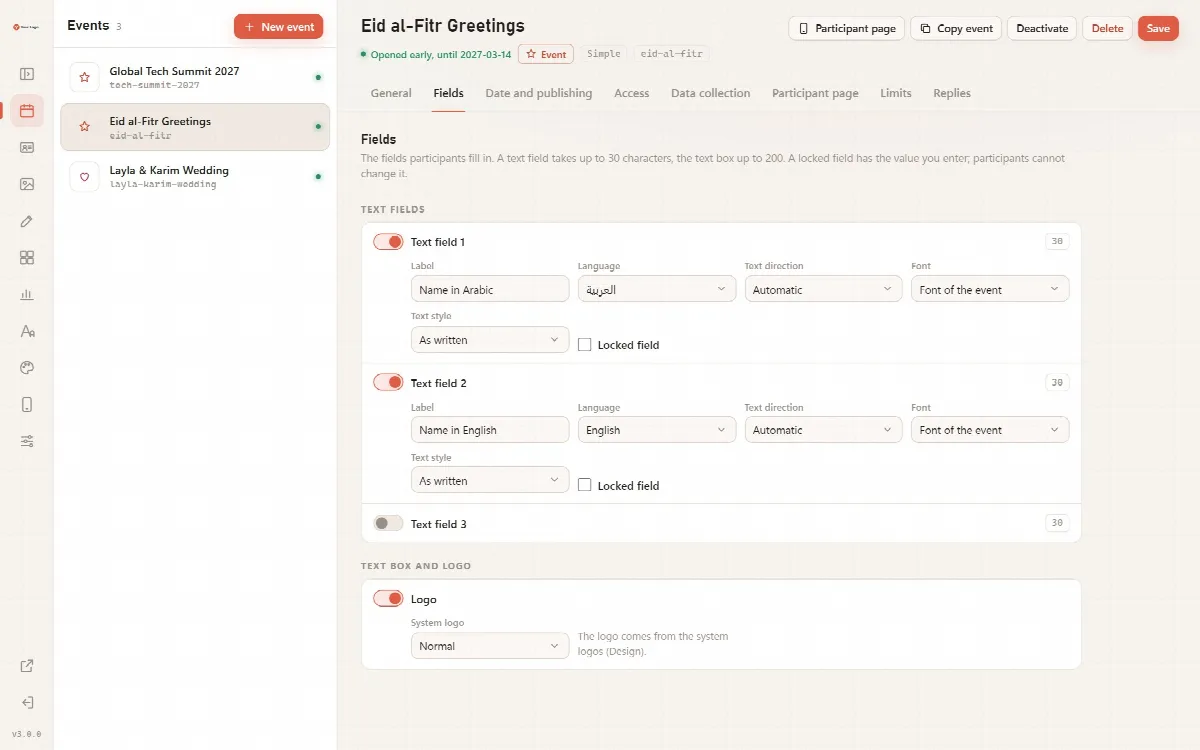
A greeting card in two languages:
- Choose Simple.
- Switch on Text field 1: label "Name in Arabic", language Arabic.
- Switch on Text field 2: label "Name in English", language English.
- Switch on the Logo and choose the System logo version that suits the design.
- Click Save, then place the boxes in the Template Editor.