
Each event decides when participants can use it. A yearly event, such as an Eid greeting, opens and closes by itself every year.
Where to find it: Events → your event → Date and publishing tab.
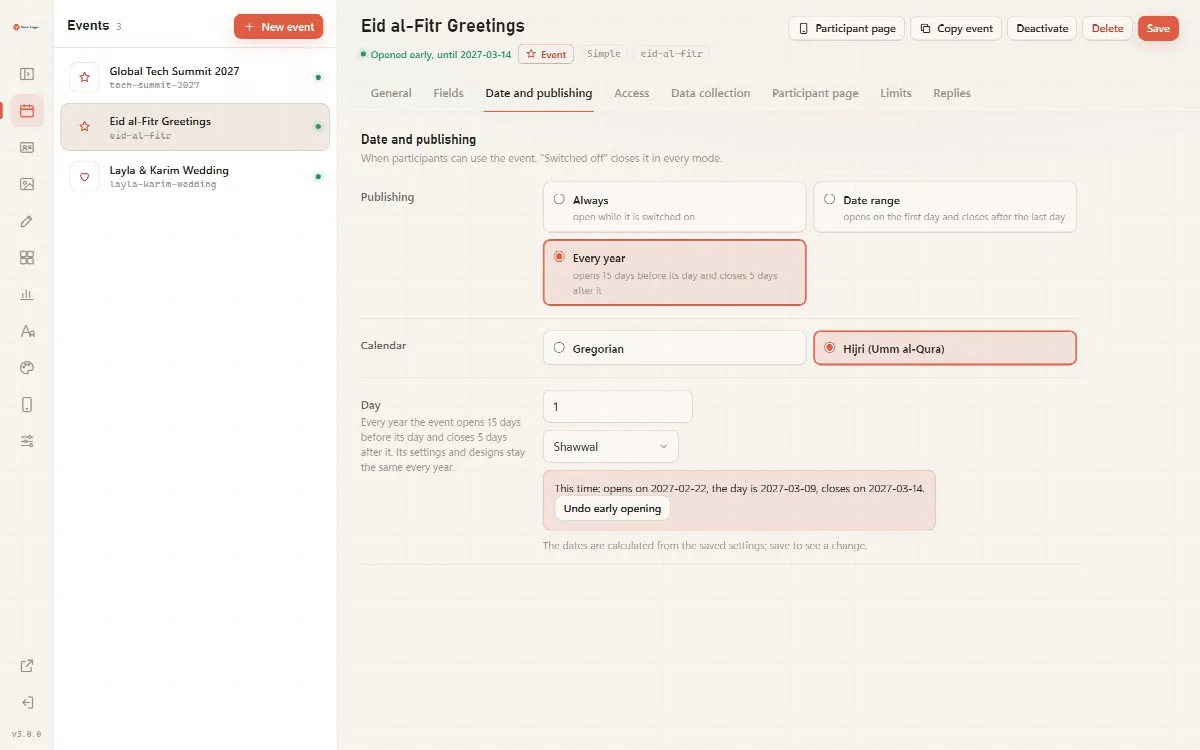
Publishing modes
| Publishing | When the event is open |
|---|---|
| Always | While it is switched on |
| Date range | From the First day until the end of the Last day |
| Every year | From 15 days before its day until 5 days after it, every year |
"Switched off" closes the event in every mode. The dates shown on this tab are calculated from the saved settings: click Save to see the effect of a change.
Every year
- Choose Every year.
- Choose the Calendar: Gregorian or Hijri (Umm al-Qura).
- Enter the Day and choose the month, for example 1 Shawwal for Eid al-Fitr.
- Click Save.
The tab then shows the current occurrence, for example "This time: opens on (date), the day is (date), closes on (date)." The event keeps its settings and designs every year.
Hijri dates and the intl extension
With the PHP intl extension on your server, Cardix works out the Gregorian date of the Hijri day every year.
Without intl, Cardix cannot calculate the Hijri date. The tab then shows Date of the next occurrence: enter the Gregorian date of the next occurrence yourself. The event list reminds you when the occurrence is over and again 30 days before the event opens. Until a date is entered, the event shows Closed: the next date is missing.
Open this year's occurrence early
While a yearly event is scheduled, the tab shows Open now. It opens this occurrence before the 15 days; next year the event opens on its own again. Undo early opening takes the event back to its schedule.
Reminders on the event list
The Events screen shows reminders above the list, for example "opens on (date); check the date of this year." or "enter the date of the next occurrence." Click a reminder to open the event.