
Cardix is installed from one install ZIP. The package contains everything Cardix needs, including its fonts and ARN Smart's ready templates, so nothing is downloaded during the installation. The setup page inside the package checks your server and every file, activates your licence and creates the administrator account.
Before you start
- Check the server requirements.
- Have the Cardix install ZIP on your computer. Download it from the link in your licence email.
- Have your licence e-mail with the ARNA activation code at hand.
- Choose the address Cardix will use, for example
https://cards.example.com/or a subfolder such ashttps://www.example.com/cards/. Use an empty folder: setup does not run in a folder that already holds a Cardix installation. - Have FTP access or the file manager of your hosting.
Upload the package
- Upload the install ZIP to the folder where Cardix will run.
- Extract it there and keep its folders. The package contains, among others,
setup.php,admin.php,index.php, the foldersdata,client,lang,assetsandpwa, and anINSTALL.txtfile. - Open
https://cards.example.com/setup.phpin your browser right away (in a subfolder,https://www.example.com/cards/setup.php). Do not leave an extracted package waiting for its setup. Until the setup is done, the address of the folder andadmin.phpalso open the setup.
Run the setup
The setup has three steps, shown at the top of the page: Language, Check and details and Done.
- Choose the setup language. Click TR, EN or AR. Setup continues in that language; the Arabic pages read from right to left. You can switch the language later with the switch at the top right.
- Review the server check. The Server check panel lists 11 items, each marked required or recommended, and shows Ready or Missing for each. Package files checks every file of the install ZIP; if a file is missing or changed, for example after an upload that did not finish, its name is shown. Upload the whole ZIP again and extract it.
- Enter the licence and the admin account in the License and admin account form. The fields are described in the table below.
- If only recommended items are missing, tick Install in LIMITED mode. Setup can then continue, but the missing items may affect some features.
- Click Install Cardix. Your licence is verified with ARN Smart; setup takes a few seconds.
| Field | What to enter |
|---|---|
| Client name (optional) | Your company or the event owner. It becomes the site title of the participant pages; without it the title is "Cardix" |
| ARNA activation code | The code from your licence e-mail, for example ARNA-XXXX… |
| Username | At least 3 characters: letters, digits, _, - and . |
| Password and Repeat password | At least 12 characters |
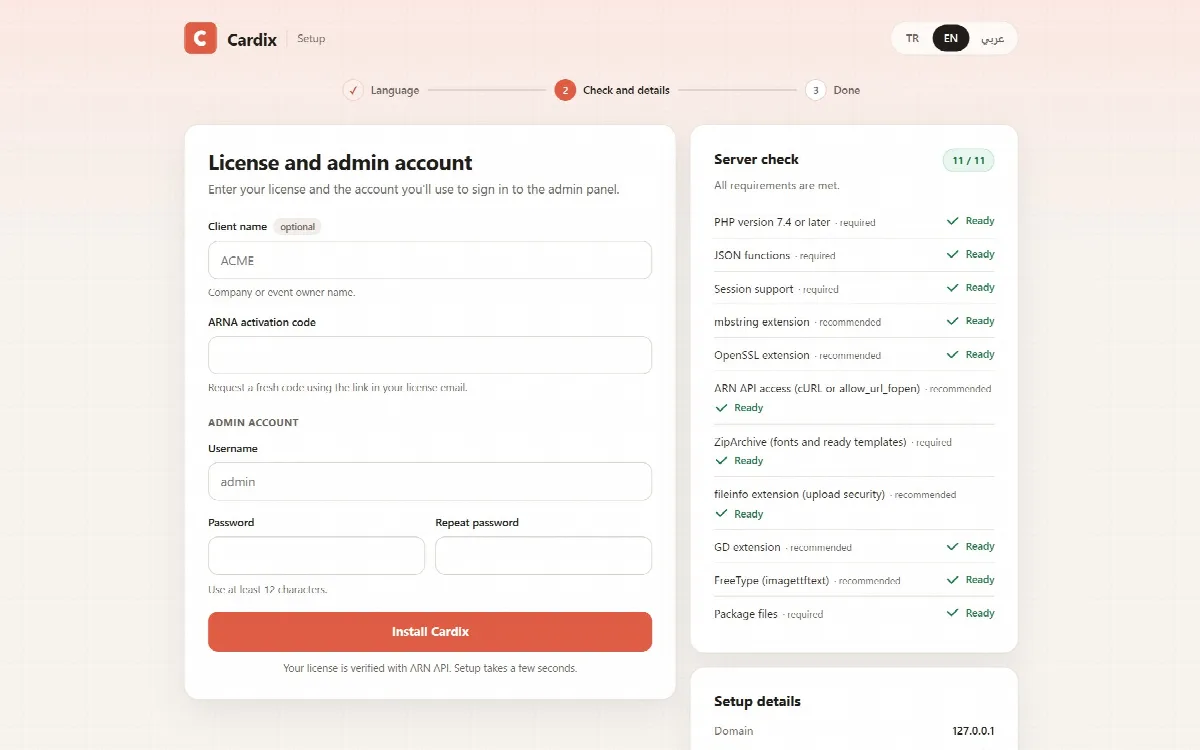
Setup details below the server check shows the domain the licence will be bound to and the Cardix version.
What setup does
- Activates the licence with ARN Smart and binds it to the domain you install on. See Activate your Cardix licence.
- Installs the fonts and the ready template pack of the package.
- Gives the data folders random names, so their addresses cannot be guessed.
- Writes
config.php, the security rules in.htaccessfiles and a.user.inifile with the PHP limits Cardix needs. - Creates a first sample event, Eid Mubarak, which you can change or delete.
- Removes
setup.phpfrom the server when the installation is complete.
When the installation is complete
The Cardix is installed page shows your sign-in details:
| Item | What it shows |
|---|---|
| Admin panel | The address of the admin panel, for example https://cards.example.com/admin.php |
| Username | The administrator username you chose |
| Password | Not shown: "The password you set during setup" |
| Participant page | The public page of your participants, for example https://cards.example.com/ |
Each address has a Copy button. Click Open admin panel or Open participant page; otherwise the admin panel opens by itself after 8 seconds. Note the admin panel address and your username: the setup screen will not open again.
If setup cannot finish
Setup shows Setup couldn't finish and the reason. If a step fails after the licence was activated, setup undoes its changes, so the installation is never left half done. Fix the cause and run setup.php again. Within one day you can use the same activation code again; it is not activated a second time.
Common causes:
- A required item of the server check is missing.
- The activation code is missing or wrong: "Enter the ARNA activation code sent to your email."
- The username is shorter than 3 characters, the password is shorter than 12 characters or the two passwords do not match.
- The Cardix folder is not writable, for example "check write permissions".
If the ready template pack cannot be installed, the installation still finishes. You can install the pack later on the Ready templates screen with Install ready templates.
Protect the data folders on Nginx
After you sign in, the admin panel checks from your browser whether the web server protects the data folders. If it does not, usually on Nginx, a warning appears at the top of the panel: "The data folder of Cardix can be opened from the internet". It shows the exact lines for your installation. For Cardix in the web root they are:
location ^~ "/data/" { deny all; }
location ^~ "/storage" { deny all; }
If Cardix is in a subfolder, the paths start with that folder. Add the lines to the server block of your site and reload Nginx. On Apache, allow .htaccess files for the Cardix folder (AllowOverride All).