
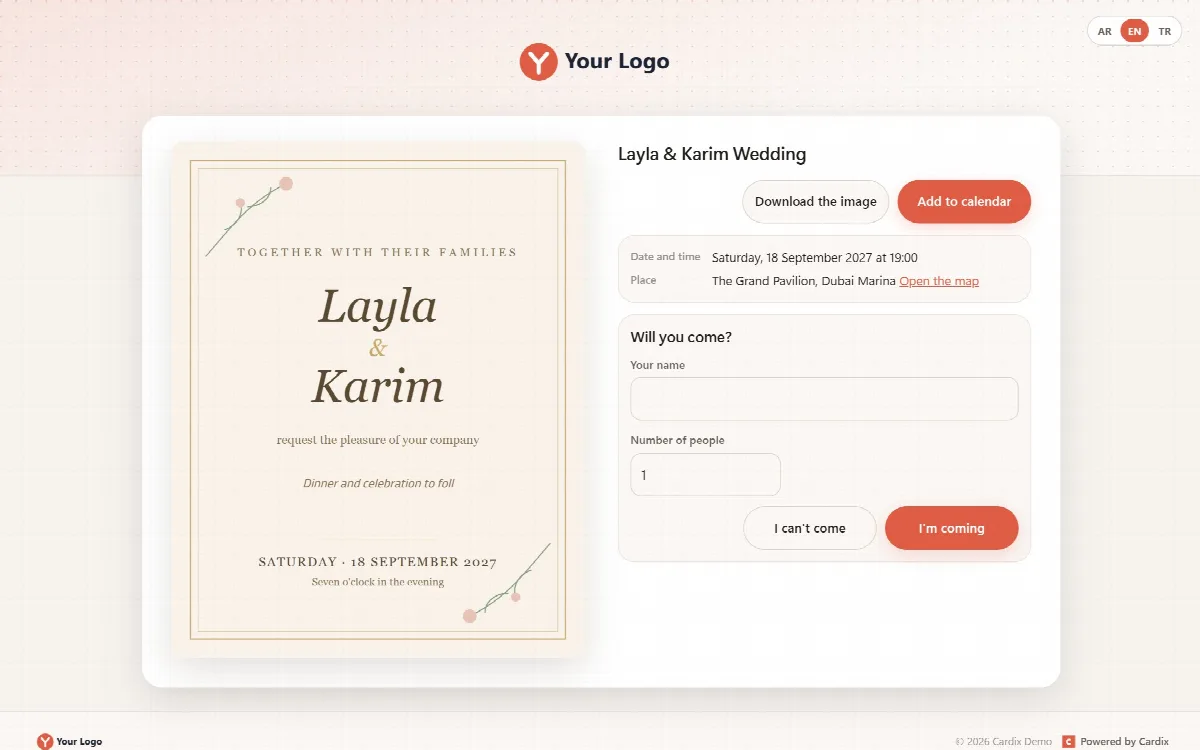
An invitation is an event of the type Invitation. All guests use one private link. The invitation page shows the invitation image, the date and time, the place with a map link, an "Add to calendar" file and, if you switch it on, a reply form.
Create an invitation
- Open Events, click New event, enter a key and a name, choose the Advanced field set and click Create event.
- On the General tab, choose the Type Invitation.
- On the Fields tab, switch on the fields that appear on the invitation image, for example a text field for the names of the couple, and lock their values with Locked field.
- On the Access tab, fill in the invitation details (see below) and, if you like, a PIN.
- Click Save. Cardix makes the private link of the invitation.
- Upload the invitation design on the Templates screen and place the boxes in the Template Editor.
The invitation page uses the first design of the invitation and draws the locked values of its fields on it.
Invitation details
On the Access tab, under Invitation:
| Setting | What to enter |
|---|---|
| Date and time | The date and the time of the event |
| Place | The name or address of the place (up to 200 characters) |
| Map link | An https:// map address. Empty: the guests get a map search for the place |
| Ask the guests whether they come | Switches the reply form on |
The private link and the PIN of the invitation are on the same tab. See Private links and PIN.
The invitation page
Guests who open the private link see:
- the invitation image with the locked values drawn on it;
- Date and time;
- Place with Open the map;
- Add to calendar, which downloads an
.icscalendar file; - Download the image;
- with replies switched on, Will you come? with Your name, Number of people and the choice I'm coming or I can't come.
The page uses the same frame as the other participant pages: the logo, the AR / EN / TR language switch and the footer.
Guest replies
A guest writes a name, gives the number of people (1 to 20) and chooses I'm coming or I can't come. The page thanks the guest: "Thank you, we look forward to seeing you." or "Thank you for letting us know."
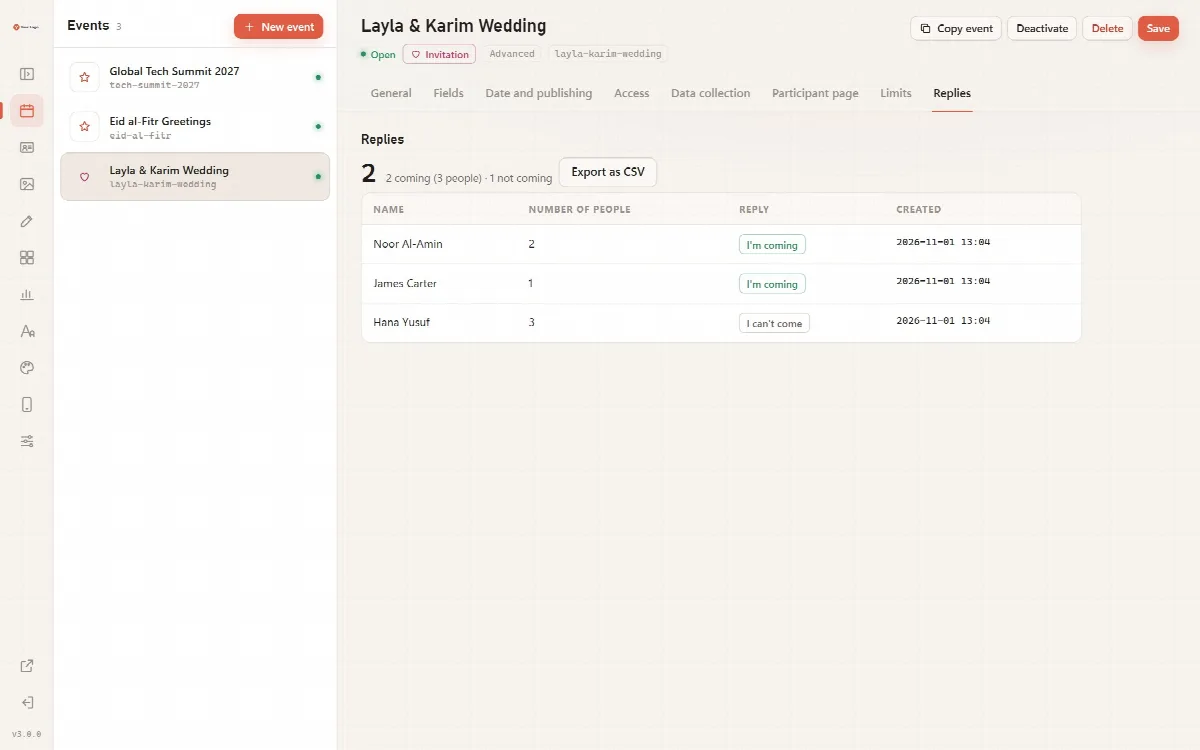
The Replies tab appears for invitations only. It shows the totals, for example "2 coming (3 people) · 1 not coming", and every reply with its Name, Number of people, Reply and the time it was Created. Export as CSV downloads the replies as a CSV file. The replies are exported by a full administrator or the Data role (under Data, choose the invitation); a Designer does not see Export as CSV.
If replies are switched off, the tab says "Replies are switched off for this invitation (Access)." An invitation takes up to 5,000 replies.
How long replies are kept
Replies follow the retention period of the invitation (Data collection → Keep the records for (days), 90 days by default). The period counts from the reply, or from the invitation date if that is later. When you delete the invitation, its replies are deleted with it.
While an invitation has replies, only a full administrator can delete it, shorten the retention period, or move the invitation date earlier or take it away.