
The participant page is the public side of Cardix. Participants open it, choose an event, type their details and get their card. They do not register or sign in.
The event list
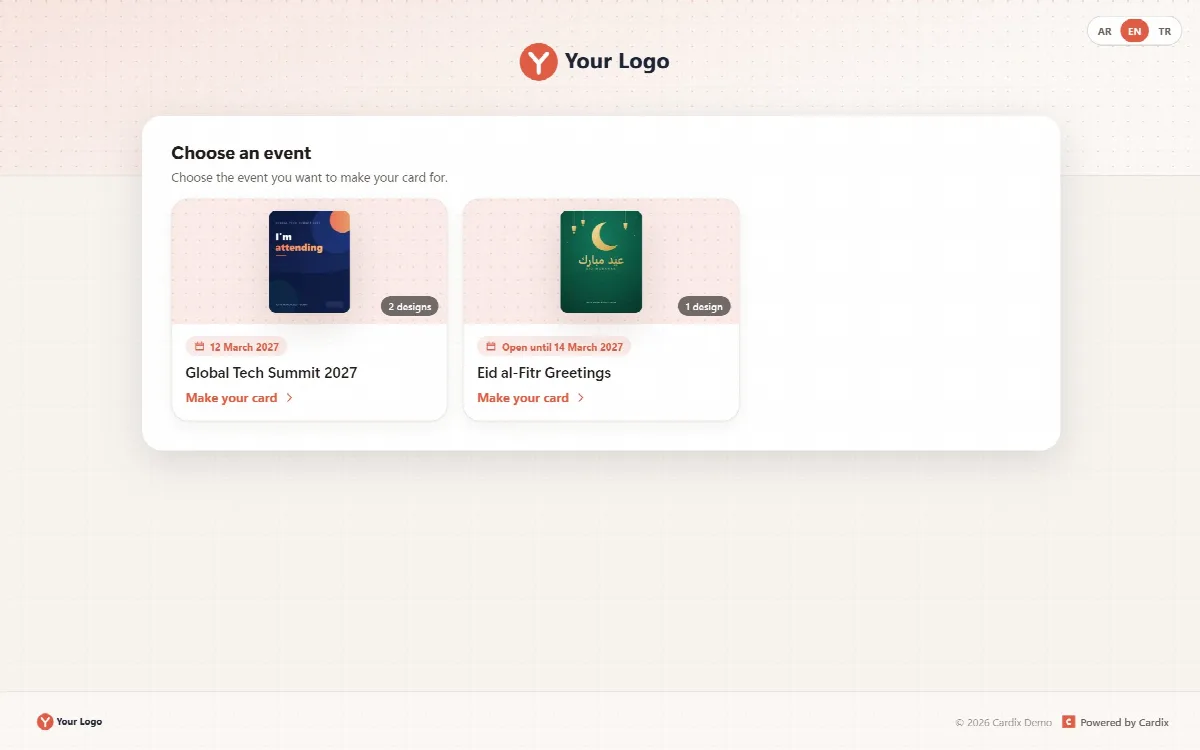
The home page of your installation, for example https://cards.example.com/, lists every open public event under Choose an event. Each event is a card with:
- a cover image (the first design of the event);
- the number of designs, for example "2 designs";
- the date of the event or the day it closes, for example "Open until (date)";
- Make your card.
If only one event is open, the page opens it directly. If no event is open, the page says "There is no open event right now." Invitations and card groups never appear in this list; they open only with their private links.
Each public event also has its own link, index.php?event= followed by its key, which opens its form directly. A notice you write under System → Login notice appears on the participant page.
The frame of every page
- Top area: your logo in the middle over the header image of the Design screen, or over a light pattern in the event's colour. On a header image, the light logo of the Design screen is used when there is one.
- Language switch: AR / EN / TR.
- Footer: the logo, the social media links of System → Social media, the copyright and "Powered by Cardix".
The card page, the invitation page, the PIN page and the message pages use the same frame.
Settings of the participant page of an event
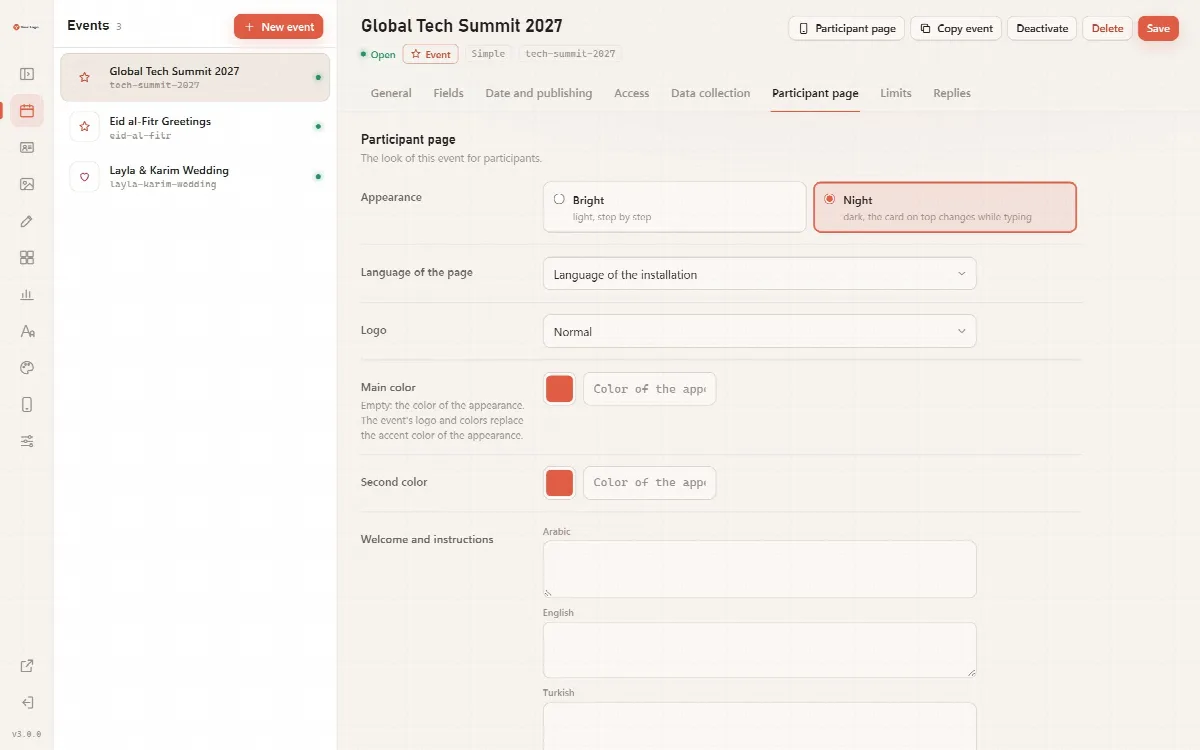
Where to find it: Events → your event → Participant page tab.
| Setting | What it controls |
|---|---|
| Appearance | Bright (light, step by step) or Night (dark, the card on top changes while typing) |
| Language of the page | Language of the installation, or Arabic, English or Turkish |
| Language switch | Visitor's choice (starts in the language of the page) or Fixed language (no language links on the participant, card, invitation and PIN pages) |
| Logo | The logo version shown on the page |
| Main color and Second color | The colours of the page. Empty: the System Color of the Design screen, then the colour of the appearance |
| Welcome text | A text under the title, in Arabic, English and Turkish. Empty: on a public event, the default welcome text of System → Participant texts |
| Instructions | A text above the form fields, in three languages, for example what to write in each field. Empty: no instructions |
| Share text and Hashtag | Added to the messages participants share from the page. An empty share text uses the default share text of System → Participant texts on a public event. Several hashtags are kept apart with one space, each with its own # |
Bright and Night
| Appearance | How it works |
|---|---|
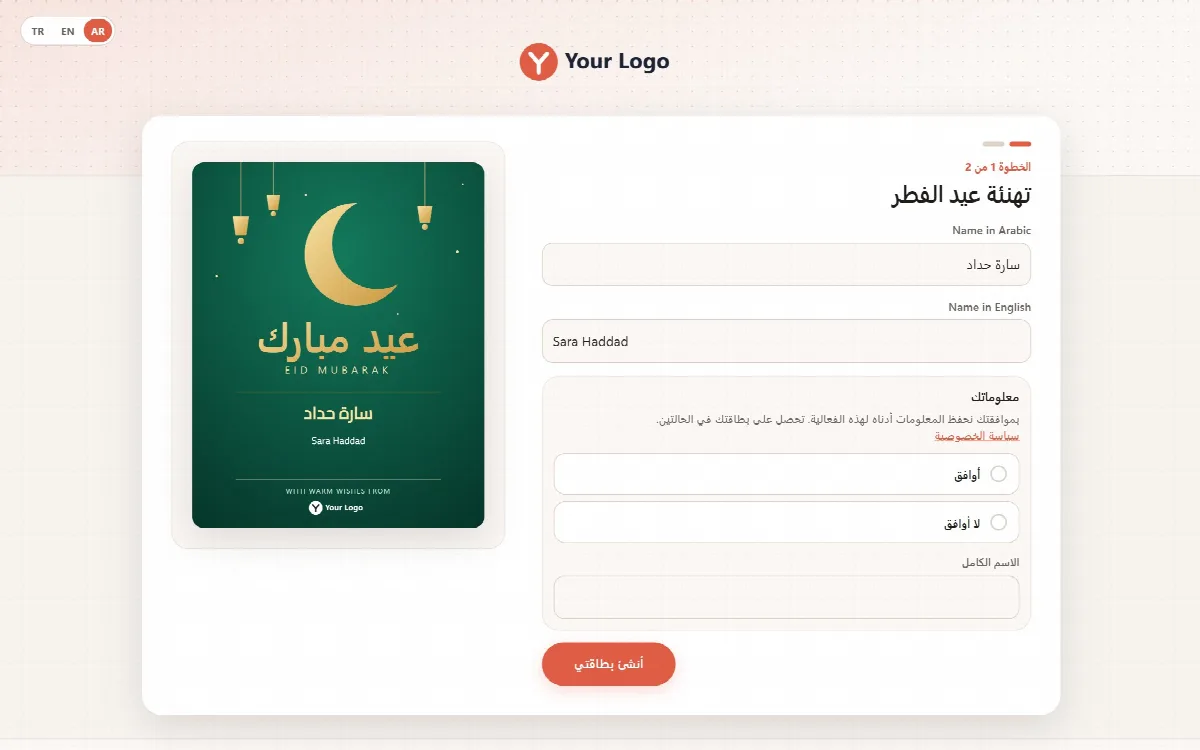
| Bright | A light page in two steps: the form ("Step 1 of 2"), then the card with the download and sharing buttons. On a phone, a small live preview of the card stays at the top while the participant types |
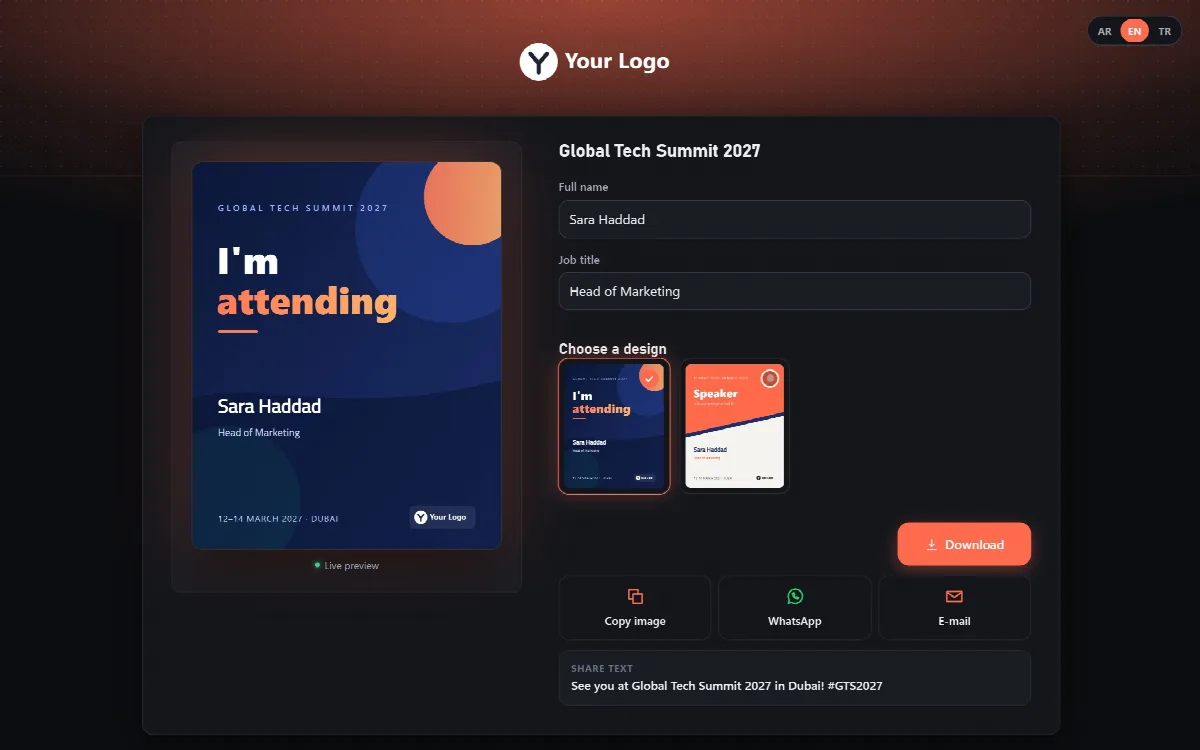
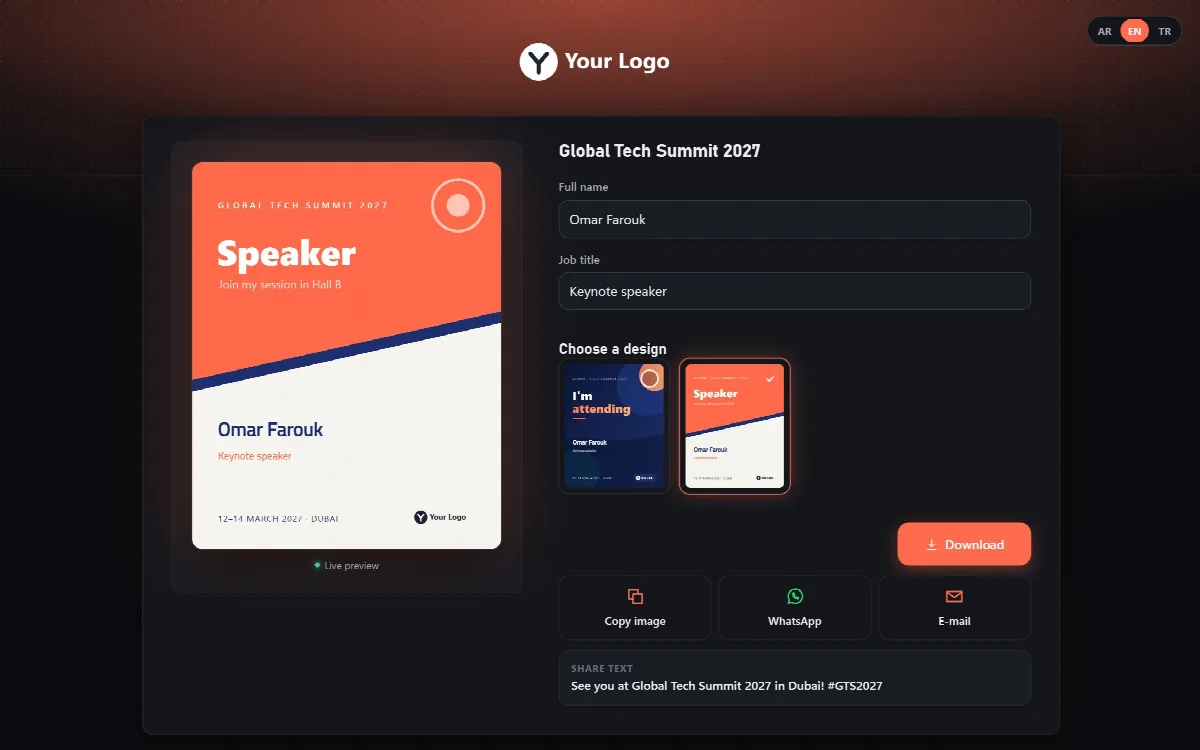
| Night | A dark page where the card changes while the participant types (Live preview), with the designs and the buttons beside it |
On a wide screen, the form and the card sit side by side; on a phone, they stack in one column. The small pictures of the designs also follow the typing.
The form
The form shows the instructions of the event, if any, and the fields that are switched on, with their labels in the page language. Locked fields are already filled in. Optional fields are marked "(optional)"; the others are required. When the event collects data, the form also asks "I agree" or "I don't agree". See Data collection and consent.
In a field whose direction is Automatic, the writing direction follows what the participant types, whatever the language of the field; mixed text takes the direction of its first letter.
In the Bright appearance, the participant fills in the form and clicks Make my card.
Choosing a design
When an event has several designs, Choose a design shows each of them with the participant's text already placed. The selected design becomes the large card. On a desktop, the designs are shown in a grid of three columns, four in the Night appearance. If an event has only one design, this step is skipped.
Languages and right to left
The AR / EN / TR switch changes the language of the page; the Arabic page reads from right to left. The choice carries over to the card, invitation and PIN pages. Without a choice, the page uses the event's language, then the language of the installation. An event with a Fixed language shows no language links.
Participant texts
The buttons and messages participants see can be changed in English, Turkish and Arabic under System → Participant texts. An empty field keeps the text of Cardix. See System settings, languages and panel theme.
The card text is drawn with the same rules as in the Template Editor, so Arabic letters join correctly and each box keeps its own direction.
Limits of an event
Where to find it: Events → your event → Limits tab. 0 means no limit.
| Limit | What it counts |
|---|---|
| Cards per person | Cards one person can make for this event, counted per person or address |
| Cards for the whole event | Cards all participants together can make |
When a limit is reached, participants see "You have reached the number of cards you can make for this event." or "This event has reached its number of cards."