
Cardix comes with ARN Smart's ready template pack. Using a template makes your own copy, which you can change freely in the Template Editor.
Where to find it: Ready templates in the admin menu.
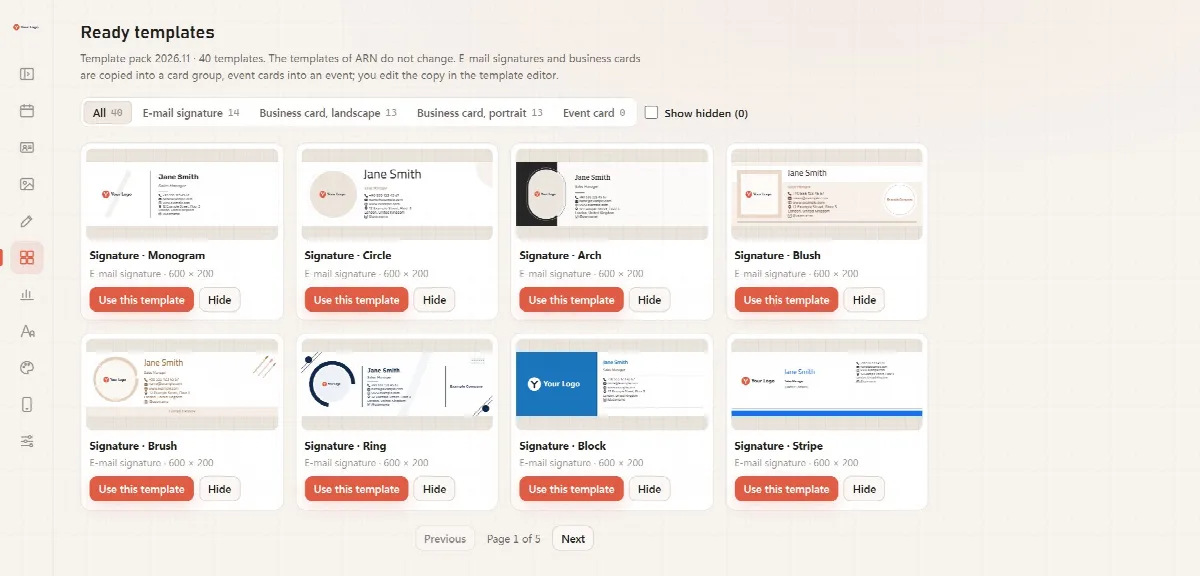
The template pack
The top of the screen shows the installed pack and its number of templates, for example "Template pack 2026.12 · 42 templates".
| Template type | In pack 2026.12 |
|---|---|
| E-mail signature (600 × 200 px) | 14 |
| Business card, landscape (1050 × 600 px) | 13 |
| Business card, portrait (600 × 1050 px) | 13 |
| Event card | 2 event badges, portrait (600 × 900 px): "Summit" and "Arc" |
The other designs of events and invitations are your own uploaded images.
How the pack is installed
- The pack is part of the Cardix package. Setup installs it during the installation.
- An update of Cardix can bring a newer pack. The admin panel installs it on the next admin page.
- Cardix does not download template packs from ARN Smart during normal use.
- If the pack is not installed, the screen says "The ready templates of ARN are not installed yet." and shows the reason when installing failed. Click Install ready templates to try again.
Browse the templates
- Templates are drawn with sample text in the panel's language (name, title, company, address, phone, e-mail, website and a social media account) and with your logo, so you see them with real-looking details.
- Filter by type with All, E-mail signature, Business card, landscape, Business card, portrait and Event card. Each filter shows its number of templates.
- Hide removes a template you do not need from the list. Tick Show hidden to see hidden templates again and click Show to bring one back.
- The screen shows eight large thumbnails per page.
Use a template
- Click Use this template under a template.
- For an e-mail signature or a business card, choose Which card group?: an existing group, or New group with the Name of the new group. E-mail signatures and business cards go only into card groups.
- For an event card, choose Which event?. Event cards go only into events and invitations.
- Click Copy and edit. The copy is added to the group or event and the Template Editor opens.
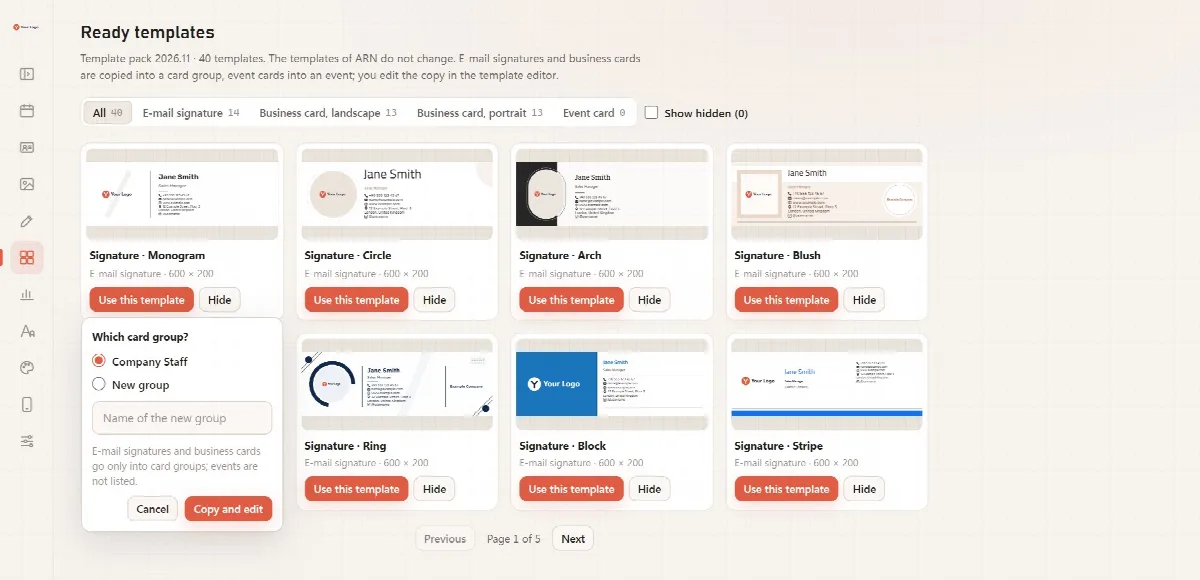
The Google Fonts families of the template are installed with it. If a family cannot be installed, Cardix tells you which fonts are missing; try again in the Template Editor with Try again.
Your copies stay yours
"Use this template" makes your own copy with its own image. ARN Smart's original stays unchanged, and a newer pack never changes your copies.
A practical template workflow
- Open Ready templates and filter by business card or e-mail signature.
- Click Use this template and choose a card group, or name a new one.
- Let Cardix install the template's Google Fonts families.
- Adjust the boxes in the Template Editor and make the copy the group's default design.
- Check the Fonts screen for missing Arabic or Turkish letters before you share the link.
Related articles
Still stuck?
Ask the community