
The System screen holds the settings of the whole installation. They are split into tabs; every form has its own Save (or Save notice, Export CSV) and Cancel.
Where to find it: System in the admin menu (System Settings). System is for full administrators. A Data account sees only the Data tab, under the menu name Data; see Administrator accounts and roles.
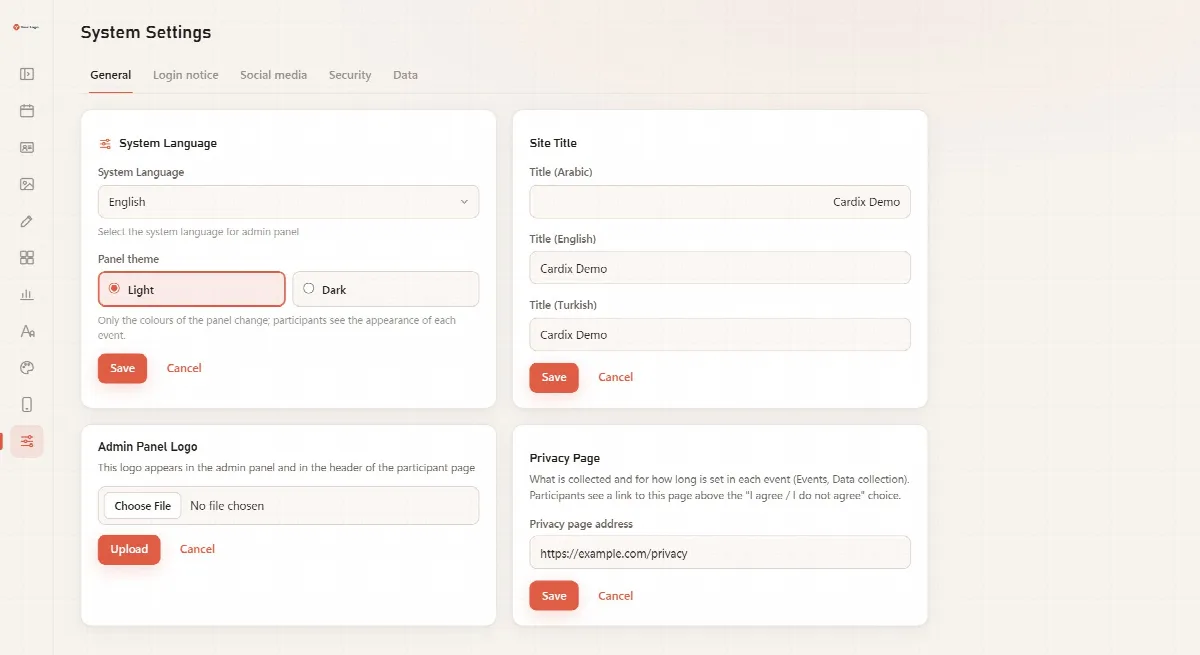
General
| Setting | What it controls |
|---|---|
| System Language | The language of the admin panel: English, Arabic or Turkish |
| Panel theme | Light or Dark. Only the colours of the panel change; participants see the appearance of each event |
| Site Title | Title (Arabic), Title (English) and Title (Turkish) of the participant pages. A new installation uses the client name entered in the setup, or "Cardix" |
| Admin Panel Logo | Your logo for the admin panel, including the login page and the menu |
| Privacy Page | The Privacy page address. Participants see a link to it above the "I agree / I don't agree" choice of every event that collects data |
Languages and right to left
The admin panel, the setup and the participant pages are available in Arabic, English and Turkish. In Arabic, the whole panel reads from right to left and the menu moves to the right side.
The panel language is set here for the whole installation. The language of a participant page is set for each event and can be switched by the visitor. See The participant page and its settings.
Login notice
A formatted notice shown on the participant page, in three languages.
- Tick Enable Notice.
- Write the notice in Notice (EN), Notice (TR) and Notice (AR). The toolbar offers Bold, Italic, Underline, Bulleted list, Numbered list, Link and Clear formatting.
- Click Save notice.
Links in the notice may point only to http or https addresses, mailto:, tel:, # or a path of your site.
Participant texts
The buttons and messages participants see, in English, Turkish and Arabic, in groups: Events, Form, designs and download, Sharing, Your information (data collection) and Messages. Leave a field empty to keep the text Cardix gives, shown in grey. Keep the %s and %d marks of a text: Cardix writes a name or a number there.
Default welcome and share text sets the welcome text and the share text that a public event uses when it leaves its own empty. See The participant page and its settings.
Social media
Enter the addresses of your Website, Instagram, X, Facebook, TikTok, Snapchat and LinkedIn pages. They appear as links in the footer of the participant pages. Leave a field empty to hide it.
Security
Trusted proxy servers: only if your site is behind a CDN or a load balancer. See Sign-in protection and security.
Every account changes its own password on My account at the foot of the menu.
Accounts
The administrator accounts of the installation with their roles: add an account, change its role or password, or delete it. See Administrator accounts and roles.
Data
- Export Data (CSV) by Event exports the collected data of one event. Choose the event in Select Event, tick Delete data after export under Options if the rows should be removed afterwards, and click Export CSV. See Data collection and consent.
- Import from Cardix 2 brings the data of a Cardix 2.0.0 or 1.6.x installation into this one (full administrators). See Import your data from Cardix 2.