
Two tools in the Production area answer quick questions without changing your catalog: the Production Calculator prices a job that is not a product yet, and Production Planning shows what a batch of an existing product needs.
Where to find it: Production → PRODUCTION CALCULATOR and Production → PRODUCTION PLANNING.
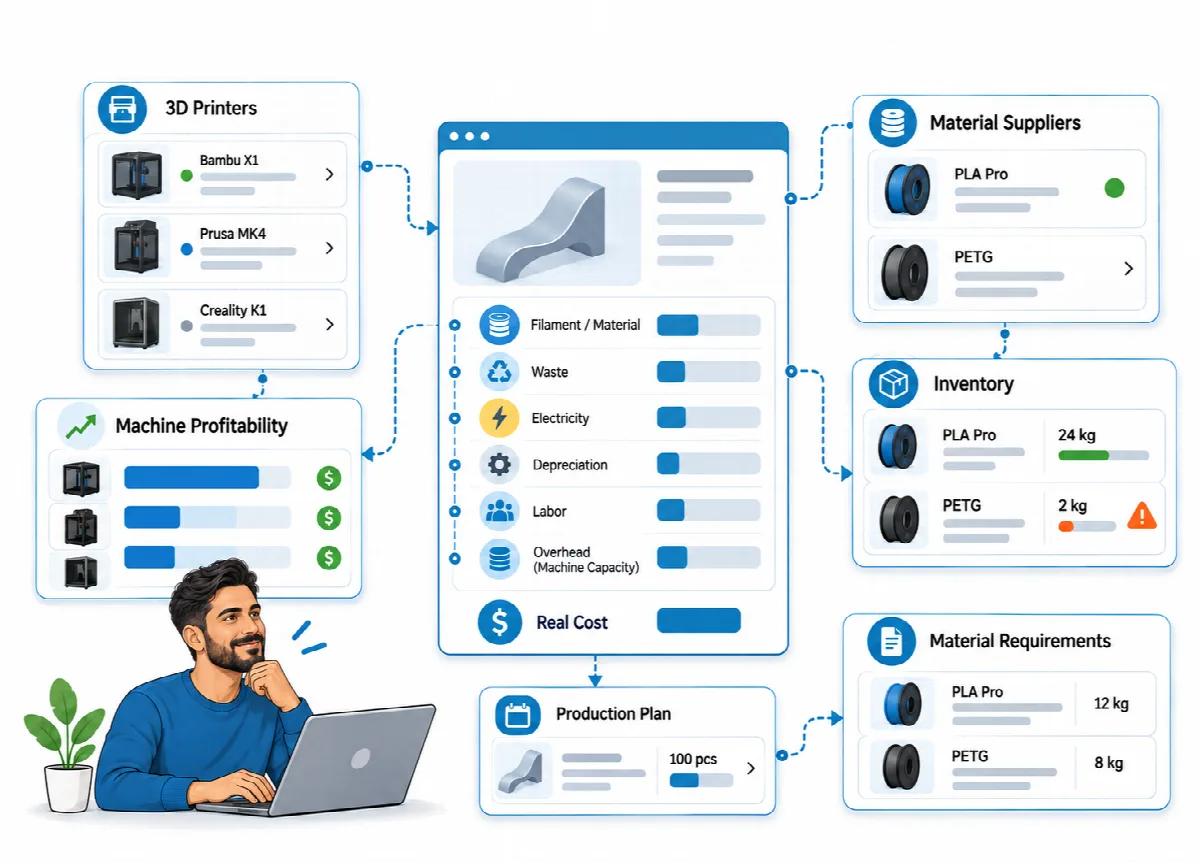
Production Calculator
The calculator estimates the cost of a job without saving a product, for example for a custom part someone asked about.
- Open Production → PRODUCTION CALCULATOR.
- Enter Weight (g), Waste (g), Print Time (hours), Sales Price and Labor Time (minutes).
- Choose the Filament and the Printer.
- Add Additional Materials if needed.
- Read the Cost Preview: filament, waste, energy, materials, labour, printer depreciation, repair allowance and overhead, then Total Cost and Profit with the markup in percent.
The calculator uses your printer profiles, filament prices, labour rate, electricity price, repair rate and overhead expenses. It gets its figures from the cost engine and calculates exactly like the product list: with the printer's failure rate, the automatic overhead share and profit on the sales price without tax. Sales-channel commission is not included, because it is added on order lines. To offer the price, create a quote with a custom line (see Prepare quotes and convert them to orders), or create the product to keep it in your catalog.
Production Planning
Planning calculates a batch of an existing product from its saved recipe.
- Open Production → PRODUCTION PLANNING.
- Choose the product under Select Product and enter the Quantity.
- Click Calculate.
The Calculation Results show:
| Result | Meaning |
|---|---|
| Total Weight | Weight plus waste for the whole batch, in grams |
| In Kg | The same in kilograms |
| Suggested Filament | Whole kilograms of filament needed (rounded up) |
| Total Cost | Cost of the batch, including the overhead share |
| Total Revenue | List price without tax × quantity |
| Net Profit and Profit per Unit | Revenue minus cost, in total and per unit |
| Markup | Profit compared with cost |
| Cost Breakdown | Filament, energy, waste, labour, depreciation, materials, repair and overhead |
| Total Production Hours | Print time × quantity |
| Materials Needed | The quantity of each additional material |
Planning uses the same calculation as the product list: the printer's failure rate, the overhead share (or the product's Manual Overhead Amount) and revenue without tax, multiplied by the quantity. Sales-channel commission is not included, because it is added on order lines. Material requirements work whether or not the stock module is on. With the stock module on, compare the result with the Stock screen before you start printing.