
Once a store is connected, you import its paid orders with Sync Now. Each order arrives with the customer, the address, the products and the shipping charge, and is costed like an order you entered yourself.
Where to find it: Settings → Store Connections, on each connection.
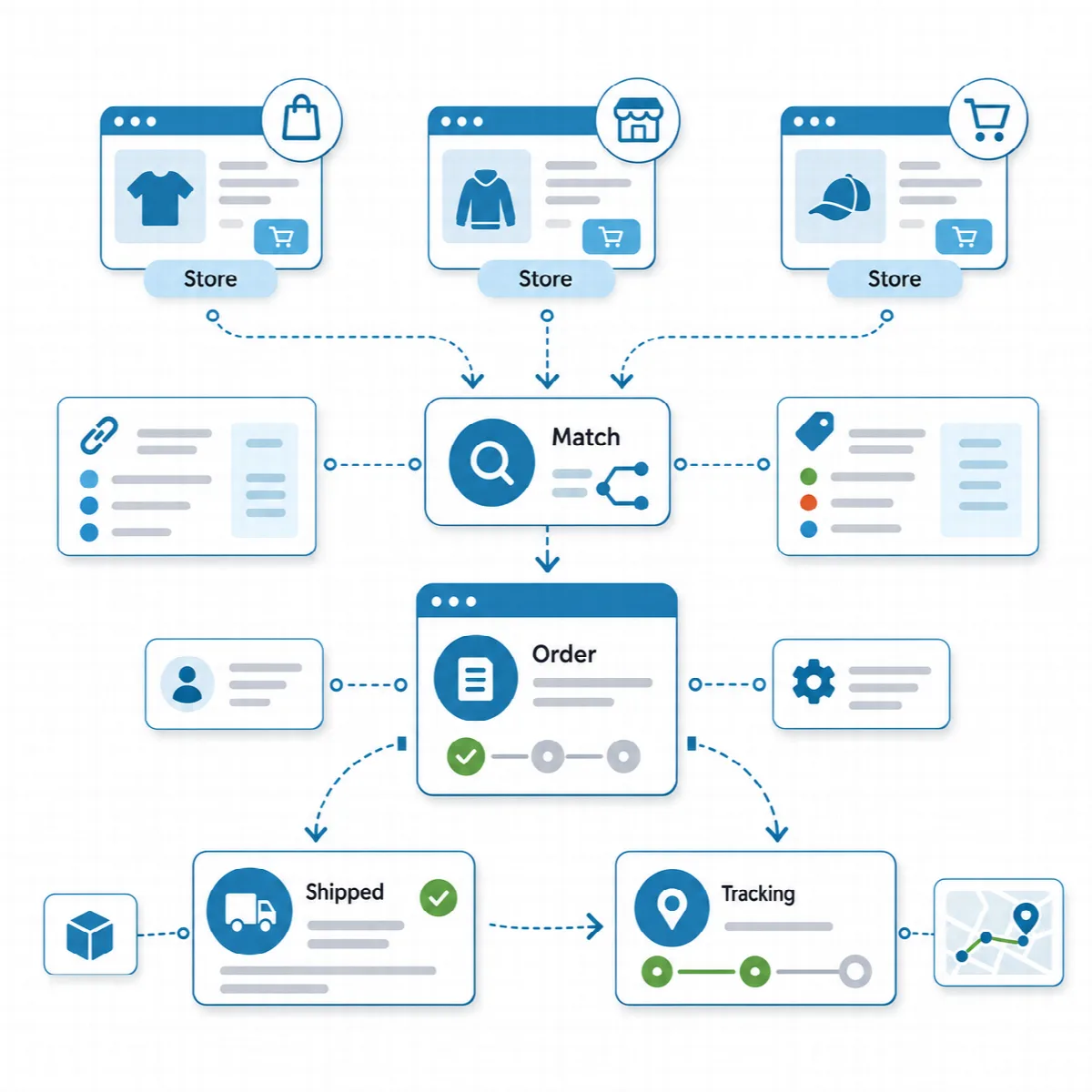
Before you start
- Connect the store and test the connection. See Connect your web store.
- Add the store's SKUs to your Eagle3D products (SKU field in the product form), so imported lines match automatically.
Import orders with Sync Now
- Open Settings → Store Connections.
- Click Sync Now on the connection.
- Read the result, for example "3 new orders, 1 pending, 5 already existed, 0 errors".
Eagle3D imports store orders only when you press Sync Now; there is no automatic schedule. Eagle3D asks the store for orders by the time they last changed, so an order that is paid days after it was placed comes with the next sync. Each sync starts two days before the previous one, so no paid order is missed, and orders that were already imported are skipped. Orders created before Import orders after (or, without that date, more than 30 days before the connection was added) are never imported. When a sync reaches its limit, the result says "More orders are waiting in the store; press Sync Now again to continue." The connection shows Last sync and the number of Imported orders.
What is imported
- Only paid orders. Each platform imports its paid or payment-confirmed orders. On WooCommerce these are orders in the processing, on-hold and completed statuses.
- Customer and address. The customer is matched by phone number, with or without the country code, or created. Eagle3D also tries to match the city and district to your lists. An order without a customer phone number is not imported; it waits in the Pending Orders list with the reason "No customer phone".
- Products and shipping. Product lines come with their quantity and price. The shipping charge becomes its own custom line whose cost is the charge without tax, so it adds no profit; the commission of the sales channel is still charged on it, as marketplaces take their commission on the total including shipping. On BigCommerce, handling and gift-wrapping charges are imported the same way.
- Totals. If the store's charged total differs from the sum of the lines (for example after an order-wide discount), the product lines are adjusted in proportion so that the order total matches the store.
- Currency. Eagle3D works in one currency and does not convert amounts. An order in another currency is not imported: it waits in the Pending Orders list with the reason "The order currency (…) differs from the Eagle3D currency (…). Amounts are not converted, so the order was not imported; enter it manually.", and the sync result counts it. Ecwid and BigCommerce orders are not checked for currency.
- Order details. The order keeps the store's order date, gets the connection's sales channel and the default status for new orders, and its cost is saved like any other order. The order note starts with the platform and the store's order number, for example "[WooCommerce #1234]".
- Email. With email sending on, you receive a "New order" email. Eagle3D does not email store customers; the store does that itself.
Match products by SKU
When a store line's SKU equals the SKU of an Eagle3D product, the line takes that product's recipe and cost.
If any product in an order does not match, the whole order waits in the Pending Orders list, with the unmatched products as the reason:
- Click Pending on the connection.
- For each unmatched store product, choose an Eagle3D product and click Map, or click Import as custom line.
- Click Retry. Eagle3D reports, for example, "2 orders imported, 0 still pending."
A mapping is remembered: later orders with the same store product match automatically. Square orders carry no SKU, so you map each Square product once from the Pending screen.