
Every order in Eagle3D has one record: the customer, the products and custom work, the price given to the customer, payment, due date, shipping details and production stage. Orders from the order page, connected web stores, WhatsApp, phone and quotes all end up in the same list.
Where to find it: Orders. On a phone, the New button in the bottom bar opens a new order.
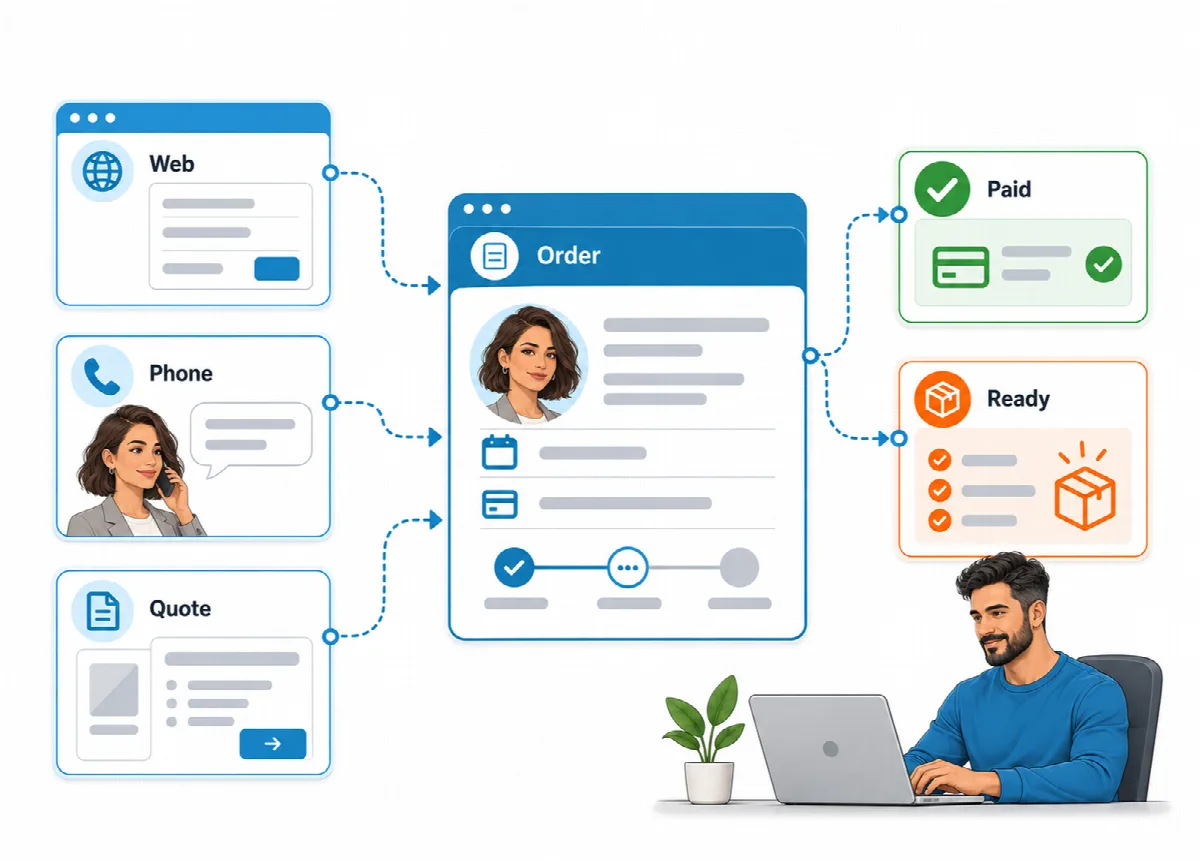
Where orders come from
| Channel | How the order enters Eagle3D |
|---|---|
| Online order page | The customer sends it from your order page. See How customers order and track their orders. |
| Web store | Imported from a connected store with Sync Now, with the store's own order date. See Import store orders and match products. |
| WhatsApp, phone or in person | You enter it with New Order. |
| Quote | Converted with Convert to Order, prices unchanged. See Prepare quotes and convert them to orders. |
Enter a new order
- Open Orders and click New Order.
- Under Customer Information, type the Phone number first. If the customer exists, Eagle3D shows "Existing customer: … - details filled in" with their order count. For a new number it shows "New customer - the record is created when the order is saved".
- Check or enter Full Name, Email (optional; used for order and shipping emails), City, District and Address.
- Choose a Sales Channel, or leave Direct sale (no channel). The channel's commission and fee are added to the cost of every line.
- Under Product Information, click Add Product, choose the product and the Quantity. Repeat for each product.
- For work that is not in the catalog, click Add Custom Line and enter a description (for example "3D modeling"), a Unit price and a Unit cost.
- Add an Order / Production Note if needed. It is never shown to the customer; it appears on the internal slip and in production.
- Set a Due Date if you promised one.
- Under Payment Information, check Total (Automatic). To give a lower price, enter the Price Given to Customer or a Discount Rate (%); the discount is spread across the lines.
- Click Save Order.
When you save, Eagle3D calculates and saves the cost and profit of every line. See How Eagle3D calculates cost and profit.
Note: A custom line with a price of 0 and a cost adds a cost without revenue, for example for packaging or special shipping. Custom lines take no overhead share and do not use stock.
The order list
The list shows Order No, Customer, Products, Total, Profit, Balance, Status and Date (with the due date). Use the view buttons (All, New Orders, Preparing, Shipped, Completed, With Balance) and the search box ("Search by customer, phone, or order no"). See Production stages, due dates and order views.
Actions for each order:
| Action | What it does |
|---|---|
| Order Detail | Shows the lines with cost and profit |
| WhatsApp Message | Opens a ready-made message for the customer. See WhatsApp messages and printed slips. |
| Shipping | Stores the shipping details |
| Cargo Slip or Workflow Slip | |
| Edit | Opens Edit Order |
| Delete | Deletes the order (Administrator and Operations only) |
Change the stage directly in the Status column. To print slips for several orders, tick them and use Print Cargo Slips or Print Workflow Slips.
Record payments and follow the balance
- Click Edit on the order.
- Enter the amount received so far in Paid Amount.
- Click Save Order.
The Balance column shows Paid when the order is fully paid, otherwise the open amount. The amount turns red when the unpaid part reaches the Balance Warning (%) set in Settings → Order Settings (0 switches the warning off). The With Balance view lists all orders with an open balance.
Store shipping details
Click Shipping (the truck icon) and fill in Cargo ID, Internal Tracking Code, Shipping Company, Shipping Code and Cargo Link. Use Copy to copy a value. The shipping company and the cargo link appear on the customer's tracking page, and the values are available in WhatsApp templates and slips.
Edit an order
Edit Order lets you change the customer details, sales channel, lines, discount, paid amount, due date and note. When you save, the lines are saved again and their cost is recalculated with the current prices and rates. If stock was already deducted for the order, Eagle3D reverses it and deducts it again for the new lines.
A line whose product (or custom description and unit price) and quantity you do not change keeps the amount it was saved with, even if the catalog price changed since, so saving only a payment, a due date or a note does not change the order total. The saved amount is the lowest a line can go: you can raise the Price Given to Customer on purpose, for example to remove a discount, up to the Total (Automatic). A product that was deactivated after the order stays on its line, listed as "(Inactive)".
Who can delete orders and change payments
Only the Administrator and Operations roles can delete an order or change the Paid Amount. The Production role can open orders, enter and edit them, change the stage and store shipping details, but the Paid Amount field is read-only and the Delete button is hidden. View Only users cannot change anything. See Users and roles.
Deleting an order returns any stock that was deducted for it.