
Keep your existing web store for online card payments and let its paid orders flow into Eagle3D. The store keeps selling as before; Eagle3D takes over once an order is paid and can report the shipment back to the store.
Where to find it: Settings → Store Connections (administrators).
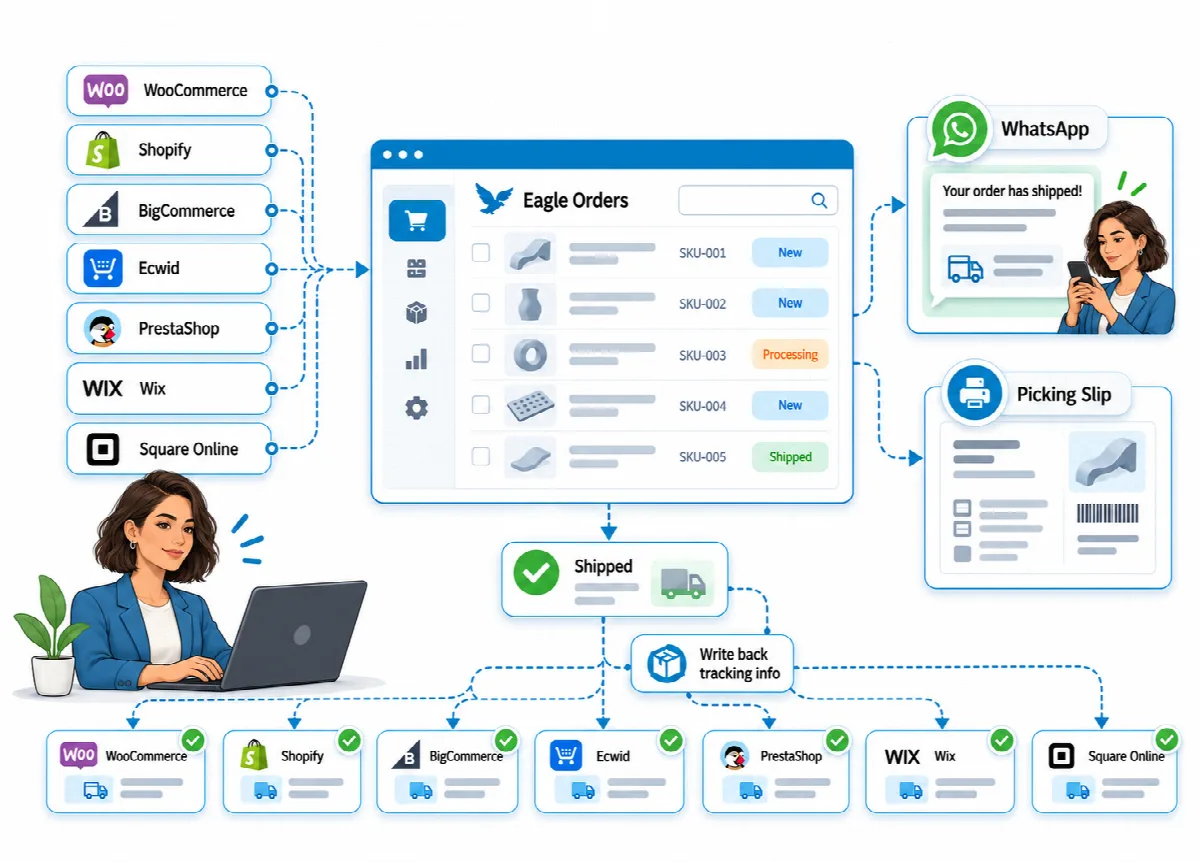
Supported platforms
| Platform | Credentials in Eagle3D | Where to create them (summary of the hint in Eagle3D) |
|---|---|---|
| WooCommerce | Consumer Key, Consumer Secret | WordPress > WooCommerce > Settings > Advanced > REST API > Add key. "Read" for import only, "Read/Write" for write-back. |
| Shopify | Admin API Access Token | Shopify admin > Settings > Apps > Develop apps. Scope read_orders; write_fulfillments for write-back. |
| BigCommerce | Store Hash, Access Token | Settings > Store-level API accounts > Create API account. Orders read-only (modify for write-back). The store hash is the code after /stores/ in the API path. |
| Ecwid by Lightspeed | Store ID, Secret Token | Apps > My Apps > create a custom app. Scope read_orders (update_orders for write-back). |
| PrestaShop | Webservice Key | Advanced Parameters > Webservice. GET on orders, order_rows, customers, addresses and states (POST on order_histories for write-back). |
| Wix | Site ID, API Key | Account settings > API Keys > Generate API Key with Wix Stores / eCommerce order permissions. The Site ID is the code after /dashboard/ in the dashboard address. |
| Square Online | Access Token | Square Developer Dashboard > your app's production access token. ORDERS_READ and MERCHANT_PROFILE_READ (ORDERS_WRITE for write-back). |
The settings screen shows the exact hint for the platform you choose.
Add a connection
- Open Settings → Store Connections and click New Connection.
- Choose the Platform and enter a Connection Name (for example "My web store").
- Enter the Store URL. It must start with
https://. - Enter the credentials for your platform.
- Set Import orders after. Only orders after this date are imported. If you leave it empty, the first sync covers the last 30 days.
- Choose the Sales Channel. Its commission and fee are added to the cost of every imported order.
- Tick Write back to store (complete order + add tracking when shipped) if you want shipped orders reported to the store.
- Leave Active ticked and click Save.
Test the connection
Click Test Connection on the connection. Eagle3D shows a confirmation such as "WooCommerce connection works. Total orders in the store: …" or the error the store returned. Then import orders with Sync Now; see Import store orders and match products.
Write the shipment back to the store
With write-back off, Eagle3D only reads and never changes store orders.
With write-back on, when an imported order becomes Shipped or Completed in Eagle3D for the first time, Eagle3D:
- marks the order as completed in the store;
- adds the shipping company, the tracking code (the Shipping Code, or the Internal Tracking Code if no shipping code is set) and the cargo link;
- lets the store send its own email to the customer.
Enter the shipping details before you change the status, so they reach the store. On PrestaShop, tracking numbers are entered in PrestaShop itself. If the store cannot be updated, the order still changes in Eagle3D and the error appears as the connection's last result.
Saved credentials
- Store keys are encrypted with AES-256-GCM using the application key (
APP_KEY) of your installation and are never shown again. - To change a key, type the new one; leave the field empty to keep the current key.
- On WooCommerce, Shopify and PrestaShop, the keys are sent to the store URL. If you change the Store URL, enter the keys again; otherwise saving stops with "The store address changed: enter the API keys again."
- Keep a backup of your
.envfile. IfAPP_KEYchanges or is lost, saved keys can no longer be read and must be entered again.
Delete a connection
Deleting a connection does not delete anything in Eagle3D: "Imported orders stay in Eagle3D." Its secret keys and its Pending Orders list are deleted. Eagle3D remembers which orders were imported and the SKU mappings, so if you add the same store again, those orders are not imported a second time. Untick Active instead if you only want to pause it.