
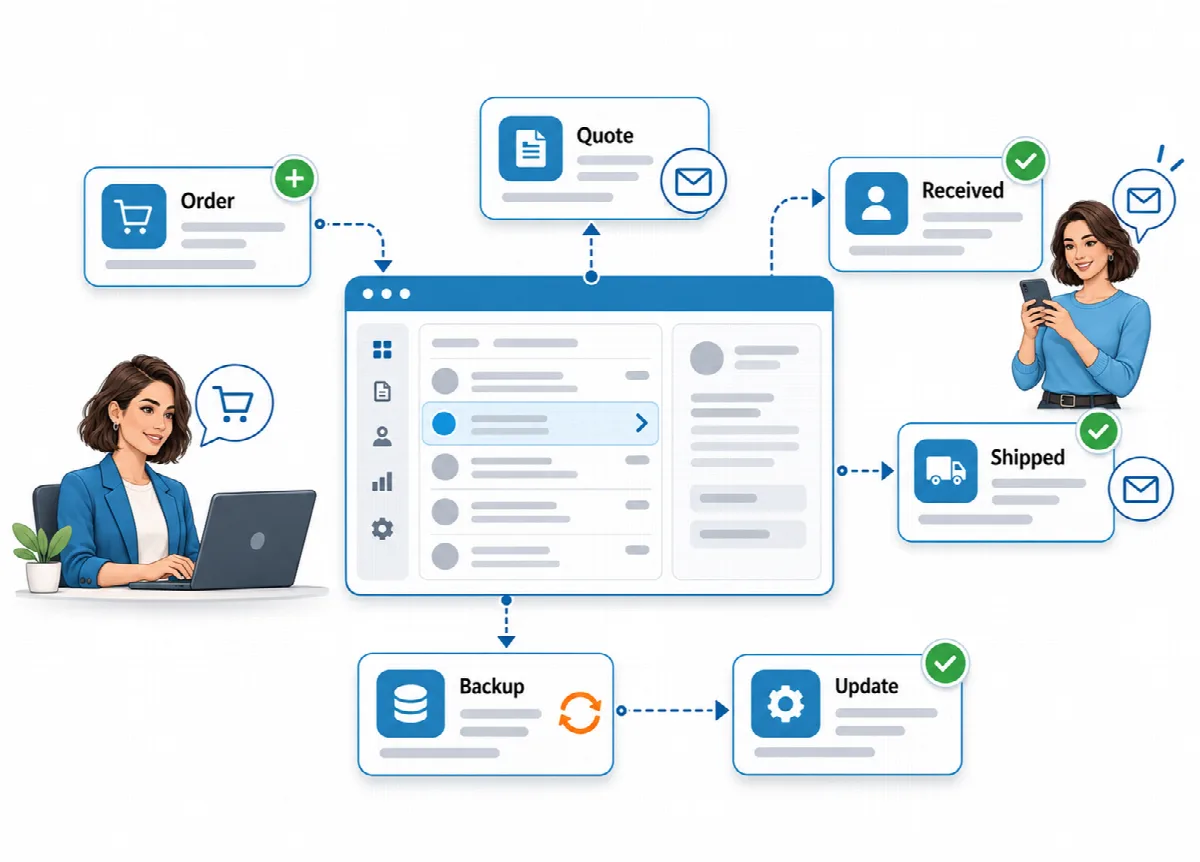
Eagle3D can email you about new orders and keep customers informed when their order is received and when it ships. It sends through your own mail account.
Where to find it: Settings → Email (administrators).
Switch on email sending
- Open Settings → Email and tick Enable email sending. Email is off after installation.
- Under Sender, enter the Sender email address, the Sender name (empty: site name) and, if you want, a Reply-to address (optional).
- Under SMTP server, enter the details of an email account from your hosting panel (for example cPanel > Email Accounts > Connect Devices). The fields are described below.
- Choose the automatic emails (see below) and click Save.
| SMTP field | What to enter |
|---|---|
| Server | The mail server, for example mail.print.example.com |
| Security | STARTTLS (587), SSL/TLS (465) or None (not recommended) |
| Port | The port of your mail server |
| Username (usually the email address) | The mail account |
| Password | The password of the mail account |
If you leave Server empty, Eagle3D uses the server's PHP mail() function. Those emails often land in spam, so an SMTP account is recommended.
The SMTP password is stored encrypted and is not shown again. To change it, type a new one; leave the field empty to keep it, or tick Delete the saved password. If you change the server, port, username or security, enter the password again; otherwise saving stops with "The SMTP server, port, user or security setting changed: enter the SMTP password again."
Automatic emails
| Setting | When it is sent |
|---|---|
| To customer: order received | For orders entered in the panel, orders from the online order page and orders converted from quotes |
| To customer: shipped | When the order status becomes Shipped for the first time |
| To admin: new order | For orders from the online order page and from connected stores |
The three automatic emails are on once email sending is enabled; untick the ones you do not want.
- Admin notification addresses: separate several addresses with commas. If the field is empty, the sender address receives the notices.
- Customer emails go only to customers with a saved email address.
- For store orders, Eagle3D sends no customer email; your store emails the customer itself.
Send a quote by email
In Quotes, click Send by email on a quote. Eagle3D sends it to the customer's saved email address with the Email - Quote (customer) template. See Prepare quotes and convert them to orders.
Email templates
Each email type has its own template with a subject in Settings → Templates: Email - Order Received (customer), Email - Shipped (customer), Email - New Order (admin) and Email - Quote (customer). Besides the order variables, the default email templates use {site_name}, the tracking page link {track_link}, and for quotes {quote_code}, {valid_until} and {notes}. See WhatsApp messages and printed slips.
Test the settings
- Save the settings first.
- Under Test email, enter an address and click Send Test.
- Check the result: "Test email sent" or "Email could not be sent" with the reason.
The Recent emails log lists every email with Date, Type, Recipient / Subject and Status (Sent or Failed).
If emails are not sent
| Message | What to do |
|---|---|
| Enter the sender email address first. | Fill in the Sender email address. |
| The server's mail() function did not accept the email. Enter SMTP details. | Set up an SMTP account. |
| Could not connect to the SMTP server | Check the server name and the port. |
| SMTP: the TLS connection could not be established | Check the Security setting, the port and the server certificate. |
| The customer has no saved email address. | Add the address on the Customers screen. |
| There is no default template for this email type | Set a default template in Settings → Templates. |