
Eagle3D prepares customer messages and workshop paperwork from templates. Order details such as the customer's name, the order number, the products, the balance and the tracking link are filled in automatically.
Where to find it: the WhatsApp Message and Print actions in the Orders list; the templates in Settings → Templates (administrators).
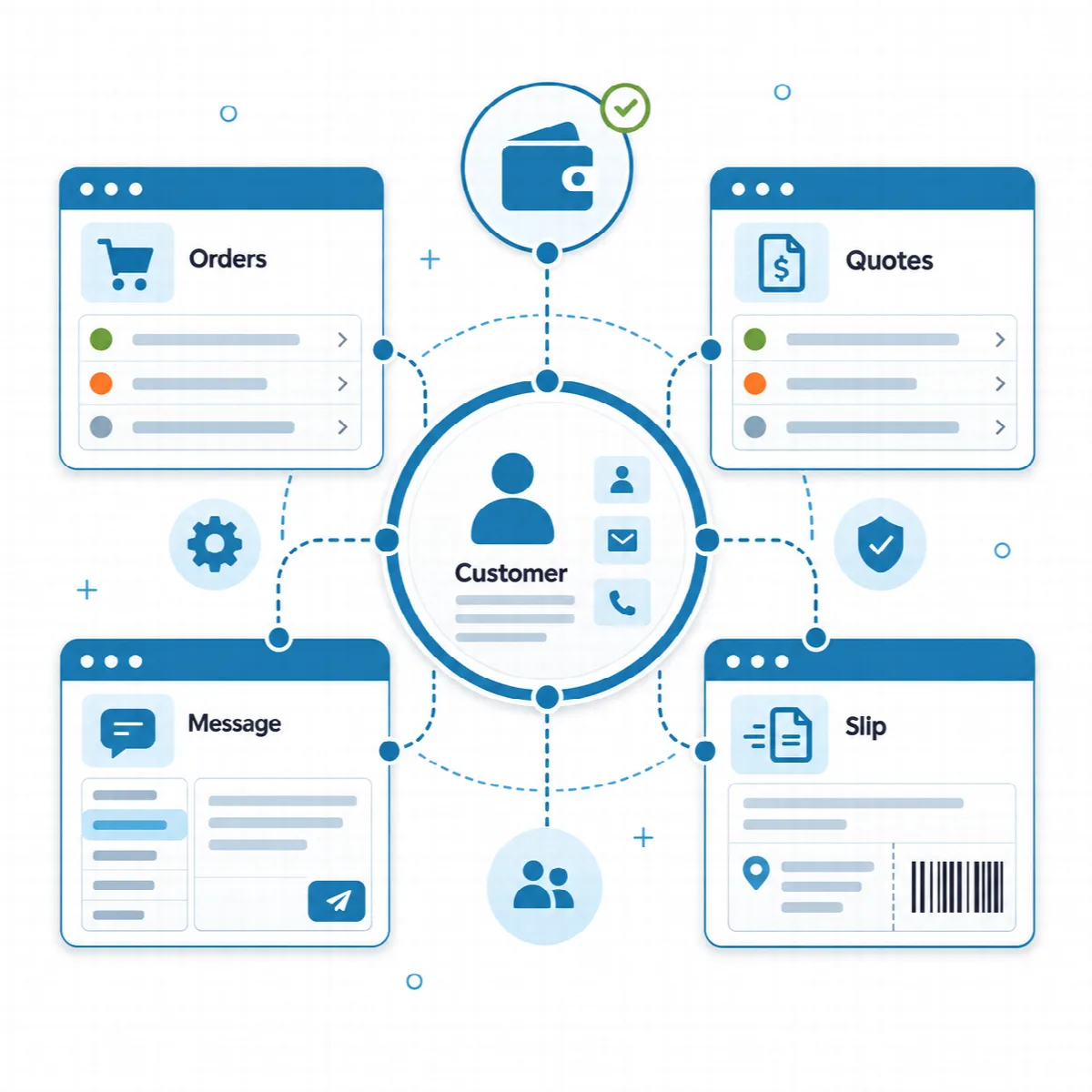
Send a WhatsApp message
- In Orders, click WhatsApp Message (the WhatsApp icon) on the order.
- Choose the message: New Order, Shipped, Thank You or Payment.
- Check the text, then click Open in WhatsApp.
WhatsApp opens with the message addressed to the customer's WhatsApp number (or their phone number if no WhatsApp number is saved). You send it from your own WhatsApp account. Eagle3D does not send WhatsApp messages by itself and needs no WhatsApp API subscription.
Print slips
- One order: click Print (the printer icon) and choose Cargo Slip for the carrier or Workflow Slip for the workshop.
- Several orders: tick the orders in the list, then click Print Cargo Slips or Print Workflow Slips.
The default workflow slip includes the internal Order / Production Note, which customers never see.
Edit the templates
Open Settings → Templates.
- Template Assignments shows which template is the default for each type.
- Click New Template to add one: enter a Template Name, choose the Type, write the Content (and the Subject for email types) and click Save.
- Click Set as Default to use a template for its type. You can keep several templates per type.
| Type | Used for |
|---|---|
| WhatsApp - New Order | Confirming a new order |
| WhatsApp - Shipping | Telling the customer the order has shipped |
| WhatsApp - Thank You | Thanking the customer |
| WhatsApp - Payment/Balance | Reminding the customer of the total, paid amount and balance |
| Print - Cargo Slip | The slip for the carrier |
| Print - Workflow Slip | The slip for the workshop |
| Email - Order Received (customer) | See Email notifications and SMTP |
| Email - Shipped (customer) | See Email notifications and SMTP |
| Email - New Order (admin) | See Email notifications and SMTP |
| Email - Quote (customer) | See Email notifications and SMTP |
A new installation includes a default template for every type. The defaults are written in Turkish or Arabic when that was the system language chosen during setup, and in English for all other languages; edit them to match your language and tone. Print templates are written in HTML; WhatsApp templates are plain text.
Order variables
Write these variables in a template; Eagle3D replaces them with the order's values:
| Variable | Value |
|---|---|
{order_code} | Order number |
{name}, {phone}, {whatsapp} | Customer name, phone and WhatsApp number |
{city}, {district}, {address} | Delivery address |
{products} | One line per product, for example "2 x Desk organizer" |
{total_price}, {paid_amount}, {balance} | Order total, amount paid and open balance |
{note} | Order / Production Note |
{date} | Order date |
{shipping_company}, {shipping_code}, {tracking_code}, {cargo_link} | Shipping details |
The template form lists the variables available for the chosen type under "Available variables:".