
The cost engine and the reports need a few facts about your machines and materials. You enter them once in the Production area; every product recipe then uses them.
Where to find it: Production → PRINTERS, FILAMENTS and MATERIALS, and the Suppliers menu.
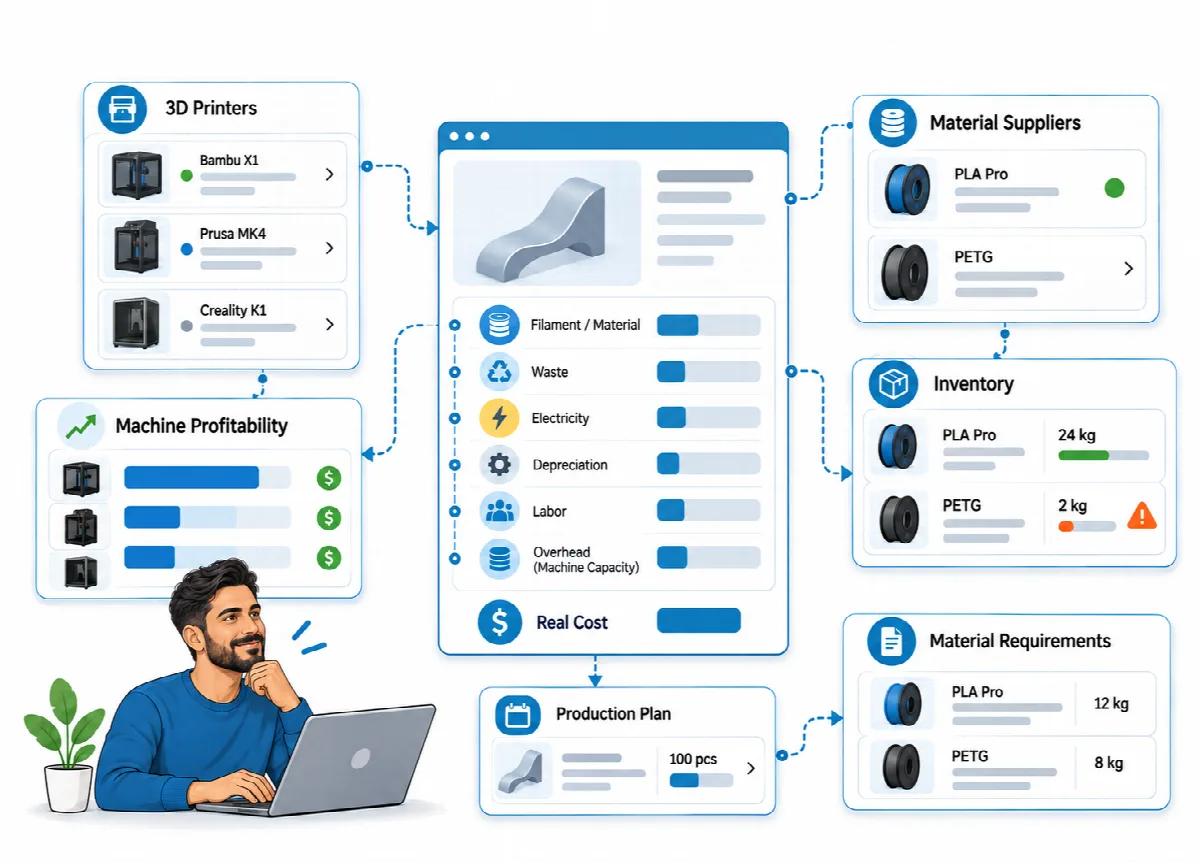
Printer profiles
Open Production → PRINTERS and click New Printer:
| Field | What it is used for |
|---|---|
| Printer Name | Shown in recipes and reports |
| Watt | Energy cost per print hour |
| Purchase Price | Hourly depreciation |
| Lifespan (years) | Hourly depreciation (2 years if left empty) |
| Daily Usage (hours) | Hourly depreciation and capacity (8 hours if left empty) |
| Utilization (%) | Hourly depreciation, and capacity for the overhead share and the machine report (100% if left empty) |
| Monthly Maintenance Cost | Charged only to products printed on this printer |
| Default Failure Rate (%) | Raises material use to cover failed prints |
Hourly Depreciation (auto) is calculated when you save: purchase price ÷ (lifespan in years × 365 × daily usage hours × utilization %). Utilization is part of the formula, so the purchase price is spread over the hours the printer actually works; the update to 2.0.0 recalculates the value for existing printers.
Printer profiles are entered by hand. Eagle3D does not connect to your printers and does not handle print files.
Filaments and supplier prices
Open Production → FILAMENTS and click New Filament. Enter Brand, Type, Color and Price per Kg, then click Save.
A filament can hold prices from several suppliers:
- Open the filament again (save a new filament first).
- Under Supplier Prices, choose a supplier in Select Supplier, enter the Price per Kg and click Add.
- Click Set Default on the price that recipes should use.
The cost engine uses the default supplier's price. Without supplier prices, it uses the filament's own Price per Kg. Each product recipe uses one filament.
Materials
Open Production → MATERIALS and click New Material for magnets, inserts, paint, packaging and other non-filament items:
- Name
- Material Type (from Settings → Material Types)
- Unit, for example piece or ml
- Unit Price, with up to 4 decimal places for cheap small items such as screws
Add materials to a product with Add Material in the product form.
Suppliers
The Suppliers menu keeps your supplier contacts. Click New Supplier and enter Company Name, Contact Person, Type, Phone, WhatsApp, Email, Website, Supplied Items, Address and Notes.
- Search by company, by product (Supplied Items) or by contact person, and filter by type.
- Supplier types are maintained in Settings → Values → Supplier Types (Raw Material and Spare Part to start with).
- Supplier records store contact and price information; Eagle3D does not send purchase orders.
Who can use these screens
The Production area is available to the Administrator and Production roles; View Only users can look but not change anything. The Suppliers menu is available to Administrator and Operations users (and read-only to View Only). See Users and roles.