
Quotes answer price requests before an order exists. They use the same catalog and cost engine as orders, so you see the estimated cost and profit while you prepare the price. An accepted quote becomes an order with one click.
Where to find it: Quotes.
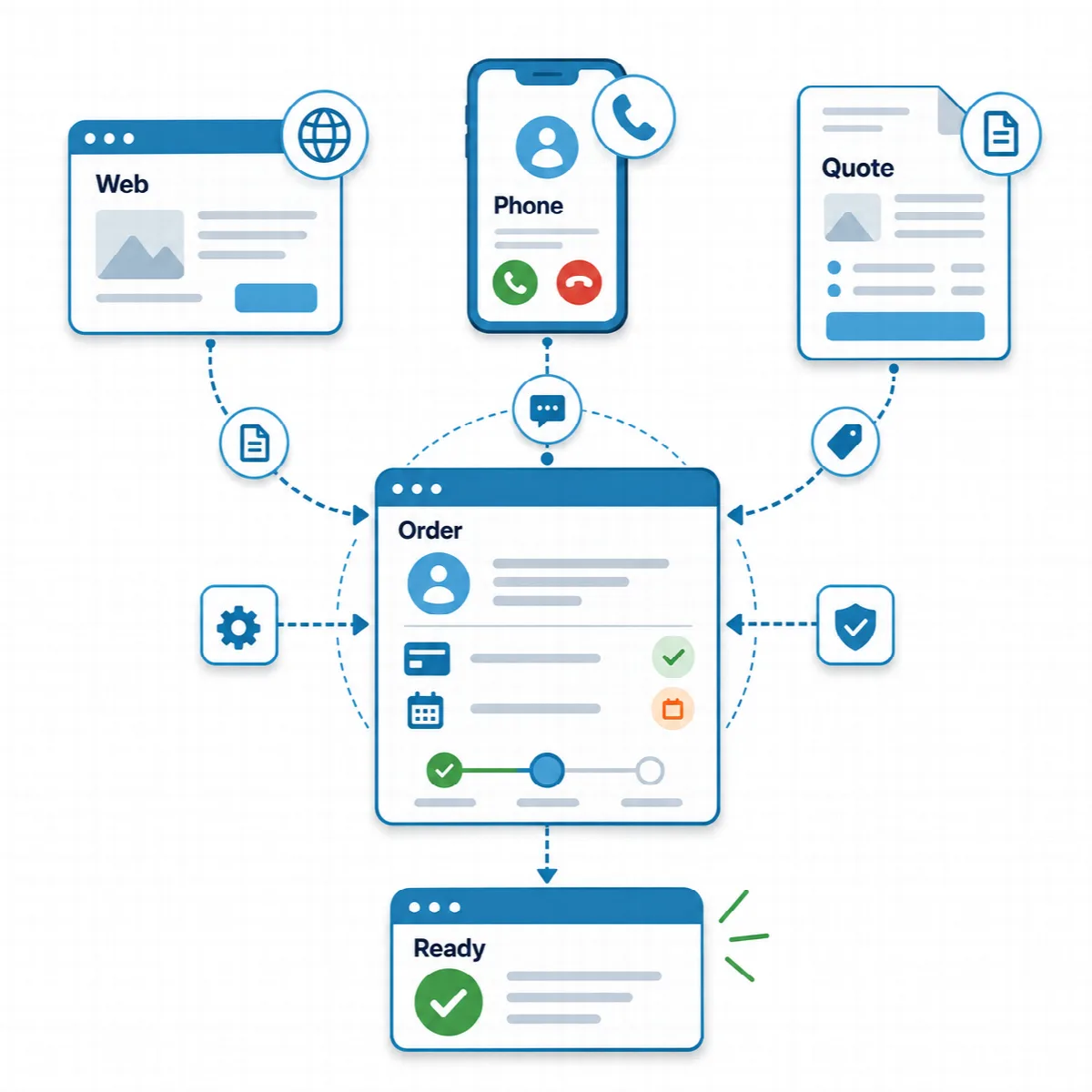
Create a quote
- Open Quotes and click New Quote.
- Under Customer, type the Phone number. A known customer is filled in; otherwise enter Full Name, Company and Email.
- Under Quote Items, click Add Product for catalog products or Add Custom Line for design work and services. For each line, check Quantity, Unit Price and Unit Cost. Product line costs come from the cost engine; for custom lines you enter the cost.
- Enter a Discount and a Delivery / Shipping charge if needed.
- Set Valid Until. The default validity comes from Settings → Order Settings → Default Validity (days) (15 days unless you change it).
- Write a Quote Note for the customer (for example lead time or payment terms) and, if you want, an Internal Note that only you see.
- Check Subtotal, Total, Estimated Cost and Estimated Profit, then click Save.
Estimated cost and profit are visible only to you, never on the quote document. Prices include the tax rate from Settings → Tax Settings; the quote document says "Prices include VAT."
Follow the quote status
In the quote list, set the status in the Status column:
| Status | Meaning |
|---|---|
| Draft | Being prepared |
| Sent | Given to the customer |
| Accepted | The customer agreed |
| Rejected | The customer declined. A rejected quote cannot be converted. |
| Converted to Order | An order was created from the quote |
When the Valid Until date has passed, the list marks the quote Expired. You can search by customer, company, phone or quote number and filter by status.
Print or send the quote
- Quote Document (the print icon) opens the quote with the title QUOTATION. Click Print / Save as PDF and use your browser's print dialog to print it or save it as a PDF.
- Send by email sends the quote to the customer's saved email address. Email sending must be switched on in Settings → Email. See Email notifications and SMTP.
Convert a quote to an order
- In the quote list, click Convert to Order.
- Confirm "Create an order from this quote? Quote prices carry over unchanged."
The new order keeps the quote's prices, and its cost is calculated and saved. The quote is marked Converted to Order, shows the order number and can no longer be edited, deleted or changed in status.
Before converting, the customer needs an address on file, and a city and district when City/District Required is on. If they are missing, complete them on the Customers screen.
Quote numbers
Quote numbers start with the Quote Prefix from Settings → Order Settings (for example QUO-).
For one-off jobs that are not in your catalog yet, the Production Calculator helps you find a price before you write the quote. See Price a one-off job and plan a production batch.