
This guide shows the order page and the tracking page from your customer's side, and explains what Eagle3D does with each online order. To switch the order page on and set it up, see Set up the online order page.
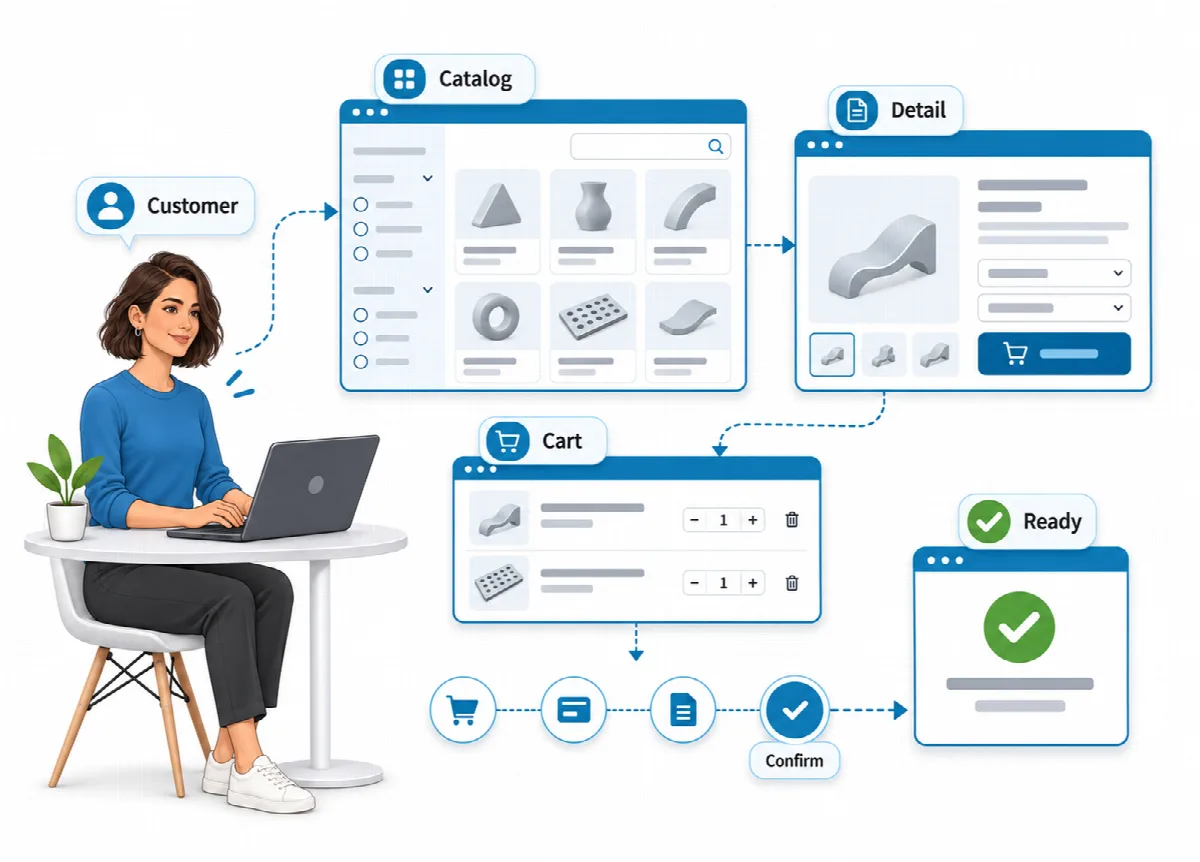
The four ordering steps
The order page is laid out for phones first, because most customers order from the device where they found your link.
- Products. The customer browses the catalog, opens a product with Details to see larger images and the description, and taps Add to cart.
- Cart. The customer checks the products and quantities. Prices are the current list prices; the page notes that shipping and special discounts are confirmed with the order.
- Details. The customer enters contact and delivery details: Full name, Phone, Email (optional), City, District, Address and an Order note (for example a colour preference).
- Confirm. The customer checks the Order summary, answers the security question (a short sum) and taps Place Order.
Good to know:
- Name, phone and address are required. City and district are required only when City/District Required is set to Yes in Settings → Order Settings.
- The cart stays in the browser tab, so it survives a page refresh. Closing the tab clears it.
- One order can contain up to 30 different products.
- Prices are always read from your catalog on the server when the order is sent, never from the page.
What happens when an online order arrives
- Eagle3D creates a normal order with its own order number and the default status for new orders.
- The customer is matched by phone number. A known phone number links the order to the existing customer without changing the stored name or address; different details from the form are written into the order note. A new phone number creates a customer record.
- The order note starts with "[Online order]", so you can tell online orders apart.
- The order gets the sales channel chosen in Settings → Online Orders, and its cost and profit are calculated and saved like any other order.
- If email sending is on, the customer receives an "Order received" email (when they entered an email address) and you receive a "New order" email. See Email notifications and SMTP.
The thank-you page
After placing the order, the customer sees:
| Element | What the customer sees |
|---|---|
| Your order has been received | The order number |
| Order summary | The products, quantities and total |
| Payment information | Your text from Settings → Online Orders, with the reminder to write the order number in the payment reference |
| Message us on WhatsApp | A link to your business WhatsApp number with "Hello, I am writing about my order …" filled in. Hidden when no number is set. |
| Track my order | A link to the tracking page |
| Place a new order | Starts a new order |
The order page does not take card payments. If you need online card payment, keep your web store and connect it to Eagle3D (see Connect your web store).
The order tracking page
Customers open the Order tracking link, enter the Order no and the phone number they used, and tap Check. The page works for every order in Eagle3D, not only for online orders.
The customer sees:
- the current status, for example In Production or Shipped;
- the Order date and the Estimated delivery (the order's due date, if set);
- the ordered items;
- the Amount due;
- once you have entered shipping details, the shipping company and a Track shipment link.
The status is the one your team sets in Eagle3D, so there is nothing extra to update. If the order number and the phone number do not match, the page says "No order matches this order number and phone number." and shows no details.
Protection against spam
The order page needs no outside captcha service. Every order passes these checks on your own server:
- only active products with a price can be ordered, and every line is priced from the catalog;
- a one-time security question (a short sum such as "4 + 7");
- a hidden trap field that only bots fill in, and a minimum fill time of a few seconds;
- at most 5 orders per visitor address in 15 minutes;
- at most 20 tracking lookups per visitor address in 15 minutes.
The order page never fills in customer details from a phone number, so it cannot reveal another customer's address.
If your site runs behind Cloudflare or a reverse proxy, set TRUSTED_PROXIES so that these limits see the real visitor address. See Security and data ownership.