
Eagle3D includes an online order page that you can share on Instagram, WhatsApp, Google Business or your website. Customers see your catalog, fill a cart and send an order. Each order enters Eagle3D as a normal order with its customer and costs connected. Eagle3D takes no commission on these orders.
Where to find it: Settings → Online Orders (administrators).
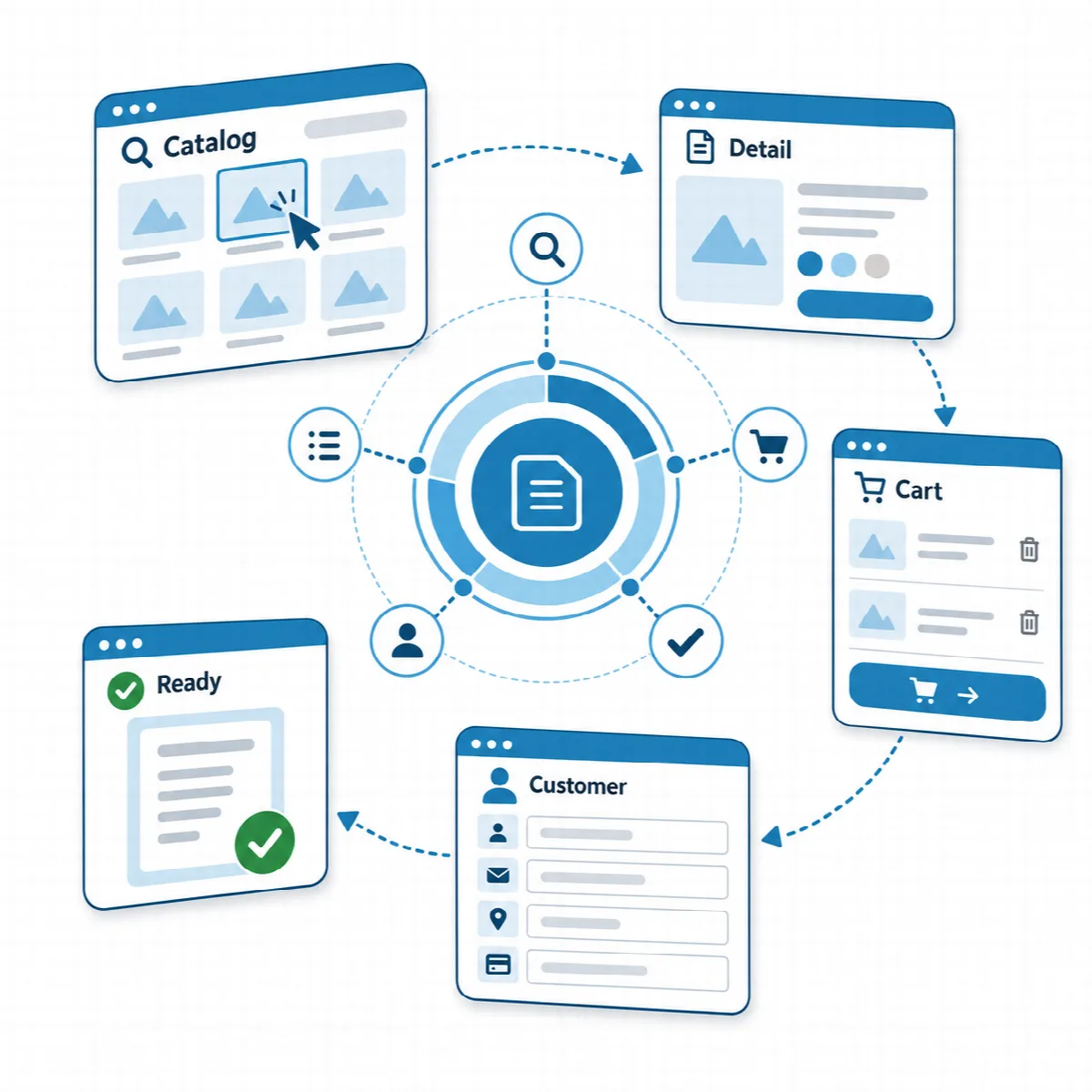
Before you start
- Create your products with a sales price (see Create products with a cost recipe). Only active products with a price can appear online.
- Add product categories in Settings → Values → Product Categories. They become the tabs of the order page.
- If online orders should carry a commission, add a sales channel in Settings → Sales Channels first.
Switch on online ordering
- Open Settings → Online Orders.
- Tick Allow customers to place orders online. Online ordering is off after installation.
- Fill in the fields described below.
- Click Save.
While ordering is off, the order page says "Online orders are not being accepted right now". The order tracking page keeps working.
The settings
| Setting | What it does |
|---|---|
| Order page link | The address of your order page, for example https://print.example.com/order.php. Copy it or open it in a new tab. |
| Order tracking link | The address of the tracking page, for example https://print.example.com/track.php |
| Page title (empty: site name) | The title at the top of the order page |
| Business WhatsApp number | The "Message us on WhatsApp" button on the thank-you page goes to this number. Leave it empty to hide the button. |
| Page description (optional) | A short text shown above the catalog |
| Payment information (shown on the thank-you page) | Your payment details, for example bank, recipient and IBAN. Customers are reminded to write their order number in the payment reference. |
| Sales channel for online orders | The channel whose commission and fee are added to every online order, or Direct sale (no channel) |
| Orders received online | How many orders have arrived through the order page |
| Products shown on the online page | All active products with a price, or Only products marked "show on the online order page" |
The order page does not take card payments. You arrange payment directly with the customer, for example by bank transfer.
Choose which products appear
- With All active products with a price, every active product with a sales price above zero is shown.
- With Only products marked "show on the online order page", tick Show on the online order page in the product form of each product you want to show.
Products are grouped into category tabs with an All tab first. The tabs appear when your online products use at least two categories, or one category plus products without a category. Products without a category appear only under All.
Prepare products for the order page
In the product form (Production → NEW PRODUCT or Edit):
- Product images: up to 5 images per product, JPEG, PNG or WebP, up to 8 MB and 6000 pixels. The first image is the main image on the product card; use Set as main image to change it. Square images look best. Eagle3D redraws uploaded images on your server in two sizes (as WebP, or JPEG if WebP is not available), which also removes camera and location data. Saving removes from the server only the images you removed in this form. If the images were changed in another window or by another user while the form was open, saving stops with "The product images were changed in another window or by another user. Reload the page and save again."
- Description: shown in the product details window, up to 500 characters. You can use the tags
<p>,<br>,<ul>,<ol>,<li>,<b>,<strong>,<i>,<em>and<u>. All other formatting is removed. - Category: decides the tab of the product.
Prices on the order page are the sales prices from your catalog.
Share the links
Share the Order page link in your Instagram bio, your WhatsApp status, your Google Business profile and on your website. Give customers the Order tracking link so they can check their order themselves.
Language of the order page
The order page and the tracking page use the language set in Settings → General → Language, the same language as the panel. Arabic, Hebrew and Persian use a right-to-left layout. Visitors do not choose a separate language.
Note: The order page and the tracking page are closed while the licence is locked. See Activate your Eagle3D licence.