
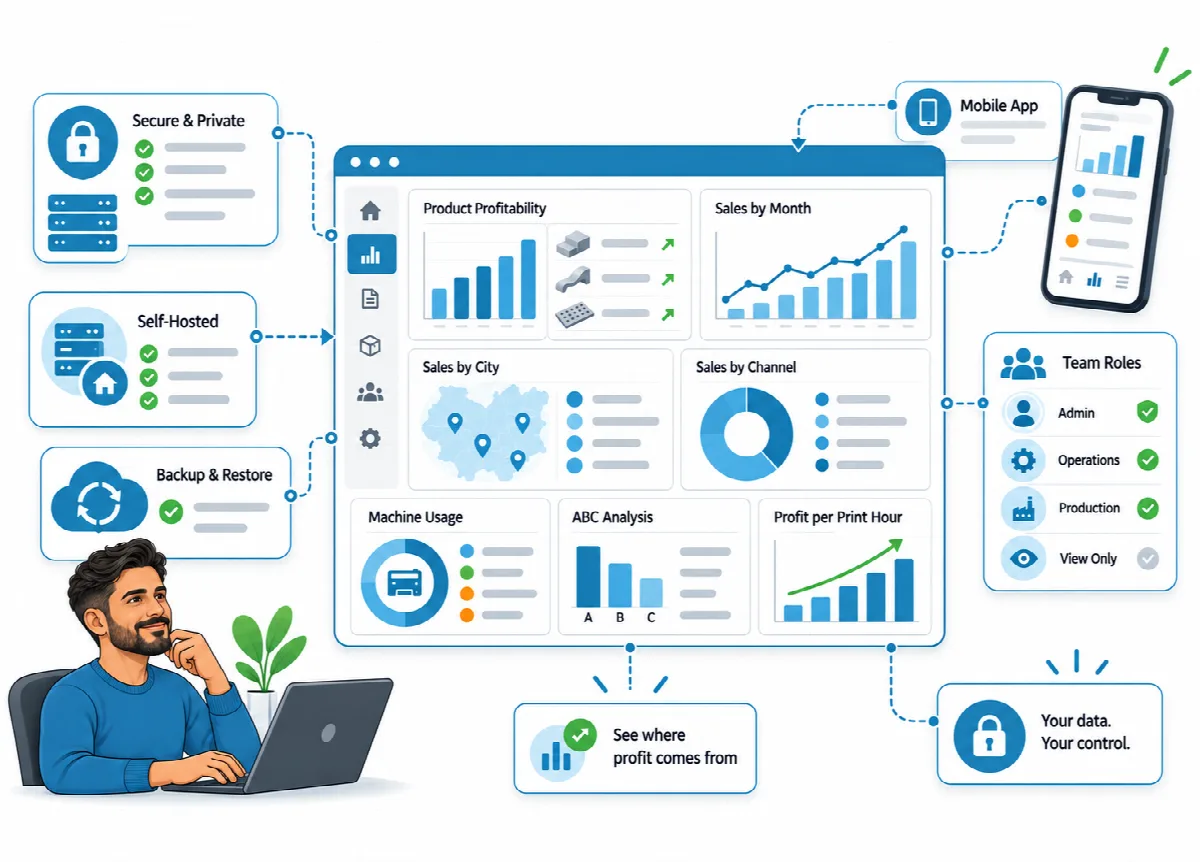
In the Business / Print Farm profile, every team member gets their own account with one of four roles. Each role sees only its menus, so a production worker follows orders and production without opening settings or reports.
Where to find it: Settings → Users (administrators, company profile only). Your own password: the user menu at the top → My Account.
Before you start
User management is available only in the company profile ("User management is only available in the Company profile."). To switch, open Settings → General, choose Business / Print Farm under Operating Model and click Save. See Business profile, country, currency and language.
The roles
| Role | Menus | What the role can do |
|---|---|---|
| Administrator | All menus, including Settings, Staff, Users and Reports | Everything |
| Operations | Dashboard, Customers, Orders, Quotes, Stock, Suppliers | Work with customers, orders and quotes, including deleting orders and recording payments |
| Production | Dashboard, Orders, Production, Stock | Open and enter orders, change the stage, store shipping details, manage products, printers and materials |
| View Only | Dashboard, Customers, Orders, Quotes, Production, Stock, Suppliers, Reports | See everything except Settings and Staff; cannot change anything |
- Settings → Users shows a short description of each role. For View Only it reads "Sees everything except settings and staff, cannot change anything."
- The Production role cannot delete orders or change the Paid Amount; the field is read-only and the Delete button is hidden.
- The Stock menu appears only when the stock module is on.
- Every user can open the License screen, but only an administrator can activate or renew the licence.
Add a user
- Open Settings → Users and click New User.
- Enter a Username (3 to 50 characters: letters, digits, dot, dash and underscore) and an Email. Both must be unique.
- Choose the Role.
- Enter a Password of at least 8 characters.
- Leave Active ticked and click Save.
The list shows each user's Role, Last Login and Status. Your own account is marked You.
Change a user or reset a password
Click Edit on the user. Leave Password blank to keep the current password, or enter a new one to reset it. Setting a new password also clears the user's failed sign-in attempts, so a locked user can sign in again at once.
To stop a user from signing in, untick Active.
Rules that protect access
- At least one active administrator must remain ("At least one active administrator must remain.").
- You cannot deactivate your own account or remove your own administrator role.
Change your own password
- Open the user menu at the top and choose My Account (on a phone: Menu → My Account).
- Enter the Current Password and the New Password (at least 8 characters).
- Click Change Password.
When a password changes, all other sessions of that account are signed out; the session you are using stays open.
Note: The sign-in page has no "forgot password" link. In the company profile, another administrator can set a new password in Settings → Users.