
SiteWatch keeps new accounts on a review path. Accounts from public registration can be asked to verify their email address and wait for an administrator. Accounts created while public registration is closed wait for a security approver.
Where to find it: ARN SiteWatch → Access Security → Registration Verification.
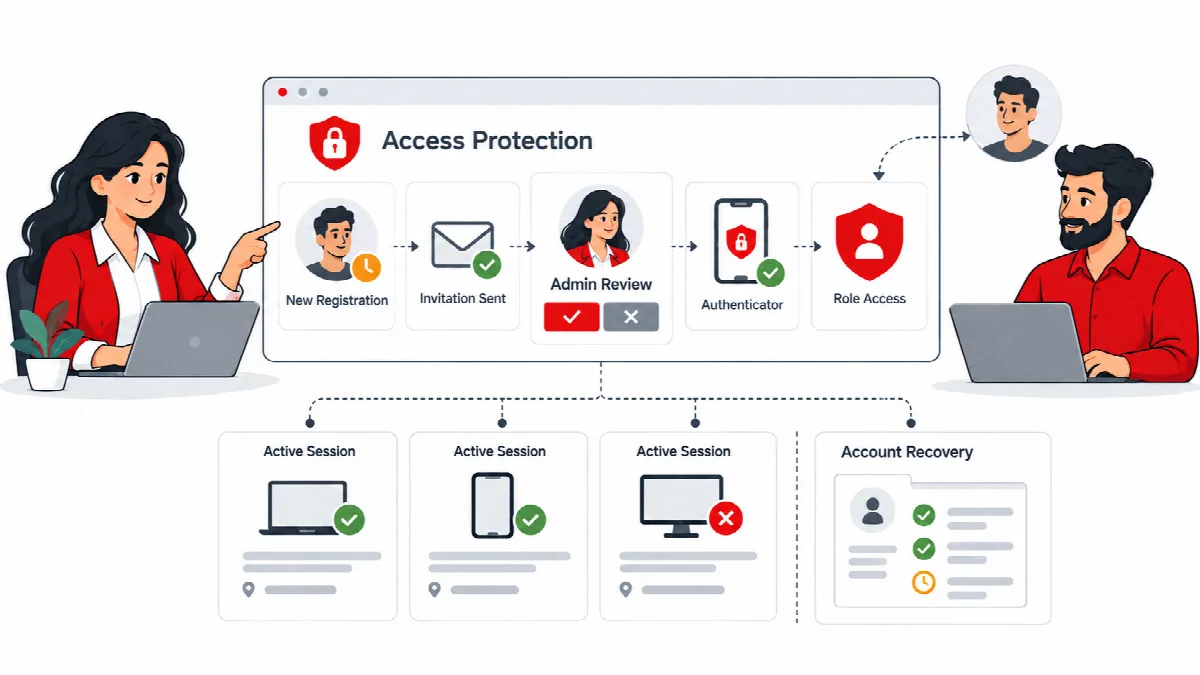
Verify public registrations
- Open Access Security → Registration Verification.
- Under Registration verification, tick Require verification for new public registrations.
- To also review each new account yourself, tick Also require administrator approval.
- Optionally list email domains you do not accept in Blocked disposable email domains (one per line).
- Click Save registration policy.
- Test the real journey: register a test account, open the verification email and complete it.
This covers standard WordPress registration and classic WooCommerce registration. While verification is on, WooCommerce does not sign new customers in automatically after registration. Accounts that administrators create are excluded.
Email verification proves that someone can read the mailbox. It does not prove who they are.
If a verification email does not arrive, users can request a new one on the public resend page, linked as Public verification email resend page. The page gives the same answer for every request and limits how often it can be used.
Approve pending accounts
Pending accounts lists accounts that still need email verification or approval, with their state: Email verified or Email pending, and Approved or Approval pending.
- Click Approve account to approve an account.
- An unverified account whose verification time has expired shows Review expired account before removing it in WordPress. SiteWatch never deletes accounts automatically; remove them yourself in Users if needed.
Until the account has completed the required steps, it cannot sign in or use protected areas of the site, even if someone gives it an administrator role.
Accounts created while registration is closed
When public registration is closed in WordPress, every new account needs approval, including accounts created by an administrator, through the REST API or by a plugin. Existing accounts are not affected.
These requests appear under Closed-registration account approval with the reason, the creating account and the time. Only a security approver can approve them:
- Review the account, its intended access and how it was created.
- Tick I reviewed this account, its intended access and the creation request.
- If your session is not verified yet, enter a fresh authenticator code.
- Click Approve account request.
A pending account cannot sign in, use protected REST routes, install or activate plugins or approve itself.
On a multisite network, adding an existing user to a closed site also needs approval on that site. Network super administrators keep their existing membership access.
On a multisite network
Network signup already uses WordPress activation emails. SiteWatch additionally protects supported direct site and WooCommerce registrations, configured on each site in Registration Verification.
Add a challenge to registration
To add Cloudflare Turnstile to supported registration forms, enter your Turnstile keys in Forms & Email → Spam Protection and tick Require a challenge for supported registrations. See Spam controls, email policies and mail diagnostics.
Custom registration forms and membership plugins are not covered automatically. Test them separately.