
Site & Asset Health opens selected public pages like a visitor and checks that the pages and the files they reference load correctly. Use it after updates and as a daily check.
Where to find it: ARN SiteWatch → Monitoring → Site & Asset Health.
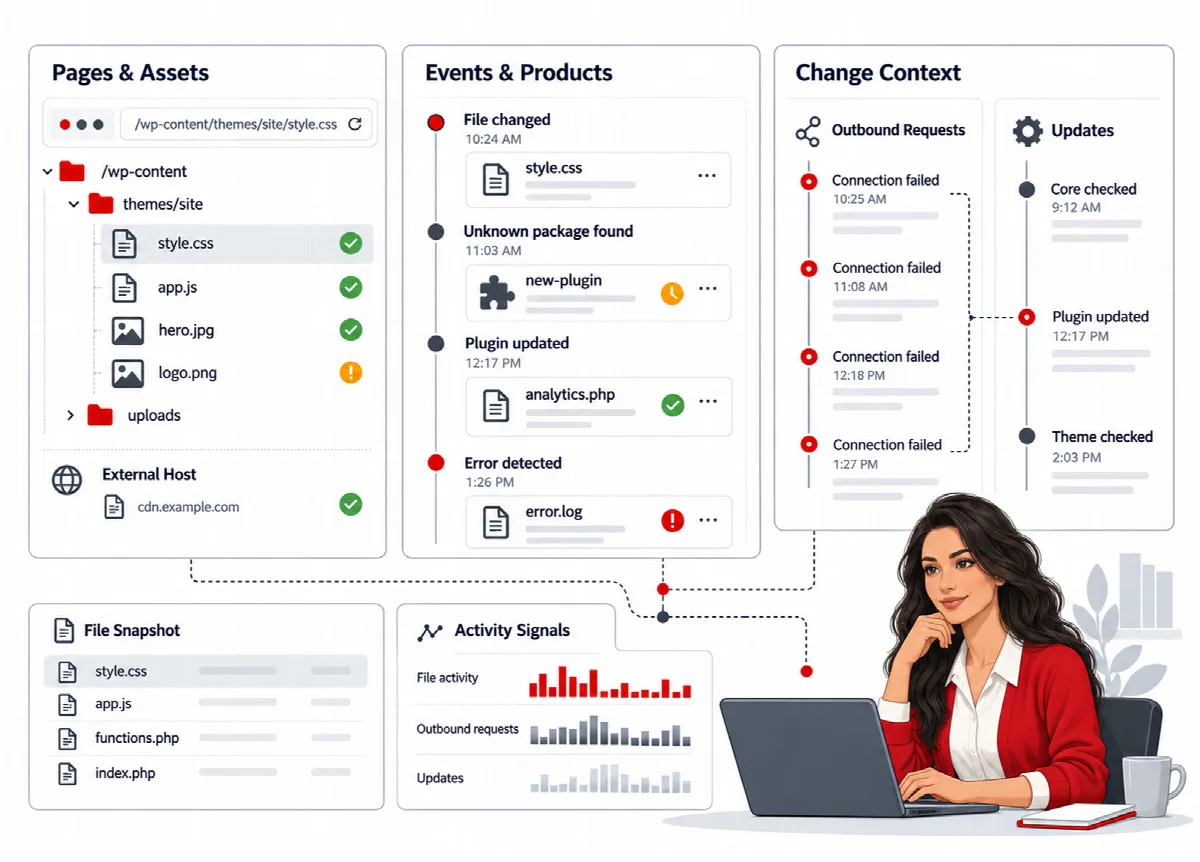
What is checked
- Up to five public page paths of your site.
- The stylesheets, scripts and images those pages reference, within a fixed budget per page and run.
- Files on other hosts only if you list those hosts.
- Optionally the WordPress REST index and the ticket service of the SiteWatch secure form. The form probe only requests a ticket; it never sends a message.
Redirects and connection failures are reported as unverified, not as broken. Addresses that could reveal secrets are skipped.
Set up the checks
The options on this screen and their defaults:
| Option | Default |
|---|---|
| Check public pages and assets daily | Off |
| Check after WordPress-managed updates | Off |
| Compare published vulnerability data daily | Off |
| Delegate WebPix-managed media to WebPix Delivery health | On |
| Probe WordPress REST index and the configured encrypted-form ticket service | Off |
- Open Monitoring → Site & Asset Health.
- In Local page paths (up to five; one per line), enter the paths to check, for example
/,/blog/and/shop/. The default is/. - In External asset hosts to check (exact names; one per line), list hosts such as your CDN, for example
cdn.example.com. - Tick the options you want.
- Click Save monitoring policy.
- Click Check pages & assets now for a first check.
The check runs in the background through WordPress scheduled tasks. When it finishes, the screen shows the time, how many addresses were delegated to WebPix and how many were outside the configured scope, followed by each address with its status and HTTP code.
Working with WebPix
When WebPix is active, it manages your media library and checks its own image addresses with its Delivery health check. With Delegate WebPix-managed media to WebPix Delivery health on, SiteWatch leaves those images to WebPix and only records how many it delegated, so you do not get the same problem reported twice. SiteWatch does not start a WebPix repair.
After an update
With Check after WordPress-managed updates on, SiteWatch checks the pages again after plugin, theme and core updates made through WordPress. If something breaks, the result shows the timing next to the update.
A failure right after an update is useful context, but it does not prove that the update caused it. Check the related events and files before you decide.
If DualFix is installed, the screen also shows Open DualFix Backup & Restore, which opens DualFix's backup and restore screen. SiteWatch itself never restores a backup or rolls back an update automatically.
What health checks do not cover
Checkout and other transactions, pages that need a sign-in, private pages and the real delivery of form messages and emails are not tested. Test these journeys yourself after important changes.