
The security setup has three parts: an authenticator for your account, a designated security approver and a starting set of policies. Do them right after you activate the licence.
Where to find it: ARN SiteWatch → Settings → Setup & Profiles.
Why a security approver is needed
SiteWatch holds plugin installations, updates and activations that need a decision. Only a security approver can make that decision. A WordPress administrator role does not make anyone an approver; the authority is designated separately and confirmed with a password and an authenticator code.
Until an approver is designated, plugin installations and updates made from WordPress accounts wait in Plugin Review → Pending Reviews, because no account can approve them yet. (SiteWatch 2.0.1 and later) The Dashboard and Plugin Review then show Setup is not complete: no security approver is designated.
Before you start
- Activate the licence: see Activate your SiteWatch licence.
- Install an authenticator app on your phone or in your password manager.
- Use an account that can install plugins. On a multisite network, use a network administrator account.
1. Enroll an authenticator
- Go to Users → Profile and find the section Two-factor authentication. You can also use Set up your authenticator in Access Security → Two-Factor Authentication, which opens the same steps on a separate page.
- Scan the QR code with your authenticator app. If you cannot scan it, open Cannot scan? Enter the setup key manually and type the key into the app (time based, 6 digits, 30 seconds).
- Enter the current six-digit code from the app in Six-digit authenticator code and your Current WordPress password.
- In your profile, set Account action to Enable 2FA and click Update Profile. On the separate page, click Enable 2FA.
- Save your recovery codes. SiteWatch shows eight one-use recovery codes once. Store them in your password manager or another safe place outside WordPress.
The setup code expires after ten minutes. If it expires, use Generate a new setup code and scan the new code. The QR code is generated on the page; the setup key is never sent to an outside QR service.
2. Become the security approver
(SiteWatch 2.0.1 and later) While no approver is designated, ARN SiteWatch opens on Settings → Setup & Profiles, and the required step Become the security approver appears above the profiles.
- If you have not enrolled an authenticator yet, click Set up authenticator. It opens your profile; complete step 1 and come back.
- Enter your Current WordPress password.
- Enter a Fresh authenticator code from your app.
- Click Become the security approver.
You can also designate yourself in Plugin Review → Accounts & Permissions → Security decision authority: enter your password and a fresh code and click Designate my account as security approver. This is the only way on SiteWatch 2.0.0.
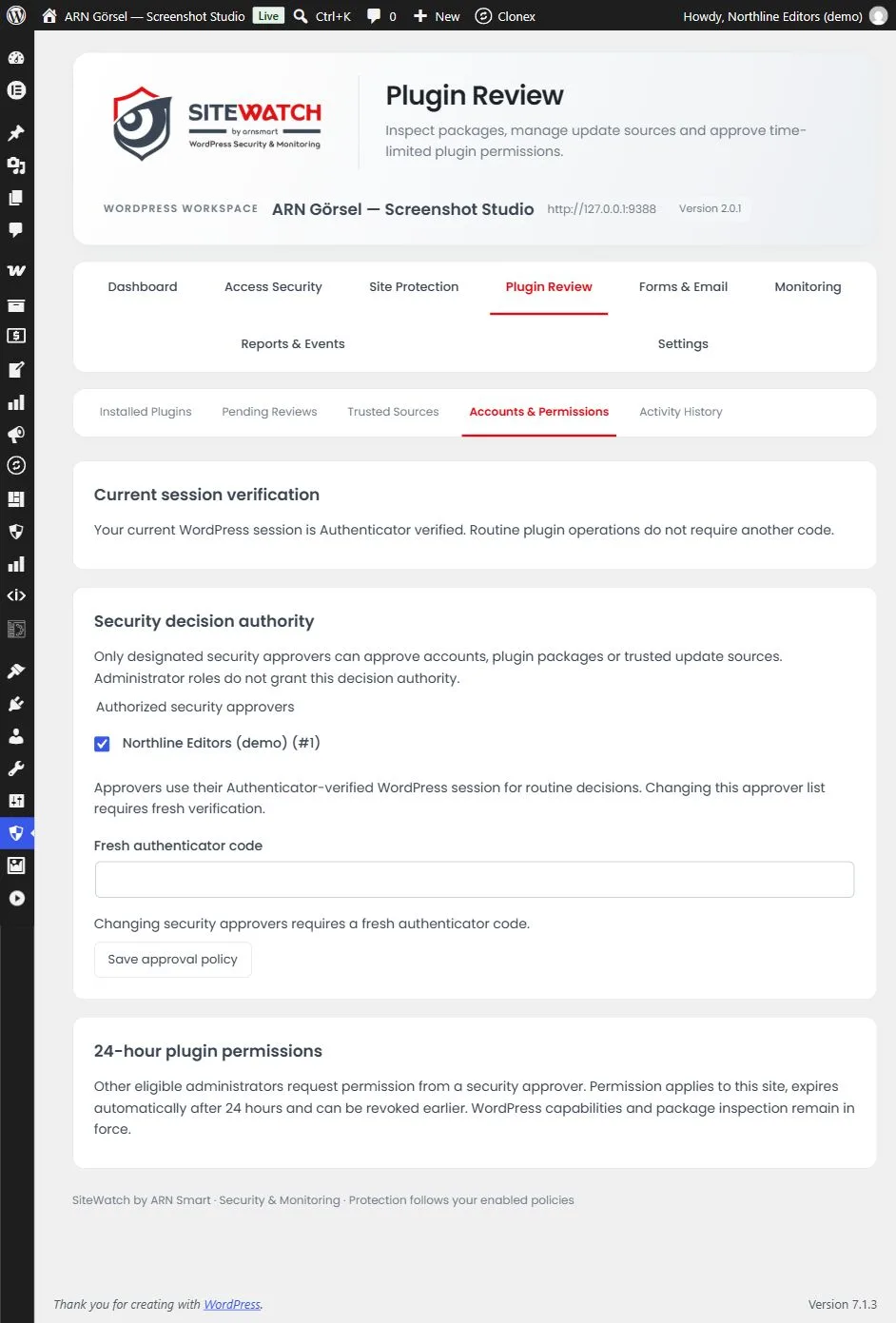
After the first approver exists, more approvers can be added there; see Security approvers, verified sessions and 24-hour permissions.
3. Choose a starting profile
In Settings → Setup & Profiles, under Choose a starting profile:
- Choose a Site profile: Blog & publication, Business & private enquiries or WooCommerce & customer accounts.
- Optionally tick Also verify new administrator browsers. I tested account email delivery or enrolled an authenticator. This needs HTTPS.
- On a single site, optionally tick Also require verification for future public registrations.
- Tick I reviewed the changes before applying this site's policies. and click Apply reviewed profile.
What every profile does:
- turns on login attempt protection;
- sets request patterns, sensitive endpoint limits and the email sending policy to Observe where they were off, so nothing is blocked yet;
- disables the built-in plugin and theme file editors and hides PHP error output;
- requires 14-character passwords for administrators on future password changes and limits their sessions to 12 hours.
Business & private enquiries and WooCommerce & customer accounts also require 12-character passwords and 24-hour sessions for editors.
Stricter policies that you already had are kept. The profile applies to the current site only.
To undo a profile, click Restore previous policies. This works only while the policies the profile applied are unchanged; SiteWatch does not overwrite changes you made later.
The setup checklist
The setup screen lists five steps. The first three are covered above; the last two are in First steps after the security setup.
- Review a profile and apply the initial policies.
- Enroll an authenticator in your user profile, then choose required roles in Two-Factor Authentication.
- Become the security approver, so plugin installations and updates can be approved.
- Run a file scan, integrity inspection and vulnerability lookup.
- Review your findings and test forms, logins and order emails before blocking.
Note: Keep a working administrator session and your hosting access available while you change sign-in and request policies. See Limit failed logins and recover access.