
SiteWatch needs an active licence for new manual scans, configuration changes, AI requests and updates. Licences of all ARN Smart products on a site are managed in one place: Settings → ARN Center → Licences.
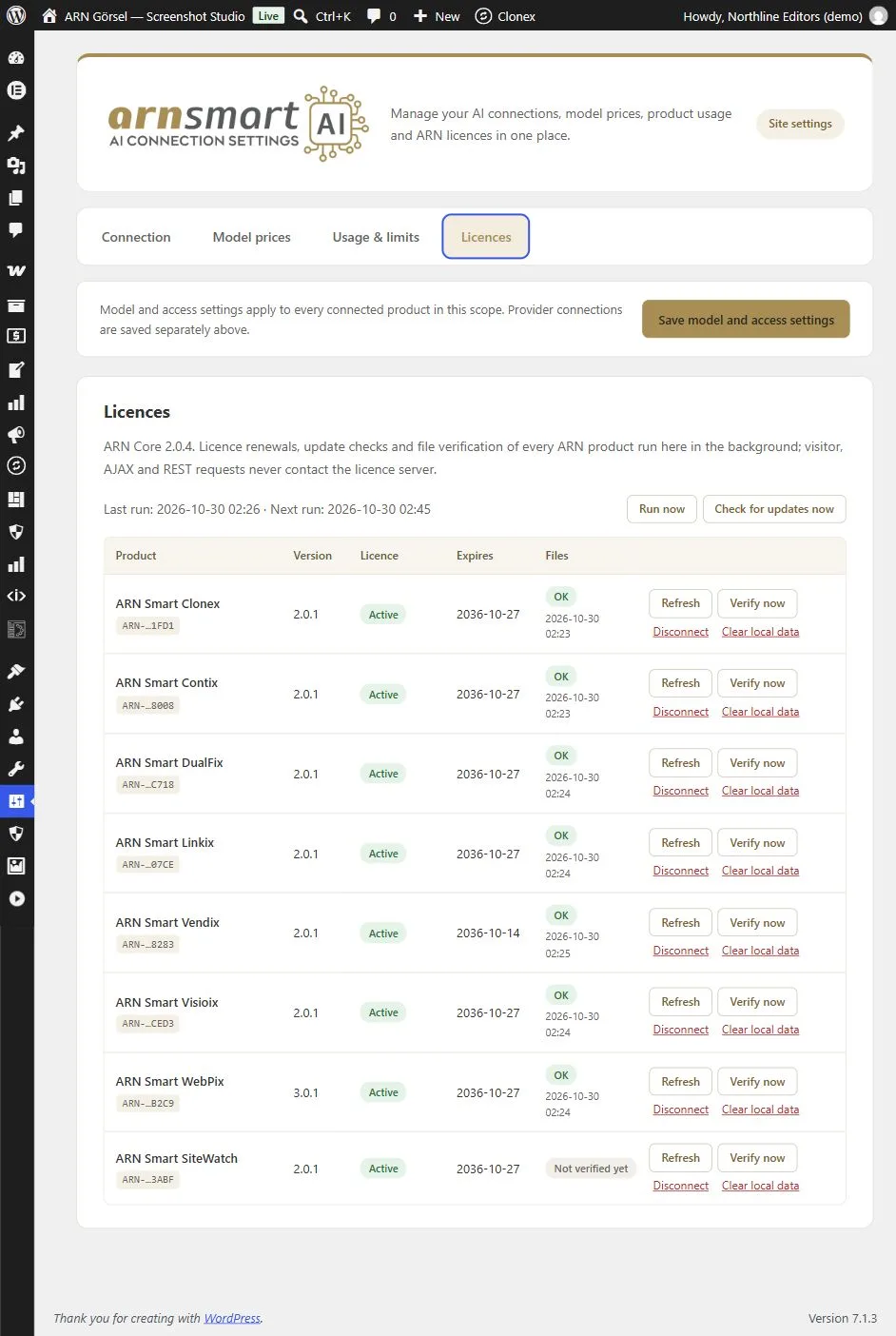
Activate the licence
- Get your activation code. Open the link in your licence email to request an ARNA activation code. The code is sent to the same email address; you do not need an account. The code starts with
ARNA-. It works once and binds the licence to your site address. - Open the Licences screen. In your WordPress admin, go to Settings → ARN Center and open the Licences tab. While the licence is not active, SiteWatch also shows a button: Open Settings → ARN Center → Licences.
- Enter the code. Find ARN Smart SiteWatch in the table, paste the code into the
ARNA-…field and click Activate. - Check the result. SiteWatch is ready when its Licence column shows Active.
Note: On a multisite network, go to Network Admin → Settings → ARN Center. One licence covers the whole network and is bound to the network's main domain. Only a network administrator can activate or change it.
Read the licence table
| Column | What it shows |
|---|---|
| Product | The ARN product, a short form of its licence key and any licence error |
| Version | The installed version of the product |
| Licence | Active, Active (offline) or Locked |
| Expires | The end date of the licence, or No expiry |
| Files | Whether the plugin files match the released package: OK, Failed, Old result or Not verified yet |
Active (offline) means SiteWatch is running on its signed offline permission while the licence server cannot be reached. ARN Center keeps retrying in the background.
Buttons on the Licences screen
| Button | What it does |
|---|---|
| Activate | Activates the licence with the ARNA code you entered |
| Refresh | Checks an existing licence again |
| Verify now | Checks the plugin files against the released package |
| Disconnect | After a confirmation, releases the licence on the licence server and removes it from this site, so you can activate it on another site with a fresh ARNA code. A licence can be released three times in 30 days |
| Clear local data | Removes the stored licence data from this site; the licence must then be activated again |
| Run now | Runs the background licence renewal, update check and file verification immediately |
| Check for updates now | Checks for updates of the ARN products on the site right away. Each product row then shows its Last update check; if updates were checked less than a minute ago, try again in a minute |
| Get support | Opens a form that sends a request to ARN Smart support for this product; see Get support below |
ARN Center renews the licences of every ARN product in the background. Visitor, AJAX and REST requests never contact the licence server. If the licence server cannot be reached, a signed offline approval keeps SiteWatch working for up to 24 hours while renewal is retried.
Move a licence to a new site address
A licence is bound to one site address. To use it on a new site address:
- On the old site, click Disconnect for SiteWatch in Settings → ARN Center → Licences and confirm. The licence is released on the licence server and removed from that site. A licence can be released three times in 30 days.
- Request a new activation code through the link in your licence email.
- On the new site, activate SiteWatch with the new code in Settings → ARN Center → Licences.
Deleting the plugin does not release the licence on the licence server, so use Disconnect first. (SiteWatch 2.0.2 and later) Deleting the plugin alone keeps the licence record on that site, so disconnect before you delete it. If the old site is no longer available, or the panel says that ARN could not release the licence (for example after three releases in 30 days, with the date it is possible again), release it in ARN Account or contact ARN Smart support. ARN Smart support can also move the licence for you.
Installing again on the same site. (SiteWatch 2.0.2 and later) Deleting SiteWatch keeps its licence, so when you install it again on the same site address, it needs no new activation code. To remove the licence as well, click Clear local data for SiteWatch in Settings → ARN Center → Licences before you delete the plugin. If the Licences screen asks for a code after you install again, for example after deleting an earlier SiteWatch version, request a new activation code through the link in your licence email and activate it there; the licence moves to the new installation.
Get support
Each product row in Settings → ARN Center → Licences has a Get support button for the users who manage the licences. It opens a form:
- Write a Subject and a Message.
- Check the Contact e-mail; it starts with your own address. ARN replies to the licence e-mail, and this address goes on the request as an extra contact. When the site holds no licence, ARN replies to this address.
- Leave Include these technical details ticked to send the details shown in the form: the WordPress and PHP versions, SiteWatch and its version, ARN Core, the licence status, the last update check, multisite and the site language. Untick it to send none of them.
- Click Send request.
The page shows the number of the request. ARN also receives the site address and, when the site holds a licence, its signed proof, so support can find the licence; the support desk never receives a licence key, activation code, password or installation secret. You can also open a ticket at support.arnsmart.com.
When the licence is not active
Your protection does not switch off when a licence expires or is not yet active:
- sign-in protection, two-factor authentication, the encrypted form, request and email policies you configured keep working;
- scheduled monitoring keeps running;
- stored reports, exports and recovery tools stay available.
New manual scans, configuration changes, AI requests and update downloads need an active licence again.
When files do not match the released package
SiteWatch checks every one of its packaged files on every request. If a file is missing or changed, SiteWatch does not run its code. Instead, ARN SiteWatch opens a small screen, SiteWatch package repair required, that names the changed files. Stored settings and reports are kept.
Restore the official files, for example by uploading the SiteWatch package again. SiteWatch opens normally on the next request after the official files are back. File verification is also shown in the Files column of Settings → ARN Center → Licences.
If activation fails
- Make sure the code is a SiteWatch code and has not been used before. ARNA codes work once and expire; request a fresh code through the link in your licence email if needed.
- Make sure you are activating on the site address the code is meant for.
- If the licence table says that the licence belongs to another site or installation, it is bound to another site address; see Move a licence to a new site address above.
- On a multisite network, only a network administrator can activate the licence.
- For an existing licence, click Refresh.
Licence errors are shown as plain sentences with an error code. When you contact support, include that message. Never share your activation code or licence key in a support request.