
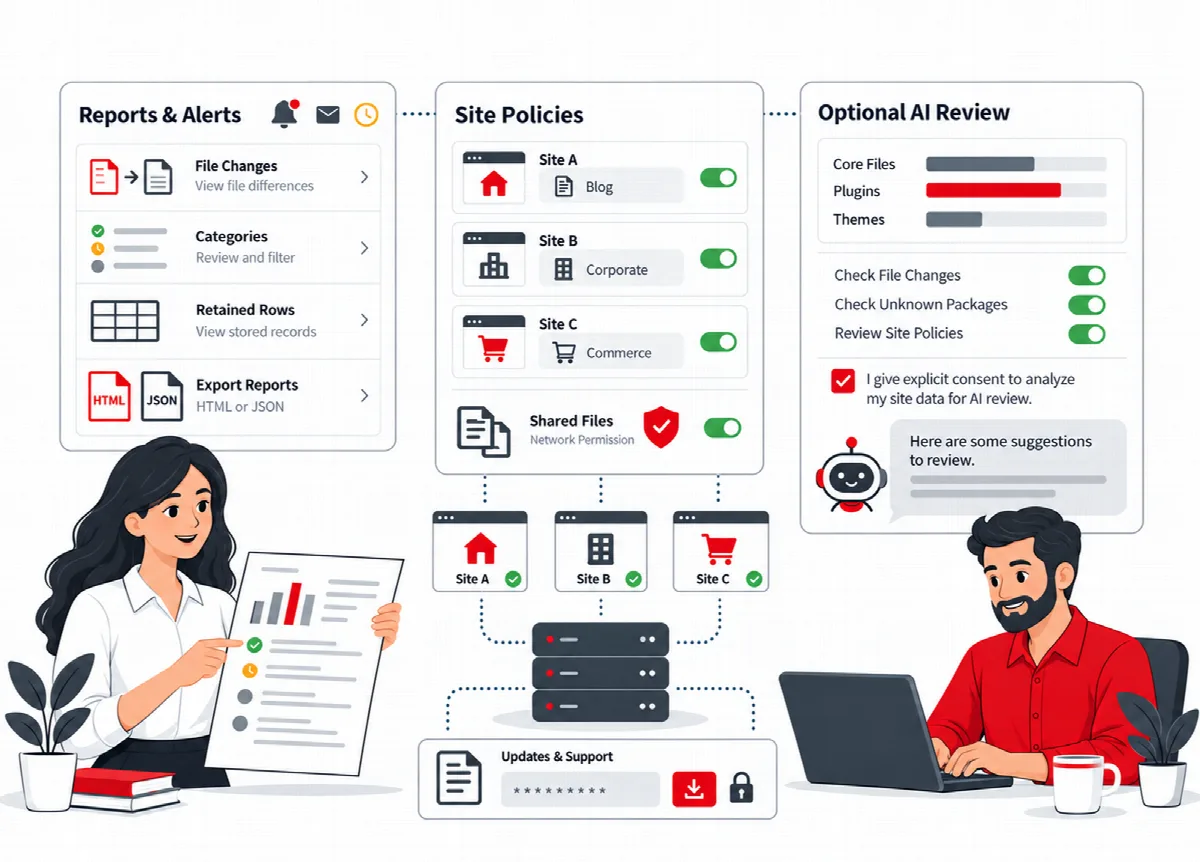
The AI Security Review sends a short summary of your SiteWatch status to the AI provider you connected and returns advice in plain text. It is optional. Nothing is sent until you have seen the summary and approved it.
Where to find it: ARN SiteWatch → Settings → AI Connection & Review. The AI connection itself is in Settings → ARN Center.
Before you start
- Your SiteWatch licence must be active.
- Set up an AI connection in Settings → ARN Center (tabs Connection, Model prices and Usage & limits). Use Open ARN Smart AI on the SiteWatch screen to go there.
SiteWatch uses the shared ARN Smart AI connection that the other ARN Smart products on the site also use. There is no separate AI key for SiteWatch, and its requests count toward the shared usage and the limits set in Usage & limits. On a multisite network, a shared connection applies only to the sites the network administrator selected.
Run a review
- Open Settings → AI Connection & Review.
- Click Preview security summary.
- Read the Summary to send. It contains only the SiteWatch version, counts and on/off states: whether a complete report exists, how many files were inspected, how many file changes and findings were recorded, whether login protection is on and how many roles must use two-factor sign-in.
- Tick I approve sending this summary to the selected AI connection. Provider charges may apply.
- Click Send approved summary.
- Read the answer under Latest review for this account.
The approval is tied to your account and site, expires after ten minutes and can be used once. If the AI connection settings change in the meantime, the approval is refused and you need a new preview.
What is sent and what is not
The summary contains aggregate counts and protection states. It never contains file contents, file paths, host names, traffic, customer messages, email addresses, mail settings, private keys or credentials.
The provider processes the summary under its own terms. Provider charges may apply. If the provider rejects the request, SiteWatch does not retry it or switch to another provider automatically.
What the answer is
The answer is advice in plain text. SiteWatch does not apply it: it never edits files, approves packages or turns on policies because of an AI answer. Check each recommendation against the report before you act.