
The SiteWatch secure form encrypts each message in the visitor's browser before it is sent. WordPress stores only the encrypted message. You read it in a separate reader on your own computer, with a private key that never goes into WordPress.
Where to find it: ARN SiteWatch → Forms & Email → Encrypted Forms and Forms & Email → Encrypted Inbox.
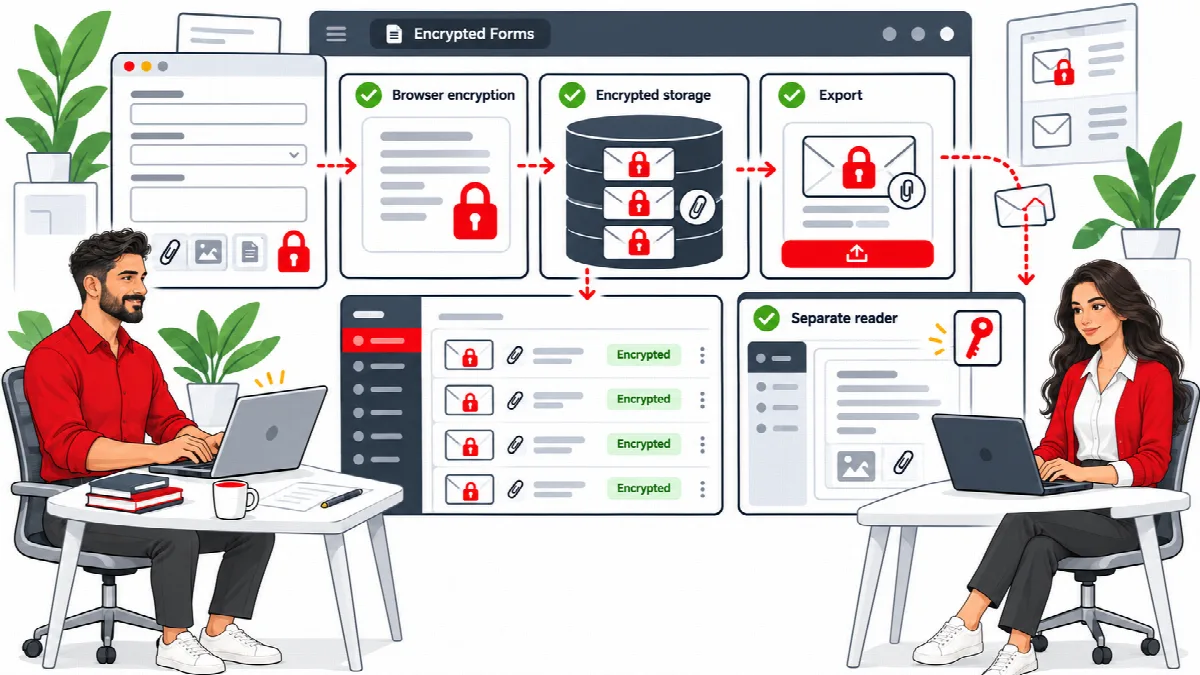
How it works
- The form has the fields Name, Email, Message and an optional Attachment (up to 3 MB). All of them are encrypted in the visitor's browser with a new key for every message.
- That key is locked with your recipient public key. Only the matching private key can open the message.
- The private key stays in the separate SiteWatch private reader, a small web page you open locally. It works without network requests.
- New-message notifications only contain a reference, never the message itself.
Before you start
- The page with the form must use HTTPS.
- Have the tools package from your licence email (for example
sitewatch-tools-2.2.0.zip), the second download next to the plugin. Extract it into a trusted folder on your computer; the reader is itsreaderfolder. It is not a WordPress plugin. - Use a modern browser. Without JavaScript and Web Crypto, the form stays disabled; it never falls back to sending plain text.
1. Create the recipient key in the reader
- Open
reader/index.htmlfrom the extracted tools package in your browser. - Enter a Key backup passphrase (at least 12 characters).
- Click Generate recipient key & encrypted backup. Save the encrypted key backup file it offers.
- Store the backup file and the passphrase separately, in safe places outside WordPress.
- Check that you can unlock the backup (see step 4 below) before you rely on the form.
- Copy the key shown in Public key for WordPress.
2. Save the public key in WordPress
- Open Forms & Email → Encrypted Forms.
- Paste the key into Recipient public key (SPKI base64).
- Set Submissions per source IP per hour (5 by default, 1 to 1000).
- (SiteWatch 2.1.0 and later) Check the limits, retention and emails: - Submissions per hour for the whole site: 50 by default, 1 to 10,000. - Storage limit for encrypted messages (MB): 100 by default, 10 to 2,000. - Delete messages after (days; 0 keeps them): 0 by default, up to 3,650. - New message emails: One email for each message (the default), At most one email per hour or No email; check the encrypted inbox.
- Optionally enter the WordPress account IDs of people who may export messages in Authorised inbox readers (WordPress account IDs; comma separated). Up to 25 readers are possible.
- Click Save encrypted form settings.
Only an RSA public key of at least 3072 bits from the SiteWatch reader is accepted. Never paste the private key into WordPress.
The source limit counts each IPv4 address and each IPv6 /64 network; behind a proxy or CDN, set up the visitor address first (see Request patterns, endpoint limits and early protection). The site-wide limit and the storage limit stop floods from many sources: a refused visitor sees "Submission limit reached." or "The private inbox is full. Try again later.", and the first refusal of each hour is recorded as an event. Retention removes older messages every hour, so export the messages you need to keep first.
3. Add the form to a page
- Edit an HTTPS page and add a Shortcode block.
- Enter
[sitewatch_secure_form]. - Preview the page, then publish it.
- Send a test message with non-sensitive text.
Visitors send their message with Send private message.
4. Read messages
- Open Forms & Email → Encrypted Inbox and click Export encrypted message next to the message. Authorised readers can also use Open authorised reader inbox, which works without access to the WordPress dashboard.
- Open the reader on your computer.
- Under Open an encrypted message, choose your Encrypted private key backup, enter the Backup passphrase and click Unlock recipient key.
- Choose the Exported encrypted message and click Decrypt message locally.
- If the message has an attachment, use Download decrypted attachment. Attachments are downloaded, never opened or run in the reader.
- When you are done, click Lock reader & clear displayed message.
Protect exported message files like any other confidential document.
Change the recipient key
When recipients change, create a new key in the reader and save the new public key in WordPress. The new key applies to future messages only. Keep the old key backups and passphrases to read messages received before the change.
(SiteWatch 2.1.0 and later) Once a security approver is designated, only an approver can replace an existing recipient key, with a code in Fresh authenticator code (only when replacing the recipient key). Every replacement sends the email "SiteWatch: encrypted form recipient key replaced" to the alert recipient and to the inbox readers before and after the change. It names the account and the first 12 characters of the previous and the new key, so a replacement from a taken-over session does not go unnoticed.
Revoking someone's inbox access does not revoke messages or keys they already copied. Lost private keys or passphrases cannot be recovered by SiteWatch.
Limits to keep in mind
- Encryption covers the SiteWatch secure form only. Contact Form 7, Gravity Forms and other form plugins are not encrypted by SiteWatch.
- Encryption protects stored messages. If the site itself is compromised, an attacker could change the page and capture data before it is encrypted. Site security and the security of the recipient's computer still matter.
- The form has its own abuse protection: signed one-use tickets, a minimum fill time, a hidden honeypot field, the per-address limit and (SiteWatch 2.1.0 and later) the site-wide and storage limits. You can add a Cloudflare Turnstile challenge; see Spam controls, email policies and mail diagnostics.