
File integrity tells you whether your files still match a trusted original. When a file differs, SiteWatch can replace it with the original or move it into quarantine, always after your review and with an encrypted backup.
Where to find it: ARN SiteWatch → Site Protection → File Integrity, Site Protection → File Repair and Site Protection → Quarantine.
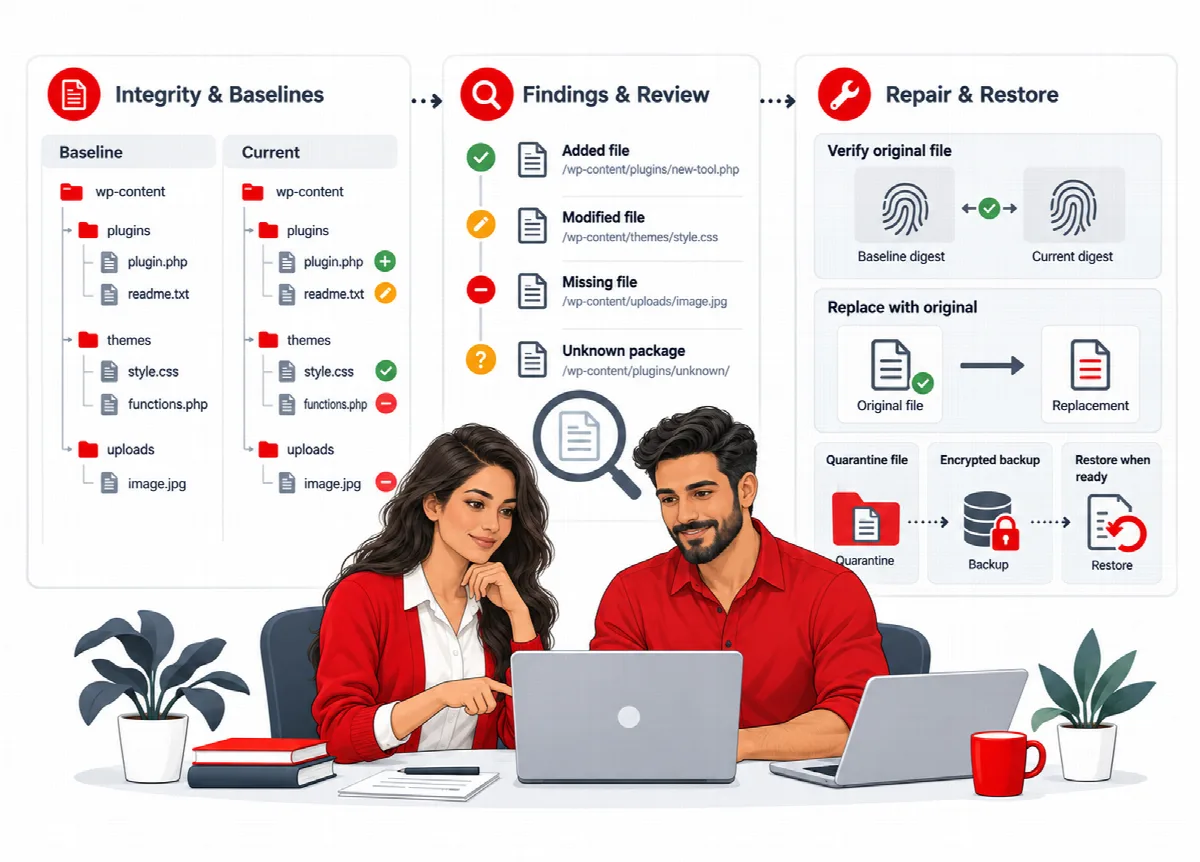
The references SiteWatch uses
| Files | Reference |
|---|---|
| WordPress core | The official checksums for your WordPress version and language |
| Public plugins from WordPress.org | The WordPress.org SHA-256 reference for the exact installed version |
| Themes and private or commercial plugins | A SHA-256 manifest (JSON) that you import from a trusted fresh package of the exact version |
Only create a manifest from a fresh package you trust. A manifest made from the files installed on your site cannot prove that the site is clean.
A scan baseline and a trusted reference are different: the baseline records what was present at the last complete scan, the reference describes the original release.
Compare files with the references
- Open Site Protection → File Integrity.
- Click Compare core & imported references. The comparison runs in the background.
- Read the result per scope: its status and source, and how many files are matching, approved, different and unverified.
- Open a listed file to see its status and fingerprint.
A file can be unverified when the reference is missing, belongs to another version, the file is missing, too large or a symlink. Unverified never means clean.
A different file can be a legitimate change, for example a customization you made. After you review it, tick I reviewed and approve this exact file digest. and click Record approved change. The approval only covers that exact content.
The comparison checks the files listed in the reference. Additional files in wp-content are covered by the content scan, not by the core checksums.
Import a manifest for a private plugin or theme
- Get a fresh copy of the exact installed version from the publisher and extract it into a folder. Never use the copy installed on a site; it may already be changed.
- Create the SHA-256 manifest (JSON) with
create-reference.pyfrom the tools package of your licence email (Python 3.8 or later). For a plugin in the foldermy-plugin, version 1.2.0:python create-reference.py path/to/my-plugin --type plugin --slug my-plugin --version 1.2.0 --output my-plugin-1.2.0.json. For a theme use--type theme. The slug is the folder name on the site, and the version is the one in the plugin or theme header. - In Site Protection → File Integrity, choose the file in Trusted package manifest.
- Tick I obtained this reference from a trusted fresh package.
- Enter a Fresh authenticator code and click Import reference.
Only a security approver can import references. A reference holds up to 10,000 files and 2 MB, SiteWatch keeps up to ten, and a reference of another version than the installed one stays unverified. Then run Compare core & imported references.
Replace a changed file with its original
Site Protection → File Repair replaces a file that differs from its reference with the trusted original. Files up to 1 MB are supported; configuration files, symlinks and SiteWatch itself are excluded.
- Run the file integrity comparison first.
- For a WordPress core or WordPress.org plugin file, choose it in Official reference difference and click Fetch official original & review. For other files, choose it in Reference difference, upload the original in Original file from trusted package, tick I verified the origin and version of this package. and click Validate & review differences.
- Review the differences shown. The original must match the reference exactly.
- Tick I reviewed these exact changes. and The installation is in a maintenance window with other writers stopped.
- Click Back up & replace reviewed file.
SiteWatch checks the current file again and stores an encrypted backup before replacing it. If the file changed in the meantime, the repair stops and asks for a new review.
To undo a repair, open Repair backups, tick I reviewed this backup and stopped other file writers. and click Restore if replacement is unchanged.
Quarantine a suspicious file
Quarantine removes a file from its place and keeps an encrypted copy, so the site stops running it but you can bring it back.
- Open Site Protection → Quarantine.
- Enter the File path relative to wp-content, for example
plugins/example/suspicious.php, and click Inspect file identity before quarantine. - Check the path, size and SHA-256 fingerprint shown.
- Tick I reviewed this file and understand the effect of removing it. and click Save encrypted backup & quarantine.
To bring a file back, tick I reviewed the backup and approve restoring this file. and click Restore without overwriting. Restore never overwrites a file that exists at that place again.
Quarantine supports regular files up to 1 MB in supported wp-content folders. WordPress core, symlinks and SiteWatch itself are excluded. Removing plugin or theme code can break the site, so use a maintenance window.
Warning: Repair and quarantine backups are encrypted with keys based on your WordPress salts. If the salts in
wp-config.phpchange, the backups can no longer be opened. Keep independent hosting backups as well.
On a multisite network, only network administrators can repair or quarantine files, because the files are shared by all sites.
SiteWatch never repairs or removes files automatically, and a pattern match alone never removes a file.