
The Monitoring group shows what happened on your site while SiteWatch was active: events, outgoing requests, file changes, PHP errors and storage use. Use it to connect a problem with the activity around it.
Where to find it: ARN SiteWatch → Monitoring, tabs Live Security Events, Installed Products, Outbound Connections, File Changes, PHP Errors and Storage.
Installed Products, File Changes, PHP Errors and Storage show the data of the stored report you have open, by default the latest one. Before the first scan they say Run a full scan to create the first stored report.
Live Security Events
The Security activity stream shows recorded sign-ins, blocked requests and critical changes. It refreshes every 15 seconds while the view is visible and keeps the last 100 events in your browser. Click Pause stream to stop the updates while you read.
The stream shows what SiteWatch recorded. It does not record every visitor and does not classify visitors as people or bots. For older events, use Reports & Events → Event History.
Installed Products
Installed Products lists your plugins, themes, must-use plugins and drop-ins with their declared producer, installed and latest version, the last-updated date in the WordPress.org directory and, when SiteWatch observed it, who updated it and when.
A product that is not in a public directory is not suspicious by itself; commercial plugins often are not. Producer details come from the plugin's own header and can be wrong. To manage plugin decisions and update sources, open Plugin Review.
Outbound Connections
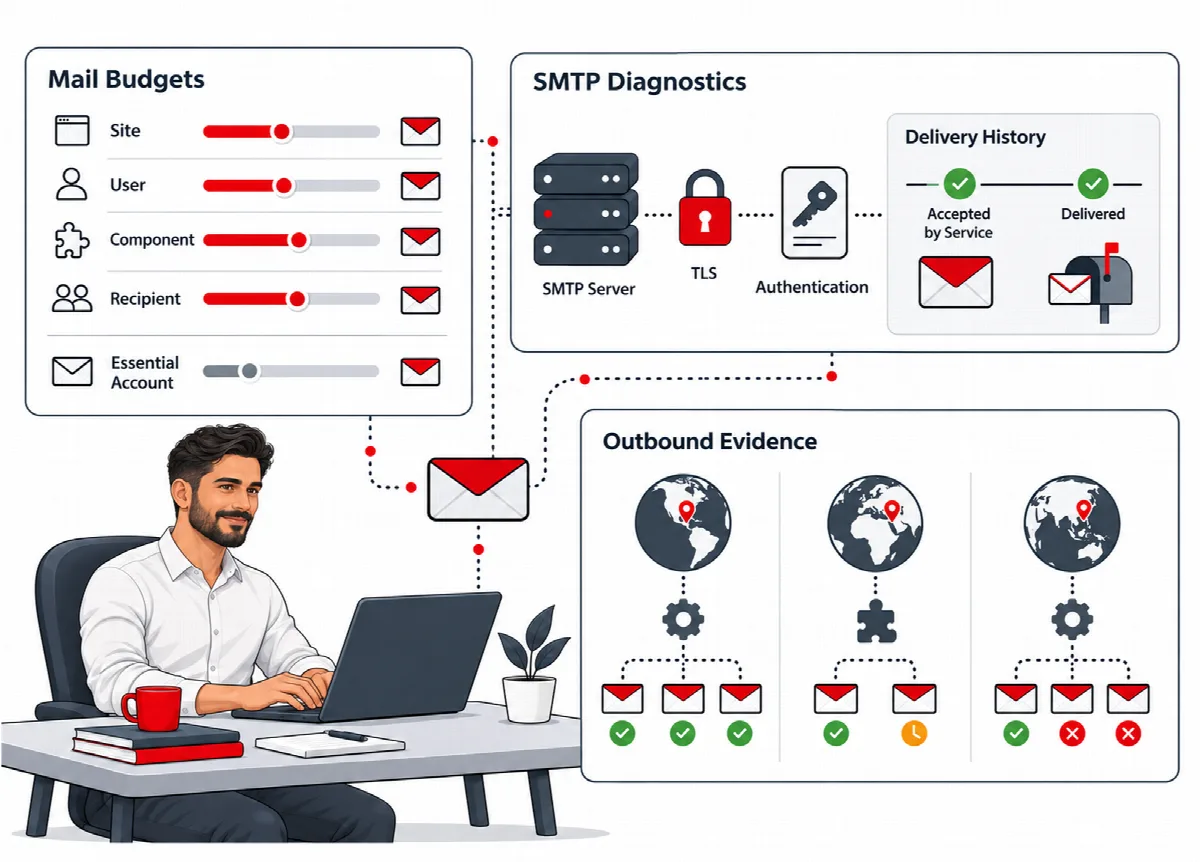
SiteWatch records requests that plugins and themes send from your server through the WordPress HTTP API.
- Live HTTP journal — last 24 hours shows each destination with the plugin or theme that started the request, the method, the status and the kinds of data sent, such as an email field. Values are never stored. Click Refresh connections to update it without a full scan.
- Up to 50 requests per PHP request and 5,000 rows are kept for the event retention period.
Requests made directly with cURL or sockets, from visitors' browsers and redirect steps are outside this journal.
Research a destination: enter a Registered domain and click Look up public RDAP records to see public registration data. Only that host name is sent to rdap.org. A registrar or hosting provider is not necessarily the company that receives the data.
Record a reviewed relationship: when you know why a plugin contacts a host, enter the Destination domain, a Relationship label and an Evidence URL, such as the producer's privacy page, and click Save reviewed relationship. The label is your own note, kept with its evidence.
To stop a plugin from contacting a host, add the host under Blocked outbound hosts (exact matches) in Site Protection → Requests & Endpoints. To stop recording outgoing requests, untick Monitor outbound WordPress HTTP API requests in Settings → General & Report SMTP.
File Changes
File Changes lists files that were added, changed or deleted compared with the last complete scan.
- Scheduled file inspection runs a changed-files scan daily at 01:00 site time by default, without email. You can set it to Off, Hourly or Daily in Reports & Events → Notifications. A saved choice is kept.
- Event scans: after a plugin, theme, language or update event, SiteWatch scans only the affected folders and checks the uploads folder for PHP files. This is controlled by Queue a scan of the changed plugin, theme or update folders after those events in Settings → General & Report SMTP (on by default). Media uploads do not start a scan.
- On a multisite network, only the main site runs the scheduled inspection, because all sites share
wp-content.
Files changed over FTP, through the hosting file manager or directly in mu-plugins or uploads appear after the next scheduled or manual scan, with an unknown actor. Changes made through WordPress are recorded with the account that made them.
A file that changed near an update is useful context. It does not prove who made the change or why. To compare a changed file with its original, see Check file integrity, repair and quarantine files.
PHP Errors
PHP Errors shows PHP errors and fatal errors that SiteWatch captured after it loaded.
- A notice that repeats in the same request is stored once with a repeat count, for up to 20 different notices per request. Fatal errors are always kept.
- Errors before plugins load, errors hidden by PHP settings and older server logs are not visible here. Keep your hosting error logs for those.
A PHP error can explain a broken page without being a security incident.
Storage
Storage shows how much space folders and database tables use, including the size of autoloaded options. It is read-only: SiteWatch does not delete files or clean the database. Use it to spot unusually large areas for a separate maintenance review.