
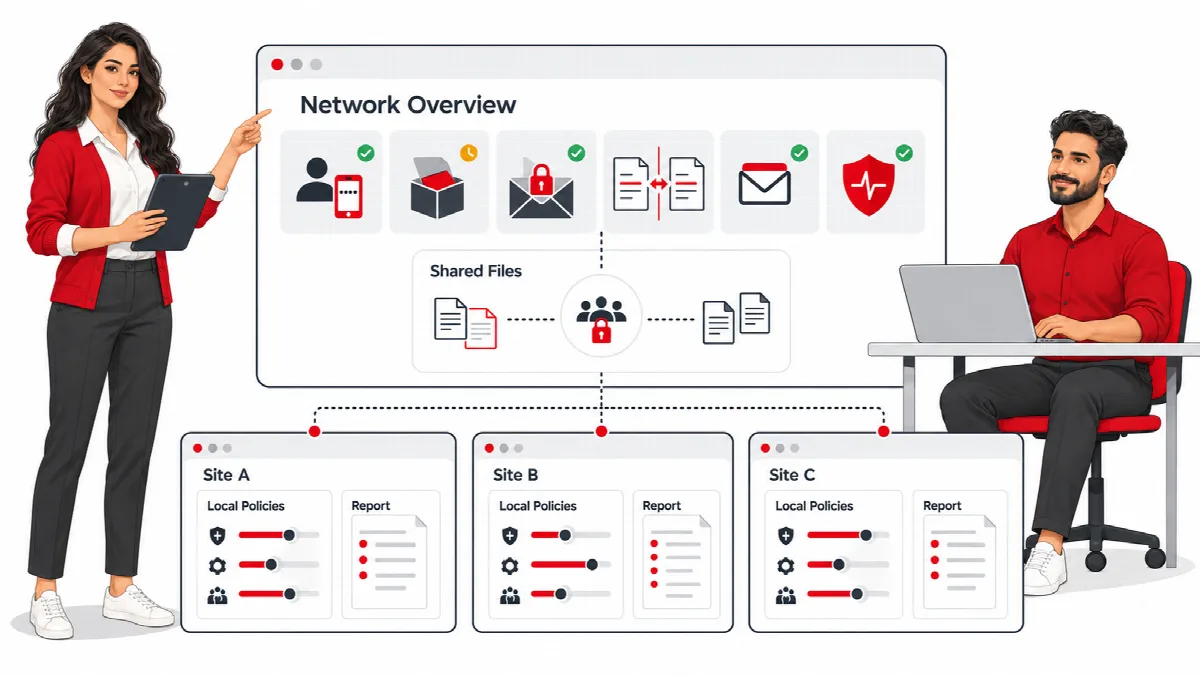
SiteWatch works on WordPress multisite networks. Each site keeps its own policies and reports, while actions that affect files shared by all sites need a network administrator.
Where to find it: Network Admin → ARN SiteWatch for the network dashboard, and ARN SiteWatch → Settings → Network Management on each site.
Set up SiteWatch on a network
- As a network administrator, install SiteWatch and click Network Activate. See Install SiteWatch.
- Activate the licence in Network Admin → Settings → ARN Center → Licences. One licence covers the whole network and is bound to the network's main domain.
- Designate the security approver. The approver list applies to the whole network; approvers must be able to manage network plugins. See Complete the security setup.
- On each site, apply a setup profile and configure the site's own policies.
Each site prepares its SiteWatch data on its first request after activation or an update.
The network dashboard
Network Admin → ARN SiteWatch opens the Network Dashboard. It shows the SiteWatch version, whether it is network-activated, and one card per site, 20 sites per page.
Each card shows the site's Site / schema, Login protection, Request policy, Required 2FA roles, Profile and the dates of the Last integrity check, Last health check and Last vulnerability lookup.
To run a check on one site:
- Choose an operation: Initialize current version, Changed file scan, Site health check, Vulnerability lookup or File integrity check.
- Click Schedule.
Open site dashboard opens the site's own SiteWatch workspace. Opening the network dashboard never turns on blocking and does not change any site.
On a site, Settings → Network Management links to the network dashboard with Open network dashboard.
What is per site and what is shared
| Per site | Shared by the network |
|---|---|
| Policies (login, requests, email, roles, hardening) | The licence, managed in the network admin |
| Setup profile | The list of security approvers |
| Reports, events and queues | Authenticator enrollment of each user account |
| Encrypted form submissions and inbox | Plugin and theme files in wp-content |
| Registration verification and trusted browsers | Early request protection (shared PHP configuration) |
| Site & Asset Health settings | Scheduled file inspection, run by the main site |
Actions that need a network administrator
Because plugin and theme files are shared by every site, these actions need network-level permission:
- repairing or quarantining files;
- installing, changing or removing early request protection;
- approving plugin operations as a security approver.
A site administrator manages the local policies of their site but cannot change shared files.
Registration on a network
Network signup already uses WordPress activation emails. SiteWatch additionally protects supported direct site and WooCommerce registrations, configured on each site in Access Security → Registration Verification. When registration is closed, adding an existing user to a site needs approval on that site. See Verify registrations and approve accounts.
Note: SiteWatch manages the sites of one WordPress installation. Separate WordPress installations on other servers are not managed from the network dashboard.