
SiteWatch separates decision authority from WordPress roles. Security approvers decide about plugin packages, update sources and held accounts. Other administrators can ask an approver for time-limited permission.
Where to find it: ARN SiteWatch → Plugin Review → Accounts & Permissions.
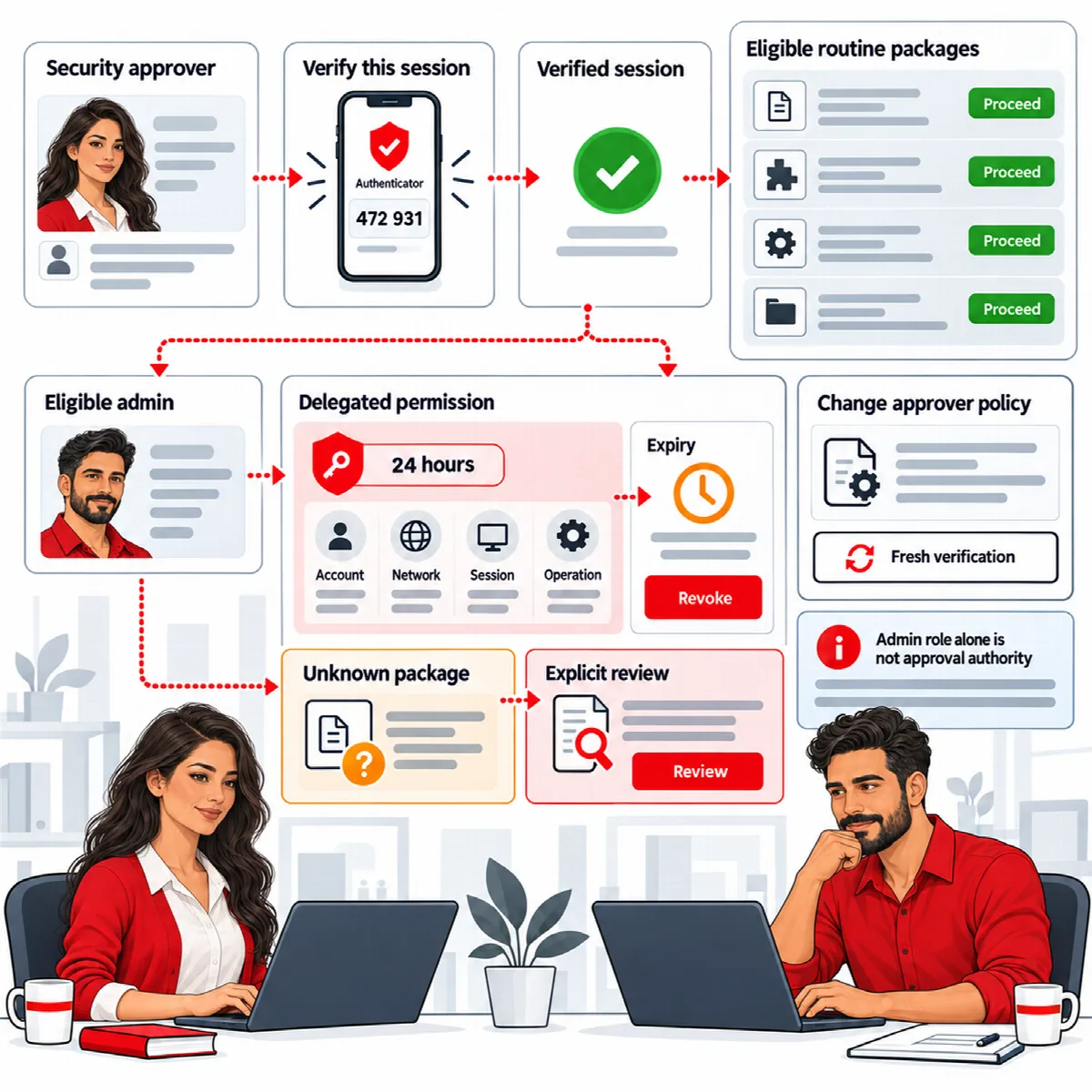
Who can be an approver
An account can be a security approver when it:
- can install plugins (on a multisite network, can manage network plugins);
- is not a pending account;
- has an enrolled authenticator.
A WordPress administrator role alone never makes someone an approver. Up to 20 accounts can be approvers. On a multisite network, the approver list applies to the whole network.
To designate the first approver, see Complete the security setup.
Verify your current session
Approvers and administrators work with an Authenticator-verified session. A session that signed in with an authenticator code is verified automatically. An older session can be verified once:
- Under Current session verification, enter a Fresh authenticator code.
- Click Verify this session.
The screen then says Your current WordPress session is Authenticator verified. Routine plugin operations do not require another code. The verification lasts for the session.
(SiteWatch 2.1.0 and later) Approvers can shorten how long a verification covers their decisions with Authenticator verification covers approver decisions under Security decision authority: For the whole sign-in session (the default), 8 hours, 1 hour or 15 minutes. When the verification is older, decisions ask for a new code, so a stolen session cookie cannot approve for the rest of the session. Sign-in is not affected. A sign-in with a recovery code does not cover plugin decisions; they need a code from the authenticator app.
What needs a fresh code
| Action | What SiteWatch asks for |
|---|---|
| Becoming the first security approver | Your current WordPress password and a fresh authenticator code |
| Changing the list of approvers | A fresh authenticator code |
| Approving or revoking an ARN Connect connection | A fresh authenticator code |
| Importing a trusted package manifest for file integrity | A fresh authenticator code |
Recovering the approver list with SITEWATCH_RECOVER_APPROVER (SiteWatch 2.1.0 and later) | The named account's current WordPress password and a fresh authenticator code |
| Replacing the recipient key of the encrypted form (SiteWatch 2.1.0 and later) | An approver account and a fresh authenticator code |
| Approving a held package or a held account, saving or revoking a trusted update channel, changing the signed Agent update setting, approving 24-hour permission | An Authenticator-verified session; a code is asked only when the session is not verified yet |
Add or remove approvers
- Open Plugin Review → Accounts & Permissions.
- Under Security decision authority, tick or untick accounts in Authorized security approvers. Only eligible accounts with an enrolled authenticator are listed.
- Enter a Fresh authenticator code.
- Click Save approval policy.
Accounts that are not approvers see Your account can request supported operations but cannot approve them or change this policy.
An approver cannot turn off their own authenticator while they are on the list. Remove them from the list first.
When no approver can approve any more (SiteWatch 2.1.0 and later)
If every designated approver lost the role that holds this authority or their authenticator enrollment, the Dashboard and Plugin Review show No designated security approver can approve now. Plugin operations wait, and the approver list cannot be changed in WordPress. To recover it, someone with hosting access adds this line to wp-config.php, naming an administrator account that has enrolled an authenticator by its login or user ID:
define( 'SITEWATCH_RECOVER_APPROVER', 'login-of-the-account' );- The named account opens Plugin Review → Accounts & Permissions.
- Under Recover the security approver list, it enters its Current WordPress password and a Fresh authenticator code and clicks Become the only security approver.
- Remove the line from
wp-config.phpafterwards.
Pending decisions that depended on the previous approvers need a new decision. The same value of the constant works once; it can be used again only after the approver list was saved again.
Give another administrator 24-hour permission
Other eligible administrators can request permission to install, update or activate plugins without an approver for each package.
The administrator requests it:
- Verify the current session under Current session verification.
- Under 24-hour plugin permissions, keep the operations needed: Install plugins, Update plugins, Activate plugins.
- Enter a Reason and click Request 24-hour permission.
The approver decides:
- Open Plugin Review → Accounts & Permissions with a verified session.
- Review the request and click Approve for 24 hours or Reject request.
- To end an approved permission early, click Revoke permission.
Permission applies to this site (on a network, to the network), expires automatically after 24 hours and is bound to the account, the selected operations and the current approver policy. It works only in an Authenticator-verified session. It does not add WordPress capabilities and does not allow approving accounts or update sources. Package inspection stays in force: a flagged package still needs an approver.