
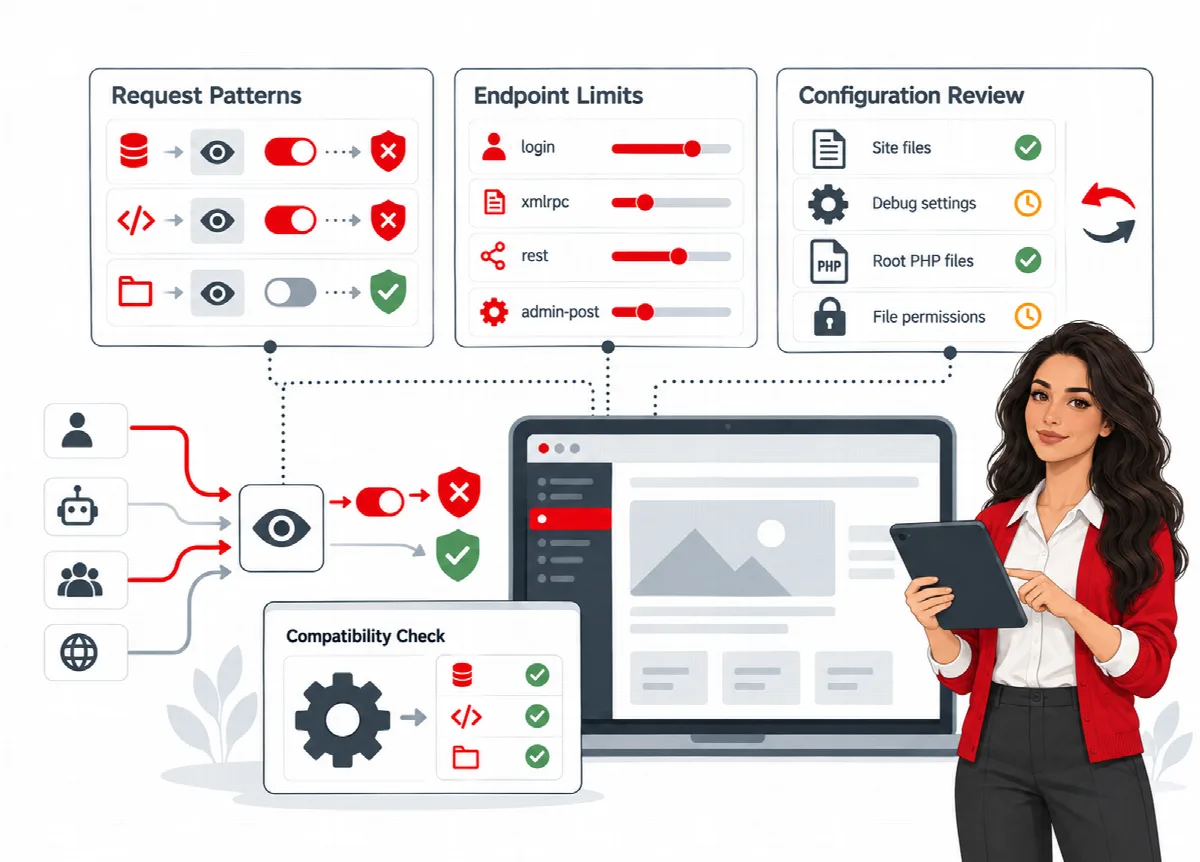
Request protection is a focused policy layer inside WordPress. It looks for selected SQL injection, script and path traversal patterns and limits how often sensitive endpoints can be called. Start in Observe mode and switch to Block only after you have reviewed the matches.
Where to find it: ARN SiteWatch → Site Protection → Requests & Endpoints and Site Protection → Early Request Protection.
The modes
Request patterns and sensitive endpoint limits each have three modes:
| Mode | What happens |
|---|---|
| Off | Nothing is checked. This is the default. |
| Observe | Matches are recorded with their rule identifier; nobody is blocked. |
| Block | Matching requests are rejected and recorded. |
Recorded matches keep the rule identifier, never the submitted values. A setup profile switches both policies from Off to Observe.
Request patterns
Request patterns inspect short values in the query string and in form submissions. (SiteWatch 2.0.1 and later) They also inspect JSON request bodies of up to 64 KB with the same exclusions and modes.
- Administrators in a signed-in WordPress session and the addresses in Trusted source IPs (addresses or CIDR ranges) are not inspected.
- Editors, authors and API clients are inspected. (SiteWatch 2.0.1 and later) In Block mode, a post that an editor or author saves from the block editor can be rejected when its content matches a rule, as saves from the classic editor already could.
- Legitimate content, such as code examples in posts, can match. Review matches in Observe mode first.
Sensitive endpoint limits
Endpoint limits count requests per connection address to the standard login, XML-RPC, REST API and admin-post.php endpoints. Endpoint requests per minute is 60 by default and can be set from 10 to 1000.
(SiteWatch 2.0.1 and later) Percent-encoded, upper-case, prefixed and other spellings of the same endpoint share one counter, and a rest_route value sent in a form body counts as a REST request.
In Block mode, requests over the limit receive "Too many requests. Try again later." for one minute. Custom endpoints of other plugins are not covered.
Set up request protection
- Open Site Protection → Requests & Endpoints.
- Set Request patterns and Sensitive endpoint limits to Observe.
- If needed, add addresses in Trusted source IPs (addresses or CIDR ranges), one per line, for example your office or monitoring service. (SiteWatch 2.1.0 and later) CIDR ranges are accepted.
- Click Save protection policies.
- Use the site normally for a few days: sign-ins, forms, checkout, saving posts and any API integrations.
- Review the recorded matches in Reports & Events → Event History and on Monitoring → Live Security Events.
- When the matches are understood, switch one policy to Block, save and test the same workflows again.
The same screen has two more settings:
- Blocked outbound hosts (exact matches) stops WordPress HTTP API requests from your site to the hosts you list. See Live events, connections, file changes, errors and storage.
- Limit Contact Form 7 submissions to five per form and source IP per hour adds a rate limit to Contact Form 7. It does not encrypt those messages.
Visitor address behind a proxy or CDN (SiteWatch 2.1.0 and later)
SiteWatch counts sign-in attempts, endpoint requests and form submissions per visitor address and applies the trusted address lists to it. Without a trusted proxy it uses the server connection address. Behind a CDN or reverse proxy, that address belongs to the proxy, so all visitors would share one counter.
- Under Visitor address behind a proxy or CDN, compare Server connection address of this request with Visitor address SiteWatch uses.
- In Header with the visitor address, choose the header your proxy sets: X-Forwarded-For (reverse proxy, load balancer), CF-Connecting-IP (Cloudflare) or X-Real-IP (nginx proxy).
- In Trusted proxy addresses (IP addresses or CIDR ranges, up to 100), enter the ranges your CDN publishes or the address of your own proxy. IPv4 ranges need /8 or longer, IPv6 ranges /16 or longer.
- Click Save visitor address settings.
SiteWatch reads the header only when the connection comes from one of those addresses; a header from any other source is ignored. Trusting a range that other people can send from lets them choose their address in the header and avoid limits. Early request protection uses the same settings. On a multisite network the setting applies to the whole network, and only a network administrator can change it.
What request protection is not
Request protection does not inspect JSON bodies over 64 KB, uploaded files or every request of every application. It is not a complete web application firewall and does not protect against traffic floods (DDoS). Keep a hosting firewall or CDN for that.
Early request protection
Early request protection runs a small part of the request checks before WordPress loads, through PHP's auto_prepend_file setting in a .user.ini file. It inspects query and form values with selected patterns; JSON bodies, files and secret-bearing fields are excluded.
It runs after PHP starts. It is not cloud filtering or CDN protection.
Before you start
- Automatic setup supports PHP FPM or CGI hosting where
.user.iniis directly writable. The screen shows the Hosting interface and whether setup is possible. - Keep hosting access ready to edit files if the site stops loading.
- Plan a short maintenance window and stop other configuration changes.
- On a multisite network, only a network administrator can change it, because it affects the shared installation.
Install in observe mode
- Open Site Protection → Early Request Protection.
- Under Operation, choose Back up configuration & install in observe mode.
- Optionally enter Trusted connection IPs (exact, up to 20).
- Tick I reviewed the shared installation scope, have hosting recovery access, and stopped concurrent configuration edits. and click Apply reviewed operation.
- Wait for PHP to pick up the change. The screen shows how long PHP caches
.user.inisettings. - Check that Current request marker shows Bootstrap observed, then run Verify public entry & sign-in.
Existing prepend handlers on your hosting are kept. To change the mode later, choose Change reviewed request mode and select Observe, Block after verification or Off. Blocking requires a recent successful verification.
While early protection is installed, Recovery sign-in for this connection (10 minutes) gives you a short signed sign-in link for your current connection.
Remove early protection
Choose Disable & remove managed prepend directive and apply it. Deactivating SiteWatch also tries to remove it.
Hosting recovery: if the site does not load, remove the SiteWatch auto_prepend_file block from .user.ini and replace sitewatch-waf.php with an empty PHP file. Keep that file until PHP stops using its cached setting; do not delete a file that PHP still refers to.