
These tools control how long people stay signed in, how strong new passwords must be and who has administrator access right now.
Where to find it: ARN SiteWatch → Access Security → Roles & Trusted Browsers and Access Security → Sessions & Accounts.
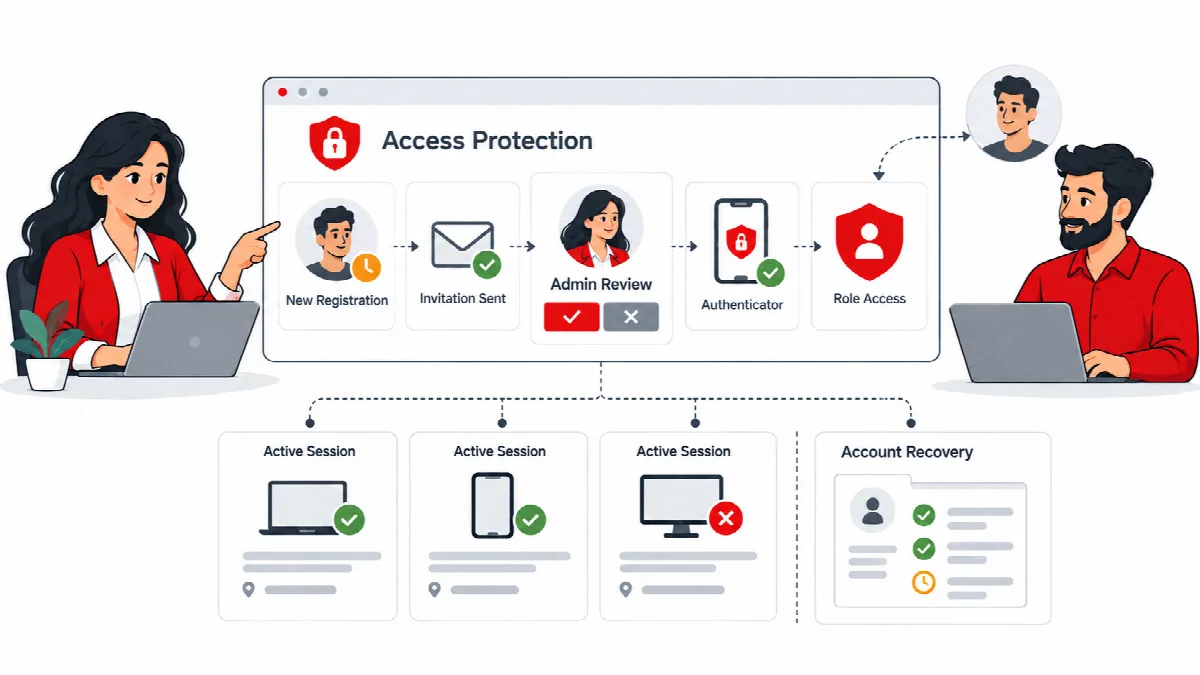
Set password and session rules per role
Under Role security profiles, every WordPress role has two settings:
| Setting | What it does |
|---|---|
| Minimum password length (0 = off) | The shortest password allowed when a password is changed or reset, from 0 to 64 characters |
| Session hours (0 = default) | The longest time an account stays signed in, from 0 to 720 hours; 0 keeps the WordPress default |
- Open Access Security → Roles & Trusted Browsers.
- Enter the values for the roles you want to protect.
- Click Save role policies.
How the rules apply:
- An account with several roles gets the longest password requirement and the shortest session of those roles.
- Password length is checked when passwords are changed in the profile, through REST, through a password reset and through classic WooCommerce forms. Existing passwords are not inspected.
- Session limits also apply to sessions that already exist. To avoid an immediate lockout, existing sessions get their maximum lifetime counted from the moment you saved the policy.
A setup profile can set these values for administrators and editors; see Complete the security setup. Authenticator and browser verification are set in Set up two-factor sign-in verification.
Trusted browsers
When browser verification is used, a browser that passed verification is trusted for 30 days. Your trusted browsers shows how many browser records your account has.
To make every browser verify again, click Forget my trusted browsers.
A trusted browser is a signal, not a proof of identity. A stolen cookie can bypass it, so use an authenticator for privileged accounts. Trusting a browser never skips the separate approvals for plugins or accounts.
Review and end sessions
Access Security → Sessions & Accounts shows active WordPress sessions.
- Your sessions: click Sign out my other sessions to end every session of your account except the current one.
- Account sessions: for each of the latest 50 accounts, click Revoke all sessions to sign that account out everywhere. For your own account the button is Revoke other sessions.
Session addresses and browser identifiers are not displayed and are not copied into the event log. Account and role changes are recorded in Reports & Events → Event History.
Give temporary administrator access
Use Temporary maintenance access when someone needs administrator rights for a short maintenance task.
- Make sure the person is an existing member of the site with an enrolled authenticator. The account cannot be your own, an administrator or a network super administrator. Up to 25 accounts can have temporary access at the same time.
- Open Access Security → Roles & Trusted Browsers.
- Under Temporary maintenance access, enter the Existing account ID and the Access hours (1 to 4).
- Tick I authorize temporary administrator privileges for this site. and click Grant temporary access.
When access starts, the account's existing sessions are revoked. When the time ends, the previous roles return and the sessions are revoked again. To end it early, click Revoke temporary access now next to the account.
The end time is stored before the role changes. Expiry runs with WordPress scheduled tasks and is also checked when the account signs in, so it works even when scheduled tasks are delayed.
Note: Revoke temporary access before you deactivate SiteWatch. Deactivating SiteWatch also ends any temporary access that is still running.