
A scan reads your site files and product information and stores the result as a report. The Investigation Center then brings the findings of scans, integrity checks, vulnerability lookups and health checks together so you can decide what to do next.
Where to find it: ARN SiteWatch → Dashboard for scans and reports, Site Protection → Investigation Center and Site Protection → Security Findings for findings.
Run a scan
- Open the Dashboard.
- Under Scan & reports, choose Full code scan or Changed files scan.
- Click Scan now and follow the progress. Cancel scan stops it.
| Mode | What it does | When to use it |
|---|---|---|
| Full code scan | Reads and analyzes every supported file | The first scan, and whenever you want a complete picture |
| Changed files scan | Reuses stored results for files whose size and date did not change | Routine checks after a complete scan exists |
Scans never change files. A scan continues through WordPress scheduled tasks when you leave the page; keeping the Dashboard open makes it go faster.
SiteWatch also queues a scan of the affected folders after a plugin, theme, language or update event, and runs a scheduled changed-files inspection daily by default. See Live events, connections, file changes, errors and storage.
What a scan covers
- The
wp-contentfolder and a separate uploads folder, if your site has one. The rest of the hosting account is not scanned. - Code files up to 1 MB are analyzed for supported patterns. Files over 8 MB are compared by size and date only.
- Symlinks and
.git,.svnornode_modulesfolders are not followed. Each one is listed as an informational finding. - Unreadable files, unavailable folders or more than 250,000 files produce a partial report. A partial scan does not replace the previous complete baseline.
Pattern findings show code that needs a closer look. A match can be a false positive and does not prove that a file is infected.
Read a report
The latest report opens on the Dashboard. To open an earlier one, choose it under Report history and click Open. SiteWatch keeps the last 30 stored reports.
| Part | What it shows |
|---|---|
| Executive summary | The Review index, totals per category and the most important review priorities |
| Recorded protection activity | Policy actions recorded in the site journal, such as blocked requests |
| Technical details | The findings and evidence behind the summary |
| Environment & coverage | What was inspected and what was outside the scan |
| Security findings | Pattern findings in files, with their location |
| Plugin & theme inventory | Installed products, versions, producers and update information |
| HTTP observations saved with this report | Outgoing WordPress HTTP requests of the last 24 hours |
| File changes | Files added, changed or deleted since the last complete scan |
| Recorded timeline and Recorded errors | Events and PHP errors of the last 24 hours |
| Directory footprint and Database footprint | Storage use of folders and database tables |
The Review index measures review workload from 0 to 100: each critical finding counts 40, high 20, medium 5 and low 1, capped at 100. Informational entries do not raise it. A high index is not a probability of compromise, and zero does not prove that the site is safe.
Findings use the categories critical, high, medium, low and informational. Counts can refer to the same component; they are not unique attacks or affected files.
To share or keep a report, use Download HTML, Download JSON or Email this report. See Read, export and email reports.
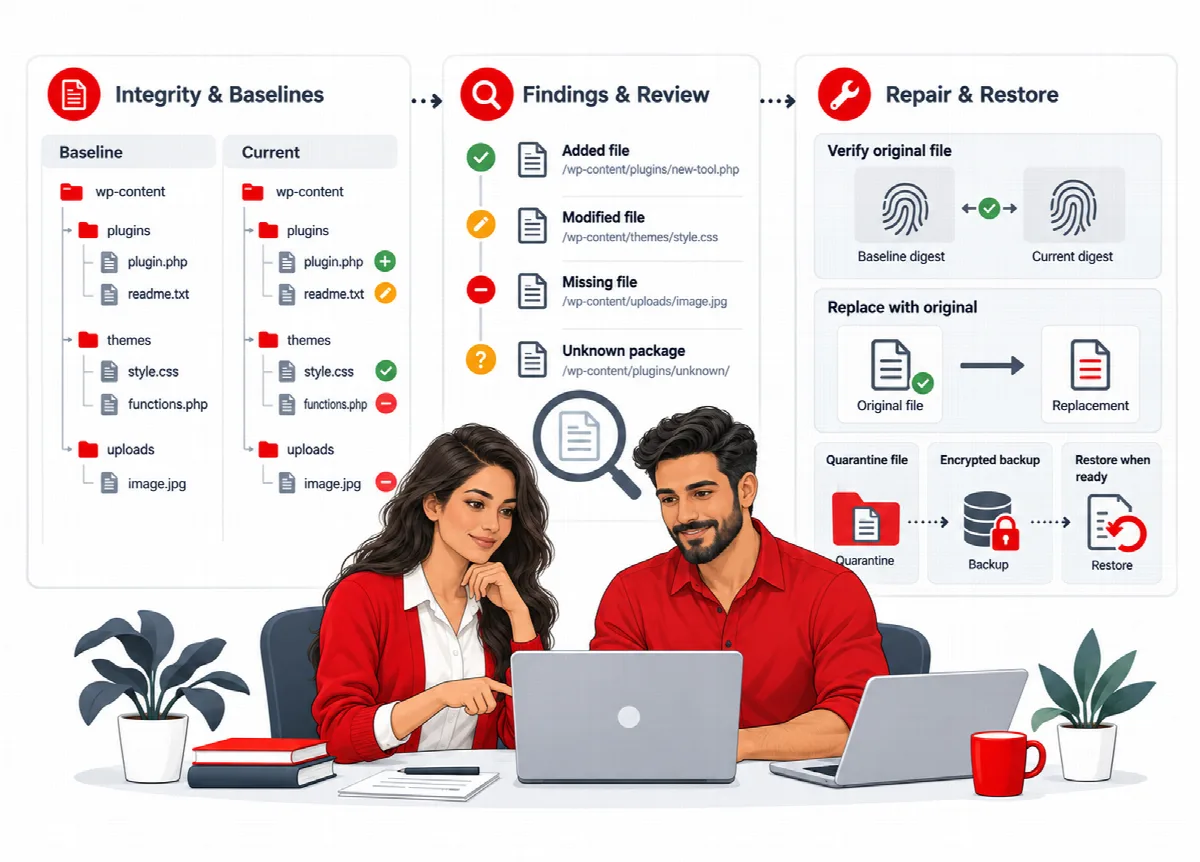
Review findings in the Investigation Center
Site Protection → Investigation Center lists findings from your stored scans, integrity checks, vulnerability lookups and health checks.
- Use Search evidence to find a file, component or piece of evidence, and Review state to filter Open, Reviewed or Accepted change findings.
- Open a finding. It shows the Source / state, when it was Observed, the Evidence and the suggested Next action.
- Click Inspect source to jump to the screen where the finding came from.
- After your review, choose Reviewed or Accepted change and click Record review.
A recorded review is bound to the exact evidence. It does not repair anything or hide future findings: if the evidence changes, the finding asks for a new review, and code pattern findings reopen with each new report. The view shows the first 200 findings; full evidence stays in the reports.
The observation time is the time of the inspection, not the time someone changed a file.