
These tools protect your forms from abuse, stop a compromised plugin or form from sending large amounts of mail and help you find mail delivery problems.
Where to find it: ARN SiteWatch → Forms & Email → Spam Protection, Forms & Email → Email Security and Forms & Email → Mail Diagnostics.
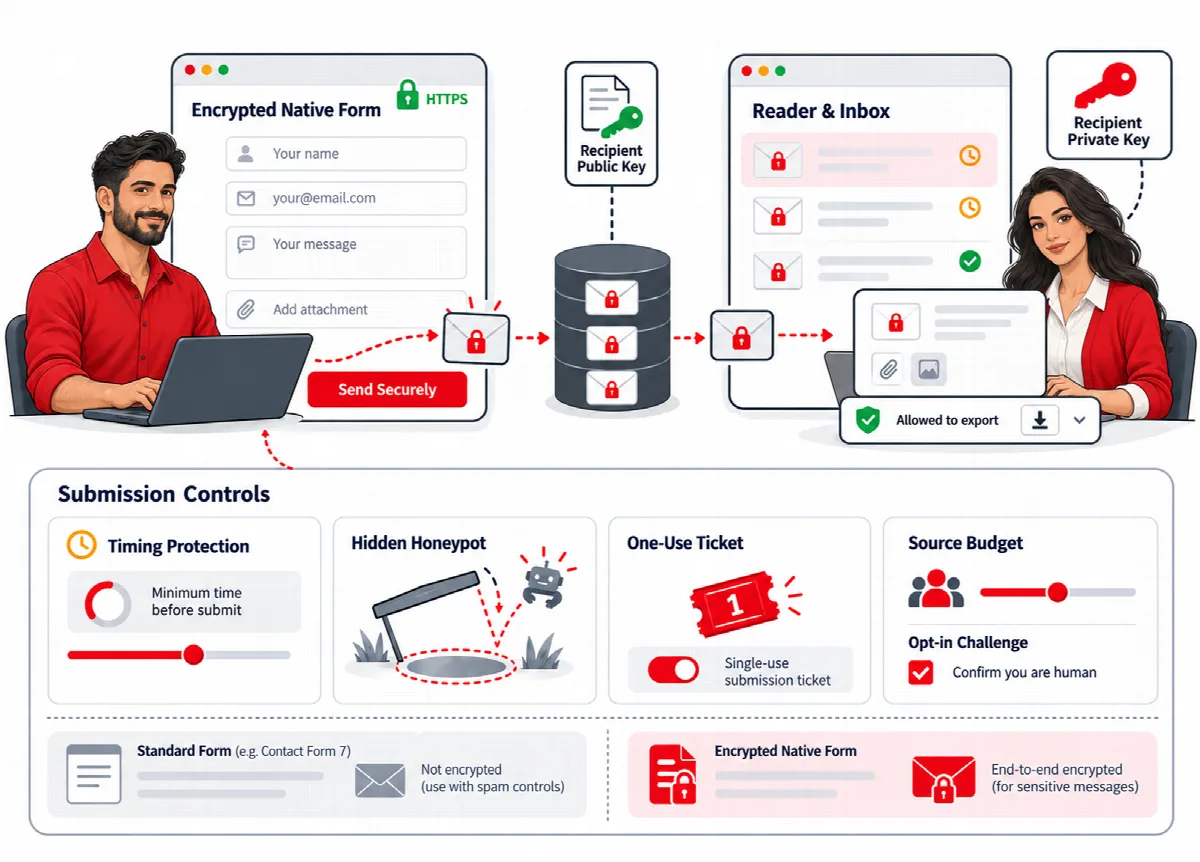
Built-in form protection
The SiteWatch secure form always uses signed one-use tickets, a minimum time before a form can be sent, a hidden honeypot field and a limit per source address. Set the limit in Forms & Email → Encrypted Forms; see Set up the encrypted contact form and reader.
For Contact Form 7, SiteWatch can add a limit of five submissions per form and source address per hour. Turn it on in Site Protection → Requests & Endpoints. This limit does not encrypt Contact Form 7 messages.
Add a Cloudflare Turnstile challenge
- Create a Turnstile widget in your Cloudflare account and allow your site's hostname.
- Open Forms & Email → Spam Protection.
- Enter the Turnstile site key and the secret in Turnstile secret (leave blank to keep stored value).
- Tick Require a challenge for the native private form, Require a challenge for supported registrations, or both.
- Click Save challenge policy.
- Test a normal submission and a normal registration.
Supported registrations are standard WordPress registration and classic WooCommerce registration. With a challenge turned on, Cloudflare's script loads on those pages and Cloudflare receives the visitor's browser signals. No message field, name or email address is sent for verification. If Cloudflare cannot be reached, protected submissions are rejected.
Limit outgoing email
Email abuse controls count the messages your site sends through WordPress mail and SiteWatch reports, per hour.
| Budget | Default |
|---|---|
| General site messages / hour | 300 |
| Password, registration and WooCommerce messages / hour | 200 |
| Messages per user / hour (anonymous requests share a budget) | 80 |
| Messages per component / hour | 150 |
| Messages per recipient / hour | 30 |
Each budget can be set from 1 to 10000. Password, registration and WooCommerce messages have their own budget, so essential customer emails are not counted against general mail.
- Open Forms & Email → Email Security.
- Set Sending policy to Observe and click Save email policy. A setup profile does this for you.
- After a period of normal use, review the recorded mail events in Reports & Events → Event History.
- Adjust the budgets, then switch Sending policy to Block if you want messages over a budget to be stopped.
Require TLS and verified certificates for standard SMTP makes WordPress mail refuse unencrypted or unverified SMTP connections.
The policy covers mail sent with WordPress's standard mail function. Plugins that send mail directly through a provider's API bypass it. Recipients and message bodies are not stored in the event log.
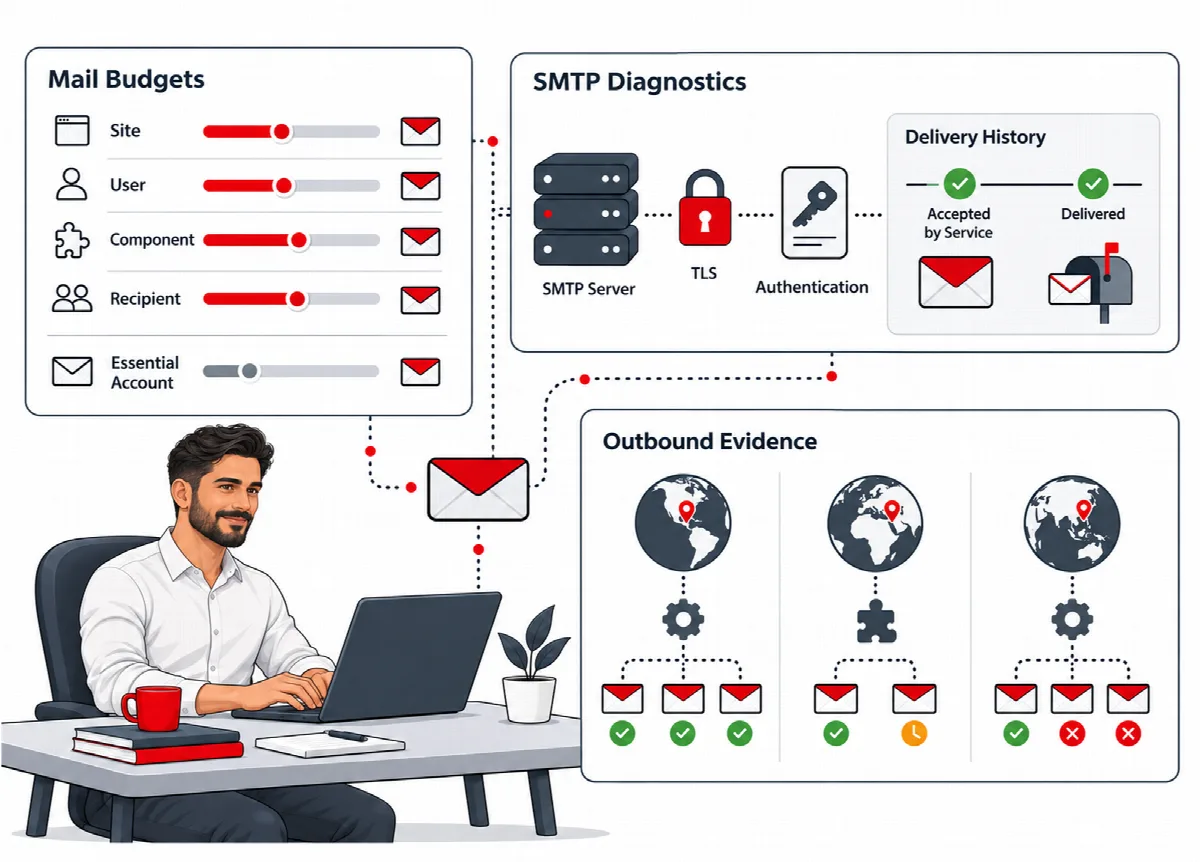
Check the mail connection
Forms & Email → Mail Diagnostics tests mail settings without sending a message.
- Check site mail tests the SMTP settings your site uses, including the settings of common SMTP plugins.
- Check report SMTP tests the separate SMTP account for SiteWatch reports.
Each result shows the method, server, port and encryption, whether the connection and sign-in worked, and whether SPF and DMARC records exist for the sender domain. The check does not validate those records or test DKIM. Mail providers used through an API instead of SMTP cannot be tested here.
A service that accepts a message has not necessarily delivered it to the inbox. To test real delivery, use Email this report on the Dashboard and check the recipient's inbox and spam folder.