
Sign-in verification adds a second check after the password for the roles you choose. You can require an authenticator code, an email code for new browsers, or both.
Where to find it: ARN SiteWatch → Access Security → Two-Factor Authentication, section Sign-in verification (2FA).
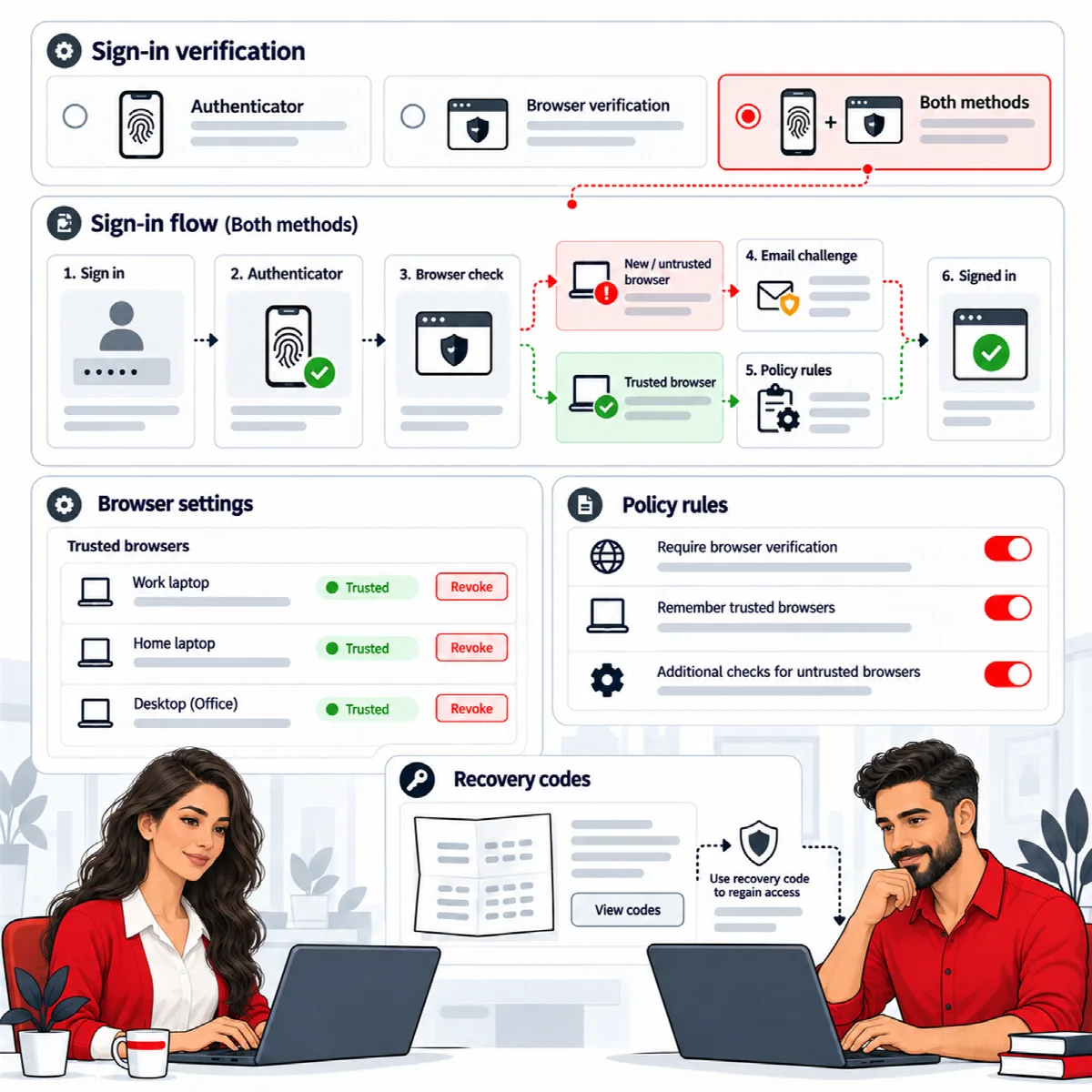
The verification methods
| Method | What users do at sign-in |
|---|---|
| Authenticator | Enter a code from their authenticator app, or a one-use recovery code, on each sign-in. Accounts must complete enrollment. |
| Browser verification | Enter an eight-digit code sent by email when they use a new or untrusted browser. Verified browsers are remembered for 30 days. No authenticator is needed. |
| Both | Enter an authenticator code on every sign-in, plus an email code on a new or untrusted browser. After receiving the email, they enter a fresh authenticator code with their password. |
Browser verification needs HTTPS and working email delivery. Test account emails before you choose it.
Turn on sign-in verification
- Make sure the people in the roles you want to protect can enroll an authenticator, if your method needs one.
- Open Access Security → Two-Factor Authentication.
- Tick Enable sign-in verification.
- Under Verification method, choose Authenticator, Browser verification or Both.
- In Roles requiring verification, select the roles. Hold Ctrl (Cmd on a Mac) to select more than one.
- Click Save two-factor policy.
- Test a sign-in with an account of a selected role in another browser, while you keep your own session open.
What changes for protected accounts:
- With an authenticator method, accounts that have not enrolled are sent to the enrollment page after they sign in and must enroll before they can continue. Their REST requests are refused until then.
- Application passwords are disabled for protected accounts, with every verification method.
- Existing sessions stay active.
To pause verification, untick Enable sign-in verification and save. Enrolled authenticators, trusted browsers and the selected method are kept, so users do not have to enroll again when you turn it back on. Temporary administrator access always keeps its authenticator requirement.
Sites with the earlier setup (SiteWatch 2.0.1 and later)
On sites that still use the earlier role and personal authenticator policies, the form opens with sign-in verification on, the roles of enrolled accounts selected and Authenticator selected (or Both when an earlier browser rule exists). Saving it unchanged keeps asking those accounts for their code. When accounts in the selected roles have not enrolled yet, the form tells you how many.
Until you save the form, the earlier policies stay as they were.
How users enroll
Each user enrolls for their own account, in one of two places:
- Users → Profile, section Two-factor authentication;
- the separate enrollment page, opened with Set up your authenticator in Access Security → Two-Factor Authentication, or automatically after sign-in when enrollment is required. This page does not need access to the WordPress dashboard.
The steps are the same: scan the QR code (or enter the setup key), enter the current six-digit code and the current WordPress password, then confirm with Enable 2FA. In the profile, choose Enable 2FA under Account action and click Update Profile. See Complete the security setup for the step-by-step version.
After enrollment, SiteWatch shows eight one-use recovery codes once. Each code works once if the authenticator is lost. The profile later shows how many recovery codes remain.
Note: A code that was just used cannot be used again. After enrolling, wait for the next code before you sign in.
Sign in with verification
On the WordPress login screen, enter the code in Authenticator or recovery code (if enabled), together with your username and password. When browser verification asks for it, enter the emailed code in Browser verification code (if requested).
Turn off two-factor for your own account
In Users → Profile, choose Disable 2FA under Account action, enter an authenticator or recovery code and your current password, then click Update Profile.
This is not possible while your role requires an authenticator. A security approver cannot turn off their own authenticator while they are designated. Remove the account from the approvers first. See Security approvers, verified sessions and 24-hour permissions.
If someone loses their authenticator
- Sign in with one of the saved recovery codes, then enroll a new authenticator.
- If no recovery code is left, ask the host to remove that user's
sitewatch_totpuser metadata and to review the role policy in thesitewatch_accountsoption.
Changing the WordPress salts in wp-config.php makes stored authenticator secrets unreadable; affected users then need to enroll again.
What is covered
Sign-in verification covers the standard WordPress password login, XML-RPC and core application passwords. Single sign-on, membership plugins and other custom sign-in flows need their own integration review.