
AI Media suggests file names, titles, slugs and alt text for the items in your media library. Nothing changes until you review and apply a suggestion, and every rename can be restored. A file rename keeps WordPress and Elementor references in sync.
Where to find it: ARN Vendix → AI Media (Pro) or ARN Utilities → AI Media (Free). The page has three tabs: General, Media Library and AI Connection. AI Media is off by default.
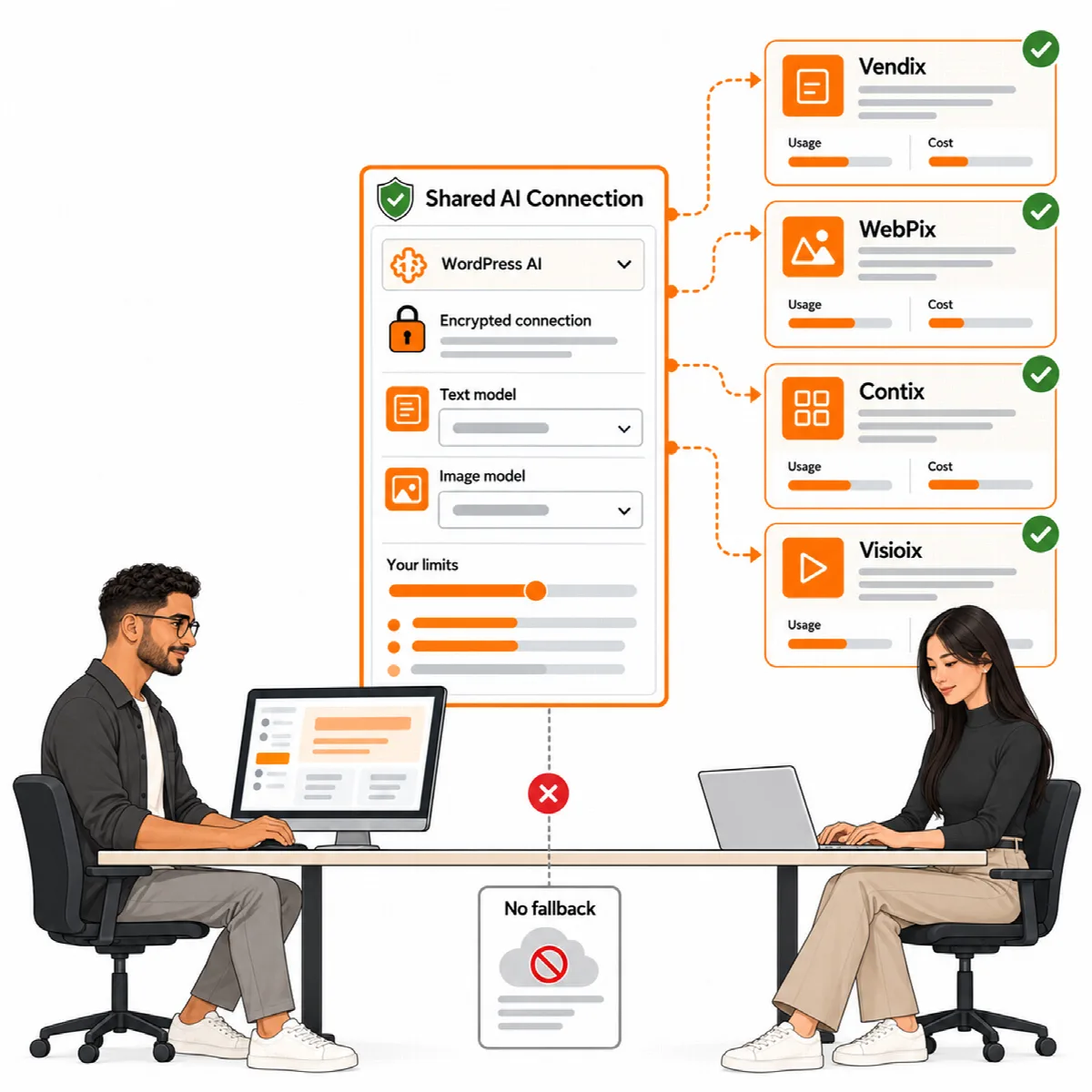
One AI connection for every ARN product
Vendix has no AI connection of its own. Vendix Pro uses the shared ARN AI connection that all ARN Pro products use; you set it up once in Settings → ARN Center:
- Connection: choose the engine. WordPress AI (the default) uses the providers connected in WordPress Connectors; no key is copied into Vendix. ARN Smart AI uses your own provider key, with separate connections for text and image understanding. Direct providers are OpenAI, Anthropic (Claude), Google Gemini, Kimi and DeepSeek (text only), or any OpenAI-compatible public HTTPS endpoint.
- Model prices and Usage & limits: usage records and limits for the ARN products: a shared monthly request limit, and for each product Allow AI requests and Monthly requests. (Vendix 3.0.0 and later) Each product also has Monthly tokens, an optional monthly token limit; 0 means no limit, and the screen shows the tokens used this month.
The token limit counts the input and output tokens that providers report in the current UTC month. A request whose provider reports no usage counts as 0 tokens, and because the limit is checked before each request, requests already running can pass it slightly. The limit of Vendix covers every Vendix AI request.
The AI Connection tab of AI Media shows the status and a link to Open ARN Center. Vendix uses the same connection for Search Intelligence suggestions and, from Vendix 3.0.0, for its other AI features, such as the one-sentence summaries of the news briefing. Provider charges come from your provider and are separate from your Vendix licence.
Vendix Free uses Settings → ARN Free AI, the AI connection shared by ARN Free plugins: WordPress AI, or your own API key for OpenAI, Anthropic Claude, Google Gemini, DeepSeek, Kimi, xAI Grok, Mistral or an OpenAI-compatible HTTPS endpoint. Keys are stored encrypted and are never shown again. Until AI is set up, Free makes suggestions from the file name and context without AI.
When ARN WebPix is active
When ARN WebPix Pro is active and licensed, WebPix manages the media work on the site. The AI Media page then shows only Media AI is managed by ARN WebPix with an Open WebPix Media AI button, without tabs, switches or the media list. WebPix writes alt text, suggests titles and file names and handles reversible renames, and changes Vendix made earlier can be undone in WebPix too. Vendix's automatic alt text for new uploads also stops, so the work is not done twice.
Turn on AI Media
- Open the General tab and turn on Enable Media Intelligence admin and processing hooks.
- Optionally turn on Automatically prepare missing alt text for new images. Automatic alt text stays review-first: decorative images are skipped and low-confidence suggestions stay in the review queue.
- Click Save Vendix Settings.
Review and apply suggestions
- Open the Media Library tab. Filter by file type (images, videos, audio, PDFs and documents) and by status: Missing alt, Generic filename (such as
IMG_1234.jpg) or Changed by Vendix. - For one item, click AI Preview. For several, select them and click Generate Selected Previews (up to 40 at a time).
- Compare the current values with the proposed ones. Choose the fields to apply and edit any proposed value.
- Click Apply, or Apply Selected for a batch.
Images go to an image understanding model. PDFs, videos and audio files are described from their context: the pages that use the file, the parent title, the site name and the site language.
Replace words. Enter an old and a new text and click Preview Replace to see the replacement across the selected items before applying it.
Rename and restore
A file rename covers every image size and the original file, and updates the references in post content, post meta (serialized values included), Elementor data and, for administrators, options. Vendix records the earlier state of each item, up to 20 history steps.
To go back, click Restore Original. It returns the file name, title, slug and alt text recorded before the Vendix change, after checking for missing or colliding files. Take a current backup before you rename many files.
What is never sent
The photos and videos customers attach to product reviews are left out of automatic alt text and are never sent to the AI service by this step.