
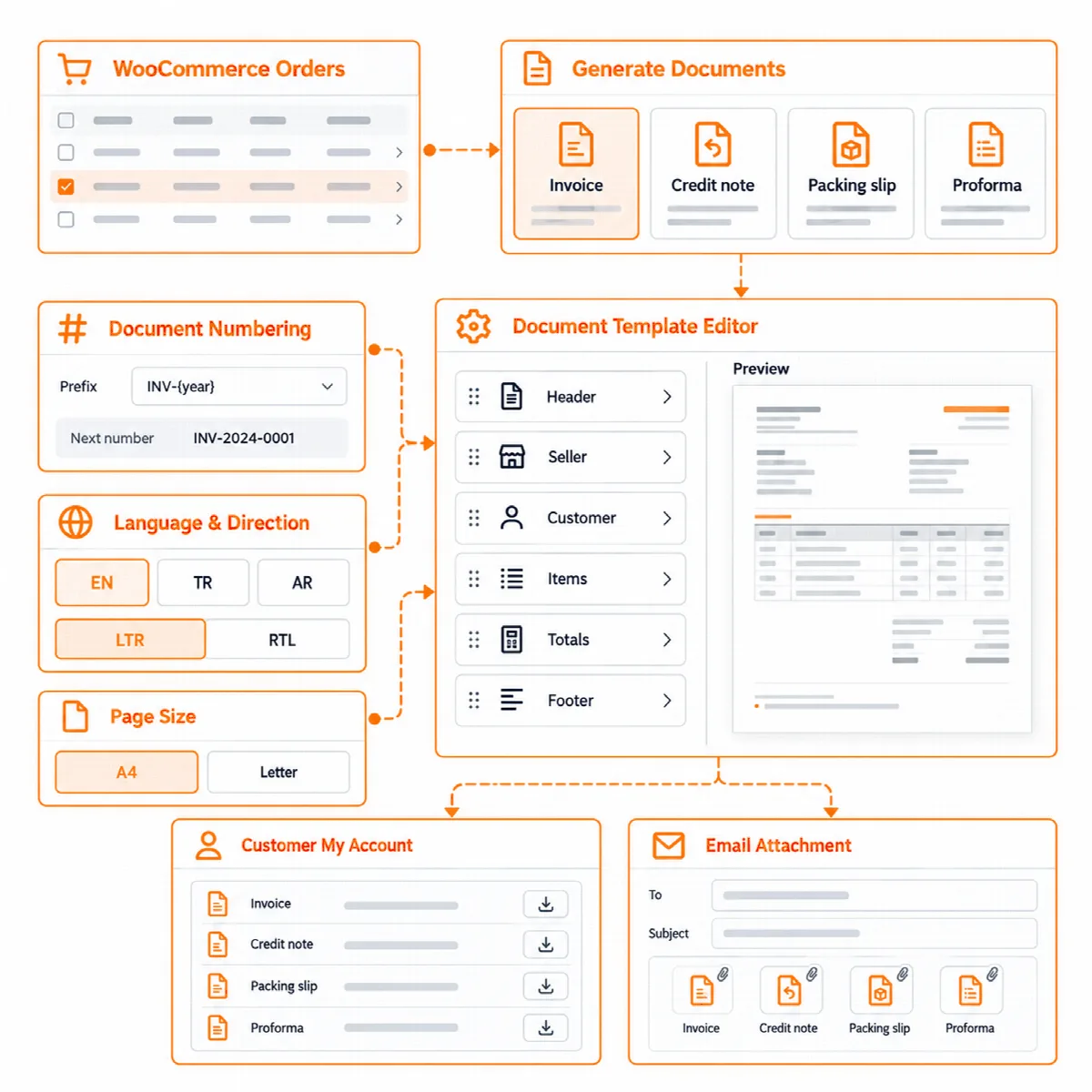
Vendix creates PDF invoices, credit notes, packing slips and proforma invoices for WooCommerce orders, in English, Turkish, Arabic and the languages you add. It also adds checkout contracts that customers accept with one required box.
Where to find it: ARN Vendix → WooCommerce → Documents and Contracts, and Vendix Templates → Documents for the designs. These features are part of Vendix Pro and need the permission to manage WooCommerce.
Important: Vendix documents are PDF store documents. They are not e-Fatura or e-Arşiv documents in Türkiye, not ZATCA e-invoices in Saudi Arabia, and they are not sent to any tax authority. Check what your country requires.
Before you start
- Fill in the legal fields in ARN Vendix → Company Data. The seller's name, address and numbers on documents come from there, as set for the company's country.
- Your server needs the PHP
mbstringextension. "Total in words" also needs theintlextension.
Turn on the documents
Each document type is off until you turn it on:
| Document | When it is created | Number |
|---|---|---|
| Invoice | When the order is paid, when it is completed, or only by hand | Its own gapless number |
| Credit note | When an order with an invoice is fully refunded; by hand for a cancelled or partly refunded order | Its own gapless number |
| Packing slip | From the order's Documents box or the Print packing slips bulk action | The order number |
| Proforma invoice | For unpaid orders, also in My account | The order number |
| Shipping label | From the order screen or the Print shipping labels bulk action, for shop managers (Vendix 3.0.0 and later) | The order number |
- Open ARN Vendix → WooCommerce → Documents and turn on the document types you need.
- Set the numbering of invoices and credit notes: a prefix and a suffix (with
{year}or{yy}), the number of digits, the start number and Start again every year. Number settings that would give a number a second time are not saved. - Choose the document language: the language of the order, by billing country, or always the store language.
- Choose which emails carry which documents, for example the invoice with the processing or completed order email, the credit note with the refunded order email and the packing slip with the new order email to the shop.
- Turn on Customers download their documents in My account → Orders, and optionally the proforma invoice for unpaid orders.
- Save, and download a sample invoice from the tab.
Invoices list prices without tax, then the taxes and the total, whatever WooCommerce's tax display setting is. Credit notes show positive amounts.
Other store modules add to the documents: the PDF quote of Quotes has a quote number of its own (Q-0001 by default, set on the Quotes tab), the delivery day and time of Delivery Slots show in the documents of an order, and "Item received" in Returns & Exchanges makes a credit note when the order has an invoice.
Barcode, QR code and shipping labels
From Vendix 3.0.0, the Documents tab has two more switches:
| Setting | Default | What it does |
|---|---|---|
| Shipping label (100 × 150 mm) with the order's barcode and QR code, for shop managers | Off | A label with the sender, the recipient, the order number, the barcode, the QR code, and the carrier and tracking number of the order's last Shipment Tracking shipment |
| The order's barcode and QR code on the packing slip and on the order screen | Off | Adds the barcode and the QR code under the header of the packing slip and in an Order barcode box of the order screen |
| The QR code holds | The order number | Or The address of the order in wp-admin, which opens the order for a shop manager who is logged in |
- Open ARN Vendix → WooCommerce → Documents and turn on the switches you need.
- Choose what The QR code holds and save.
- Open an order: the Order barcode box shows the barcode, the order number, the QR code and Print shipping label.
- To print many labels, select orders in the orders list and choose the bulk action Print shipping labels: one PDF with a label per order, up to 100 orders at a time.
The barcode is Code 128 and always holds the order number. Shipping labels take the colours of the packing slip design and are drawn from the order as it is; like packing slips, they are not kept. Orders that are still quotes get no barcode box.
Languages
English, Turkish and Arabic are ready-made. Add language copies the texts of a language so they can be translated, with its own reading direction, font and billing countries. Arabic and other right-to-left languages are drawn right to left.
Design the documents
- Open Vendix Templates → Documents. It uses the same editor as the email designs.
- Build each document from the Header, Seller, Customer, Items, Totals, Note and Footer sections.
- Choose the paper size (A4 or Letter), the margins and the Design System colours.
- Check the design with a sample PDF. There is one design per document type, and from Vendix 3.0.0 the PDF quote has a design of its own.
PDF documents are drawn without network access: remote images, styles and fonts are refused.
Work with documents
- Order screen: a Documents box on each order creates, downloads and sends its documents.
- Orders list: the bulk actions Create invoices, Download PDFs (ZIP), Print packing slips and Print shipping labels.
- Customers: download their documents under My account → Orders. Guests find them on the thank-you page and on the order tracking page.
- Export: every invoice and credit note issued in a date range can be exported as one ZIP of PDF files, made in the background, for example for your accountant.
Documents open only for the customer of the order and for shop managers. A guest's download link works for one hour, and an export ZIP can be downloaded once within 24 hours and is then removed from the server.
Set up checkout contracts
- Open ARN Vendix → WooCommerce → Contracts.
- Add the contracts you need: Distance Sales Agreement, Pre-information Form, Right of Withdrawal or your own text. Sample texts in English, Turkish and Arabic are included.
- Choose where each contract applies: per billing country and language, for all countries, some countries or all countries except some. A contract can also be shown as a link only.
- Turn on Show the active contracts at checkout. The customer accepts them with one required box, in the Checkout block and in the classic checkout.
- Optionally turn on Attach the accepted contracts as PDF to the order confirmation email.
- Optionally turn on Ask for the ID number, tax number and tax office of the buyer for the billing countries you choose. The values go to the invoice and the contracts.
- Save and place a test order.
Contracts take the store's details from Company Data. A tax office, tax number, trade registry or MERSIS number left empty prints as 0000000000, and the Contracts tab lists the empty ones your contracts use and warns about an empty store phone. Vendix keeps the accepted copy of each contract with the order and lists it in the Documents box and in My account.
Note: The sample texts are not legal advice and may not fit your country or your business. Have them checked by a lawyer.
Privacy and records
- The WordPress privacy tools list a customer's documents in the personal data export. On erasure, issued invoices, credit notes and accepted contracts are kept as the store's sales records, and the buyer's ID number, tax number and tax office are erased.
- Invoices, credit notes and accepted contracts also stay when an order is deleted. They are removed on uninstall only when Also delete issued invoices and accepted contracts is ticked in ARN Vendix → Settings.
- Vendix stores no PDF files: each document is drawn from the copy kept in the database when it is opened. On Nginx, the Documents tab shows a rule that closes the documents folder, and the
ARNMRTVNDX_DOCUMENTS_DIRconstant inwp-config.phpmoves it out of the web folder.