
The Design System holds the shared colours and fonts of your project. Vendix widgets, layouts, the Header & Footer Builder, store features and banners take their colours from it until you give an element its own colour, so one palette change reaches the whole site.
Where to find it: ARN Vendix → Smart Features → Design System (Pro) or ARN Utilities → Design System (Free). The Vendix Dashboard shows whether it is on.
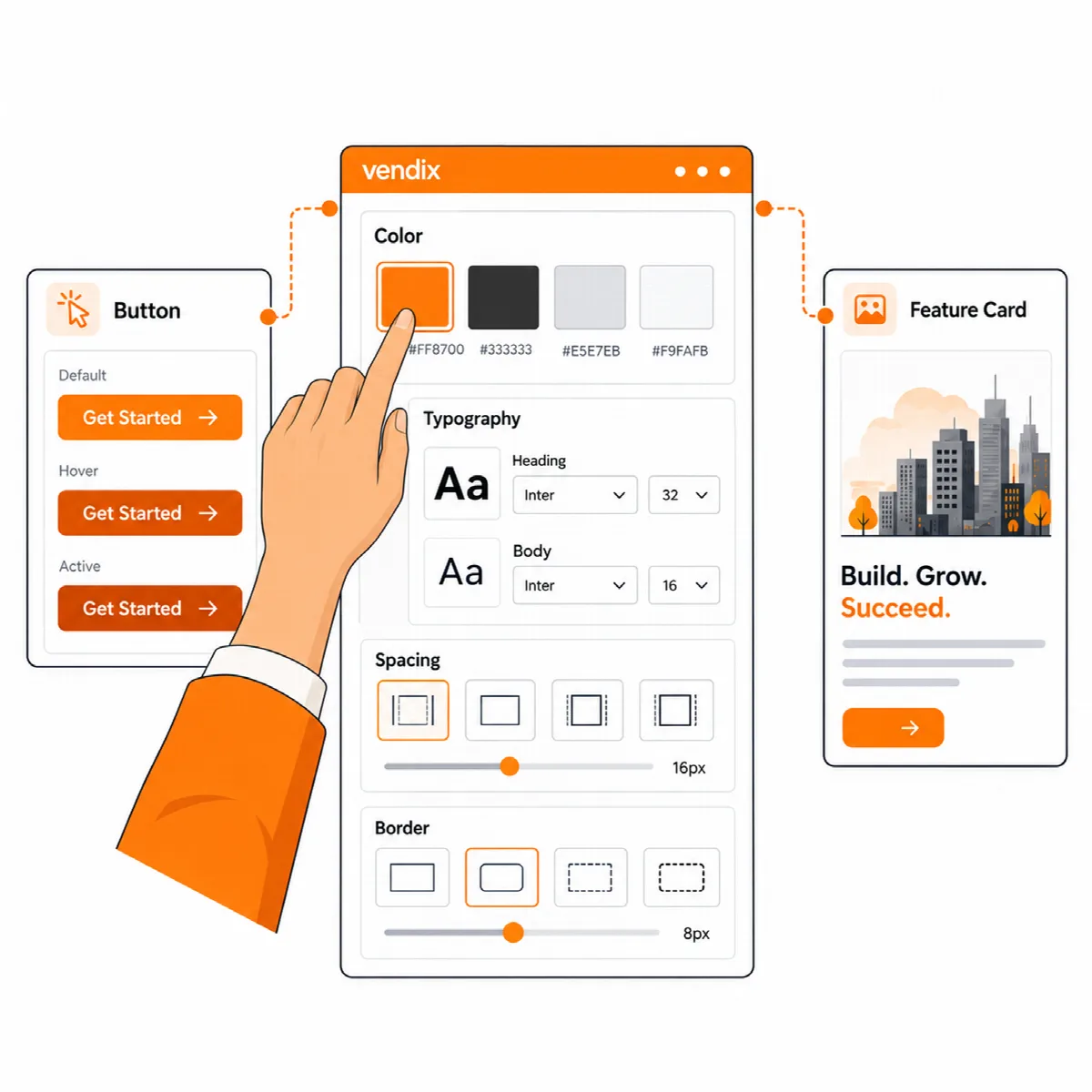
Turn on the Design System
- Open the Design System and turn on Enable Design System.
- Choose the Application scope: Vendix widgets and layouts, or Entire site. Element-level Elementor typography always has priority.
- Click Save Vendix Settings.
While the Design System is off, the panel warns that colours and typography are saved but not used on the site. Uploaded fonts still load.
Set the brand colours
Under Brand Colors, set the colours your project uses. Vendix Pro has fifteen: Primary, Secondary, Accent, Heading, Text, Link, Link Hover, Muted, Border, Light Background, Dark Background and the status colours Info, Success, Warning and Error / Danger. Vendix Free has the first eleven, without the four status colours.
- Link and Link Hover start empty and then follow the primary colour. Link colours set in the theme, the Elementor Kit or a widget still win where they are set.
- New Vendix widgets do not save fixed brand colours. Until you pick a colour, buttons, headings, gradients and the Floating Contact button use the palette.
- With Vendix Theme and the Design System on, nine of its colours (Primary, Secondary, Accent, Heading, Text, Muted, Border, Light Background and Dark Background) replace the theme's block editor palette, and six of them set the theme's own text, heading, accent, muted, border and light background colours (Vendix Theme 1.3.2 or later). With the Design System off, the accent colour of Vendix widgets follows the theme's accent colour.
Choose the fonts
Under Typography Assignment:
- Choose the Body font and the Heading font, or tick Use body font for headings. You can choose system fonts or Google fonts, and in Vendix Pro also uploaded fonts.
- Set the Default body weight and Default heading weight.
- In Vendix Pro, right-to-left and left-to-right text can use different font families.
- Check the Live preview.
Google fonts are served from your site. When you save a Google font, your server downloads it once (Latin, Latin Extended and Arabic, in the weights the Design System uses) and serves it from your own site. Visitors' browsers never connect to Google.
Your own fonts (Pro). Upload TTF, OTF, WOFF or WOFF2 files to the Vendix font library and choose them like any other font. Under Advanced font sources and fallbacks, you can also set a Fallback font stack and an optional External Font Stylesheet URL; visitors' browsers then load that stylesheet from the host you chose.
In the text editor of Vendix widgets, the font list starts with Default / Inherit. It removes a hard-coded font from the selected text so that the text follows the Design System again.
Set Element Typography (Pro)
Element Typography sets the font, size per device (desktop, tablet, mobile), weight, line height, letter spacing and text transform of Body, H1–H6 and Menu. Leave a field empty to keep the theme's value.
- Body sizes can be in px or rem.
- The Menu row sets ARN Navigation Menu widgets. The Header & Footer Builder menu takes its font, line height and letter spacing from it, but its size and weight stay as set in the builder.
- The values become CSS variables such as
--vendix-type-h1-size. Vendix Theme reads them too.
Copy the Design System to the Elementor Kit (Pro)
Apply to Elementor Kit copies the Primary, Secondary, Text and Accent colours and the heading and body fonts into the global colours and fonts of the active Elementor Kit, and the Body and H1–H6 rows of Element Typography into its Theme Style. Elementor widgets that use those globals then follow them.
- Click Save Vendix Settings first: the Kit gets the saved colours and fonts.
- Click Apply to Elementor Kit…, review the table of what will change and click Apply to Kit. Elementor rebuilds its CSS.
- To go back, click Undo… and confirm. The Kit's global colours and fonts return to what they were before. If they were changed in Elementor Site Settings after that, undoing replaces those changes too.
The copy is done once: later Design System changes are not copied on their own. Click Apply again… after you change the Design System.