
The guided setup asks a few questions, then turns on the right features, fills in your company details and, if you want, adds sample pages and a menu. It takes about five minutes, and Undo setup brings your earlier settings back.
Where to find it: ARN Vendix → Setup (Pro) or ARN Utilities → Setup (Free). Both editions open it once after the first activation. With Vendix Theme active, the theme's welcome page (Appearance → Vendix) also has a Start setup button.
What the setup changes and what it never touches
- It changes: Vendix settings, company details, optional pages, a menu and header and footer layouts.
- It never touches: your posts, products, orders, existing pages and menus.
Your current Vendix settings are saved before anything changes.
Run the setup
- Licence (Pro). The first step shows the licence status. Choose Activate now, or Activate later to make your choices first. Without an active licence, Vendix Pro keeps your choices and applies nothing; once you activate the licence, Apply opens and the setup continues where you left off.
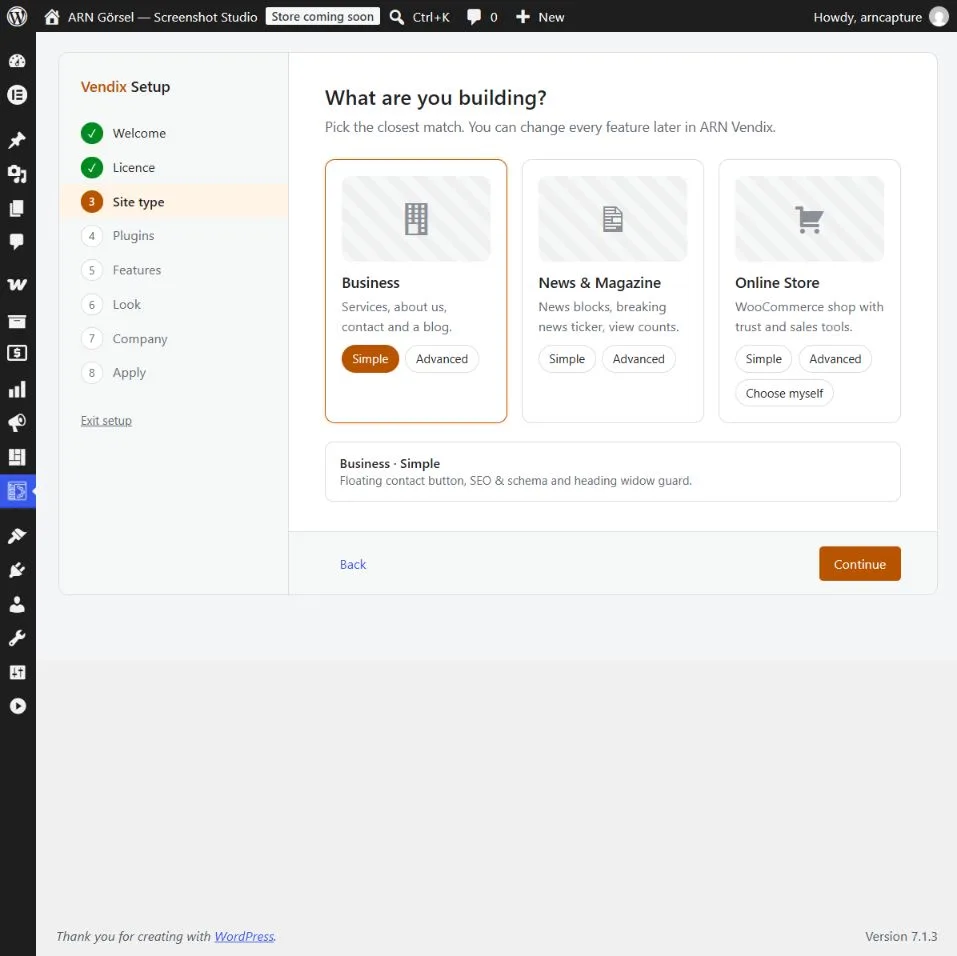
- What are you building? Pick Business, News & Magazine or Online Store, then a level (see the table below).
- Plugins. The setup lists the plugins the chosen site type needs. For an online store, WooCommerce is installed and activated only when you click Install & activate. Its own setup is skipped; you can run it later.
- Features to turn on. Untick anything you do not want. Store modules that need your own amounts or tables stay off and are set up later in ARN Vendix → WooCommerce.
- Colours, fonts, header and footer. Choose one of six colour palettes and one of four font pairs, and a header and footer preset. Tick Keep my current header and footer to keep a site-wide layout you already have.
- Your company details. Logo, company name, email, phone, WhatsApp and address. They are used in the header, footer, contact button, widgets and search results. If Vendix Free was installed before, the fields are filled in from it.
- Ready to apply. Choose whether to Install sample pages (built with Vendix sections, plus a "Main menu" in the header) and, in Pro, Install Vendix templates (single post, archive and 404 templates). Then click Apply.
The home page of the sample pages becomes the front page only if the site has no static front page yet. When everything is done, the setup shows Your site is ready and the next steps; anything that needs your attention is listed with a note.
(Vendix 3.0.0 and later) On a site with WPML or Polylang and two or more languages, the last screen also says that the sample pages, the Main menu and the header and footer were made in the default language, and links to the screens where you translate them: the pages, the menu, and the header and footer texts in WPML String Translation or Polylang's translations. Visitors of the other languages see them in the default language until you translate them. See Translate Vendix with WPML or Polylang.
Site types and levels
| Site type | Simple | Advanced (Pro) |
|---|---|---|
| Business | Floating contact button, SEO and schema, heading widow guard | Simple, plus form protection, banner spaces, share buttons and Vendix templates |
| News & Magazine | Newspaper widgets, breaking news ticker, view counts, share buttons, SEO and schema | Simple, plus a news sitemap, banner spaces, a sponsored label, form protection and Vendix templates |
| Online Store | Store features, free shipping bar, trust badges, low stock badge and quick buy buttons | Quick view, wishlist, compare, filter, free shipping bar, trust badges, recommendations, photo reviews, lowest price and shipment tracking |
For an online store, Vendix Pro also offers Choose myself: every store feature as a switch, with the Simple choices turned on. The levels above describe Vendix Pro. Vendix Free offers the three site types at a simple level and turns on the Free features that kind of site needs; the Advanced levels and "Choose myself" are part of Vendix Pro.
With Vendix Theme
With Vendix Theme active, the setup suggests the theme's site type as the starting choice, sets the theme's site type in a step of its own and puts the menu it creates in the theme's main menu place. Undo setup also brings back the earlier site type and menu places.
Undo the setup
Open the setup again and click Undo setup, then confirm. Vendix restores the backup of your Vendix settings, the theme's site type, the front page and the menu locations, and moves the pages and layouts the setup created to the Trash.
Note: Applying the setup again replaces the undo point of the previous run. To get the site back to how it was before that run, undo it first.