
The Vendix Header & Footer Builder creates headers and footers from rows, columns and elements, with its own HTML and CSS. It needs no Elementor header template and loads no page builder on the front end. It works with classic and block themes; with Vendix Theme, layouts print in the theme's own header and footer places.
Where to find it: Vendix Templates → Header & Footer (Pro) or ARN Utilities → Header & Footer (Free). Building layouts needs the permission to edit theme options.
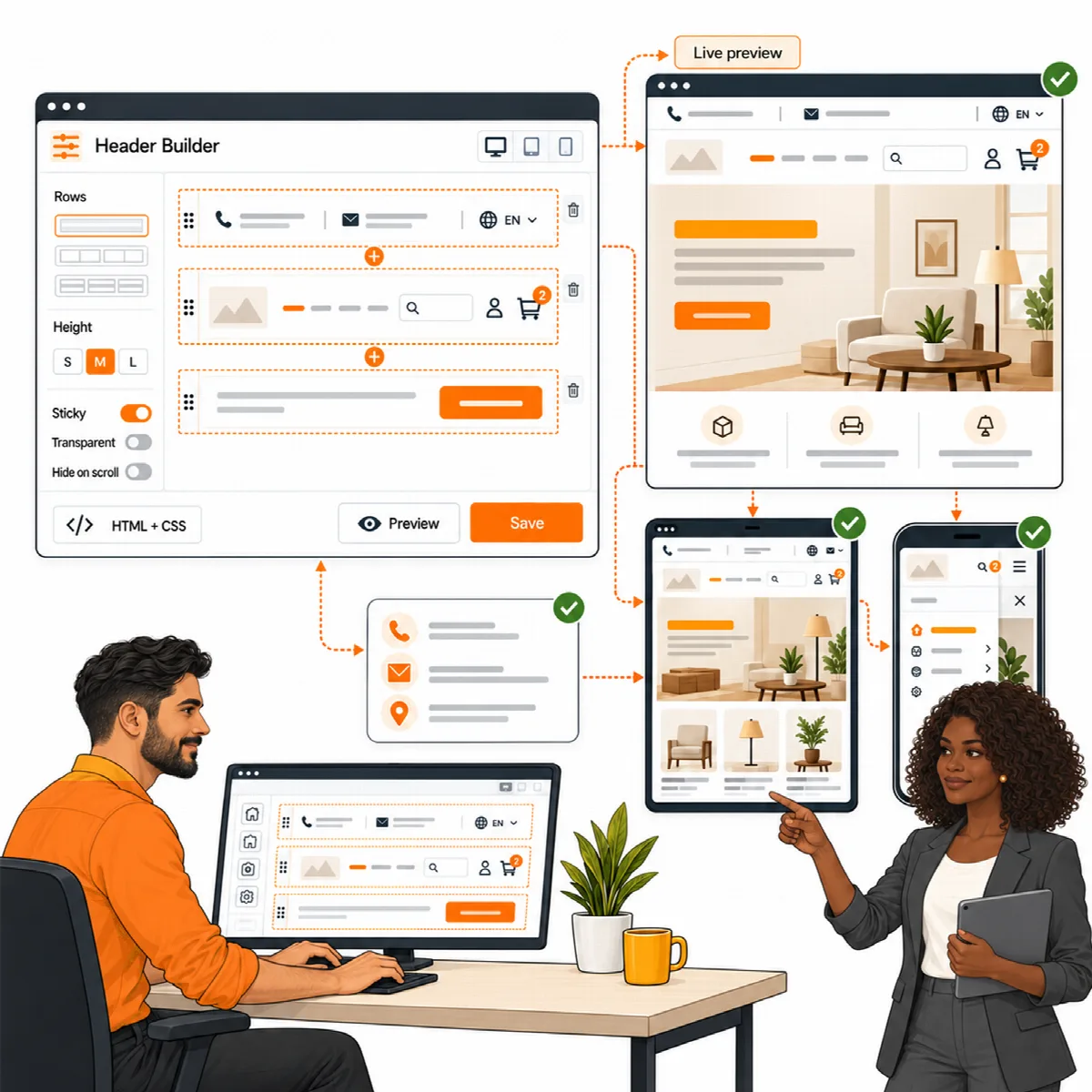
Create a layout
- Open the Header & Footer screen and add a header or a footer. In Vendix Pro you can also choose Start from a preset; see Header and footer presets, mega menus and backgrounds.
- Add rows (up to six) and columns (up to six per row), then add elements to the columns. Move, duplicate or remove them as needed. A logo block can also run beside all rows, with an optional slanted edge.
- Set row heights, backgrounds and width for desktop, tablet and phone.
- Preview the layout on a chosen page and device before you publish it. Drafts stay separate from the layout visitors receive.
- Set the display rules (see below) and publish the layout.
- Clear your page cache and check a few representative pages.
Elements
The core set, in Vendix Free and Pro, has 19 element types: logo, menu, search, buttons, text, contact items, social links, a language switch, location, account, cart and wishlist icons, a menu button, link lists, copyright, images, HTML, spacing and dividers.
- The cart icon needs WooCommerce. Wishlist and compare counts appear while those store features are on (Pro).
- The language switch lists the WPML or Polylang languages when one of them is active, and its own list of links otherwise.
- Vendix Pro adds nine more elements, such as a newsletter form, app store badges, an event card and a banner zone; see Header and footer presets, mega menus and backgrounds.
Responsive header
- Set the row height for desktop, tablet and phone, including the sticky state.
- Use the transparent, sticky and hide on scroll settings where they suit the page. A sticky or transparent header stays below a sticky ARN Announcement Bar (Sticky at top), also on phones while the admin bar shows (Vendix 3.0.0 and later).
- Below a screen width you choose, the menu becomes a button that opens a side panel.
- In a header, newly added wide elements, such as buttons, contact items, link lists and newsletter forms, start hidden on phones. Hide on changes this for any element and device.
The side panel and the search layer open above the admin bar and other fixed page tools, close with Escape, the backdrop or the close button, and keep keyboard focus inside while open. The panel's Left and Right options are screen sides on every site, also on right-to-left sites.
Display rules
Display rules decide where a layout shows: the entire site, the front page, the blog page, search results, the 404 page, content types, archives, the WooCommerce shop pages and selected pages, categories or tags. Exclusion rules take a layout out of matching pages.
- When several layouts match, the most specific rule wins; on a tie, the layout edited last wins.
- Rule values are found by a search as you type, one rule row can hold several values, and a value that was deleted or moved to the Trash is marked.
- Blank page templates such as Elementor Canvas can also receive the layout when that option is on.
- Pages and their child pages (Pro, Vendix 3.0.0 and later) covers a chosen page and every page under it, also pages added later. Only pages and other types that can have child pages are listed. The same rule works in Banners and Floating Contact.
Administrators see a short Vendix item (Free: Utilities) in the admin bar, with the header and footer layouts of the current page in its menu and their full names and rules on hover.
Note: Only one tool should draw your header and footer. The layout list warns when Elementor Pro's Theme Builder or the Elementor Header & Footer Builder plugin is also active.
Choose the header and footer of one page
From Vendix 3.0.0, Free and Pro, a page can choose its own header and footer where you edit it. The choice comes before the display rules of the layouts.
- Open the page, post or product in the WordPress editor and find the Header & Footer box in the sidebar. In Elementor, open the page settings (the gear icon) and the Header & Footer section; both show the same value.
- Under Header and Footer, choose one of the values in the table below.
- Update the page and clear your page cache.
| Choice | Result |
|---|---|
| By display rules (now: …) | The default: the display rules decide, and the list names the layout they choose for this page now |
| None (the theme's own header) or None (the theme's own footer) | No layout; the theme draws its own header or footer |
| A published layout | That layout on this page, whatever the rules say |
The box is on the edit screens of pages, posts, products and other public content types. With Vendix Theme, a warning appears when the theme's Page Layout box hides the header or footer of the page: the theme keeps hiding it whatever you choose here. When you move from Vendix Free to Vendix Pro, the choices made on pages come along.
Use your company details
Phone, email, address, WhatsApp, working hours and social values can come from Company Data instead of being typed into each layout. Text and copyright elements accept placeholders: {phone}, {phone2}, {email}, {address}, {company}, {site} and {year}.
An empty Company Data value shows nothing to visitors; administrators see a "Fill this in Vendix → Company Data" note instead. The company email is never taken from the WordPress admin email. Phone numbers keep their order on right-to-left pages.
A new footer links to the site's own About, Contact, Privacy Policy and Terms pages when they exist, and to "#" until such a page exists.
With your theme
The builder runs on other WordPress themes too, classic and block themes. It is developed and tested with Vendix Theme, and the full fit is there: layouts print in the theme's header and footer places, and the theme leaves out its own header and footer.