
Vendix Templates lets you design theme templates with the free Elementor plugin. A template replaces the content area of a page; the header and footer of your theme, or of the Vendix Header & Footer Builder, stay around it. Conditions decide where each template shows.
Where to find it: the Vendix Templates menu in the WordPress admin, with All Templates, Add New and Conditions. The same menu also holds the Header & Footer Builder, the Section Library and, with WooCommerce, the email and document designs. Editing templates needs the permission to edit theme options.
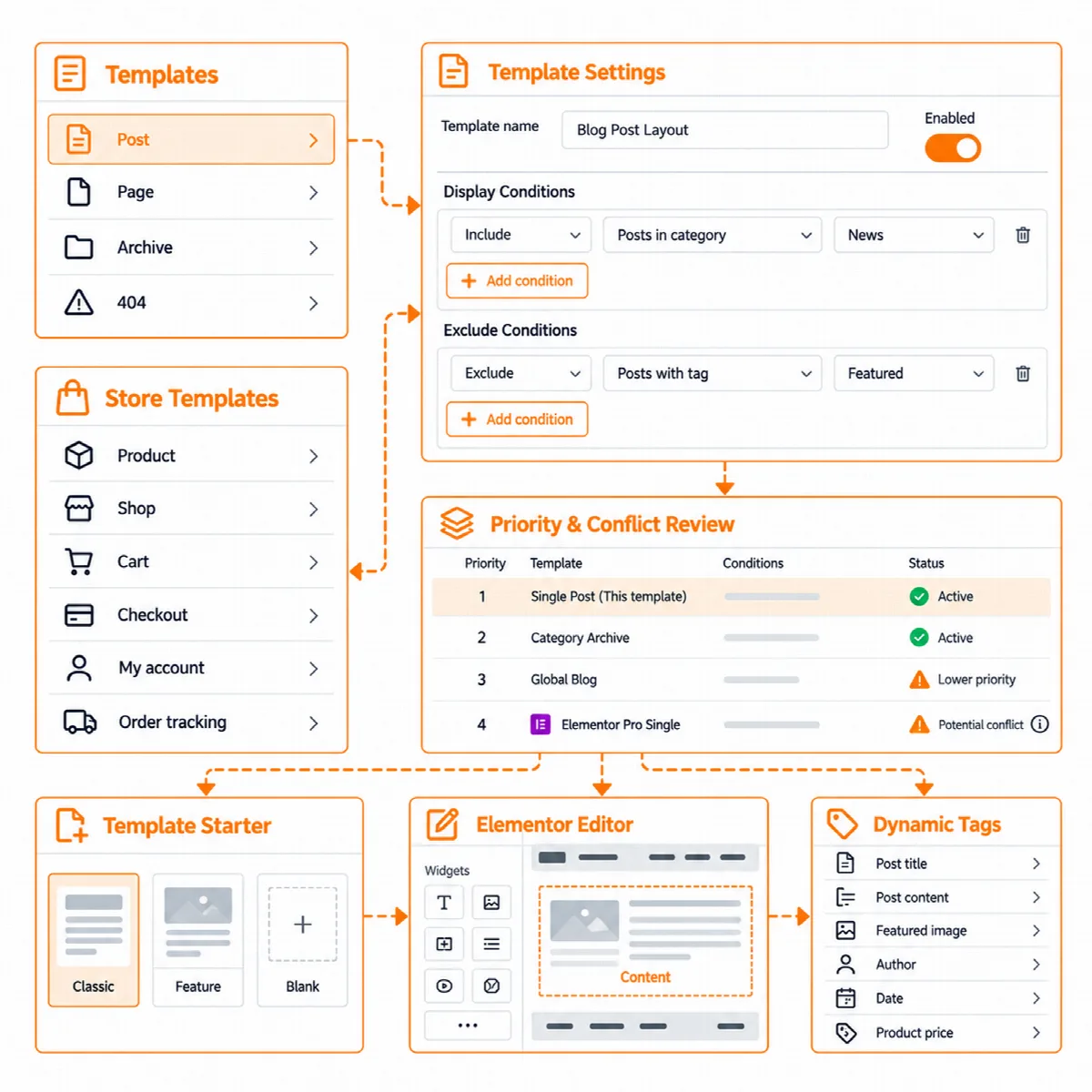
Template types
| Group | Template types |
|---|---|
| Content | Post · Page · Archive · 404 |
| Store (with WooCommerce) | Product · Shop · Cart · Checkout · Order received · My account · Order tracking |
| Dynamic Content (Vendix 3.0.0 and later) | Listing item |
This article covers the content templates. For the store types, see Design WooCommerce store page templates. The Listing item type designs one record of an ARN Listing and is offered while Dynamic Content is on; see Create content types and listings with Dynamic Content.
Create a template
- Go to Vendix Templates → Add New and pick a type. Each type says what it still needs, for example WooCommerce for the store types.
- Start from Vendix classic, Vendix feature or a blank layout. The template opens in the Elementor editor, built from Vendix widgets and the Design System colours.
- Use Preview with to show the template with sample content or with a chosen post or archive. Apply and preview redraws the preview without closing the editor.
- Set the template's conditions (see below).
- Switch the template on in All Templates and open a few matching pages on desktop and phone.
The list in All Templates shows every template with its type, its conditions and an on/off switch, so you can prepare a template and switch it on later. The editor also tells you what the live page would lack, for example an essential widget that is missing.
Set conditions
Each template gets one or more conditions, with exclusions. Values are found by a search as you type, and one row can hold several values.
- Content: single posts and pages, posts in a category or tag (subcategories included), posts of an author, author and date archives, and every archive of a taxonomy.
The Conditions screen shows which template wins on each kind of page, and warns about ties and about Elementor Pro. A value that was deleted or moved to the Trash is marked, because it never matches.
Post and archive widgets
Seven widgets in the ARN Smart Widgets group draw the parts of posts and archives. They also work on any page that shows a post or a list.
| Widget | What it shows |
|---|---|
| ARN Post Content | The text of the post or page, or the page's own content, such as the cart and checkout forms |
| ARN Post Meta | Author, dates, categories, comments and reading time |
| ARN Author Box | The author's picture, name and biography |
| ARN Post Navigation | Links to the previous and next post or record, in the chosen Order, optionally In the same category of a chosen Taxonomy |
| ARN Comments | The comment list and form |
| ARN Archive Posts | The posts of the archive as a grid, list, classic or overlay layout |
| ARN Pagination | Numbers, previous and next, or a "Load more" button that works with page caches |
ARN Post Navigation order (Vendix 3.0.0 and later)
| Setting | Choices | Default |
|---|---|---|
| Order | Publish date, Page order, Title or A field | Publish date |
| Field (meta key) | The field to order by, when Order is A field | Empty |
| Compare the field as numbers | On or off | On |
| In the same category | Links only to posts or records that share a term | Off |
| Taxonomy | Categories, tags or any other taxonomy with an admin screen | Categories |
The links lead to the previous and next record of the same content type in this order. Widgets saved before 3.0.0 keep their output.
Dynamic tags
Five groups of dynamic tags fill Elementor text, link and image fields, also in Elementor 4 elements, and a sixth group comes with Dynamic Content:
- Vendix Post: title, excerpt, date, author name and biography, the terms of any taxonomy (Categories or Tags, with a Taxonomy choice), featured image caption, reading time, views and comment count, links to the post, the author's posts or the comments, and images such as the featured image, the author's picture or the site logo.
- Vendix Archive: archive title and description.
- Vendix Site: the site name.
- Vendix Product and Vendix Store: product and store values for store templates.
- Vendix Fields (Vendix 3.0.0 and later, while Dynamic Content is on): Field, Field List, Field Number, Field Link, Field Image, Field Gallery and Field Color show the values of Dynamic Content, ACF, Meta Box or any custom field.
The Company Value, Company Dynamic Link and Company Logo tags of Company Data work beside them.
Themes and Elementor Pro
Vendix Templates runs on other WordPress themes too, classic and block themes, where a template replaces only the content area. It is developed and tested with Vendix Theme, and the full fit is there: a template fills the theme's own single and archive places.
- Elementor Pro: where Elementor Pro's Theme Builder fills the same place, Vendix steps back and shows no template there.
- Blank pages: pages on Elementor Canvas or Full Width get no template.
Move templates to another site
Templates move with Elementor's own export and import, conditions included. Imported templates arrive switched off, so nothing changes until you switch them on.