
On News / Magazine sites, Vendix Theme has five widget areas for banners and ads. Each area can keep a reserved ad size, so the text does not move while an ad or banner loads.
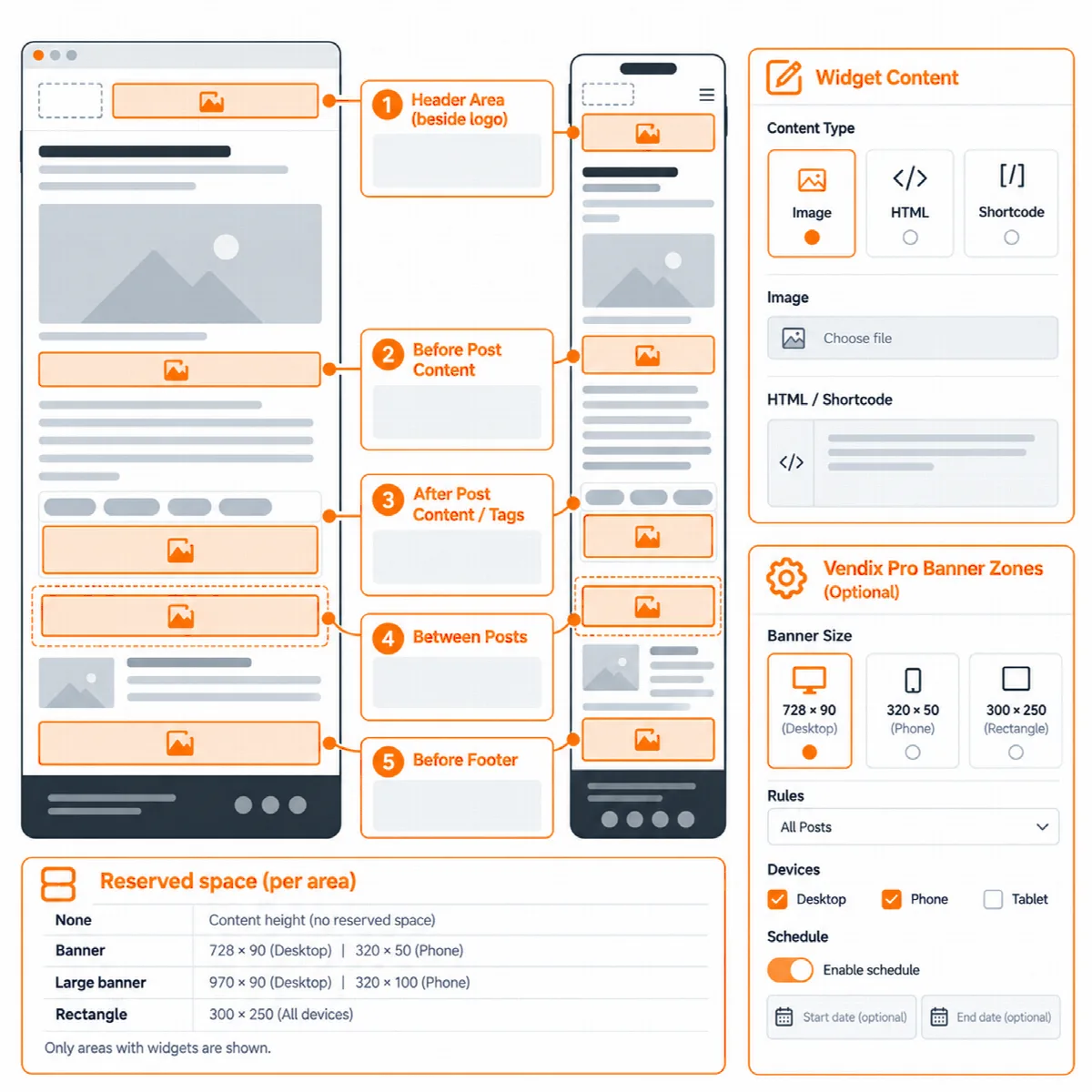
The five widget areas
The areas are in Appearance → Widgets and are printed only with the News / Magazine site type.
| Area | Where it appears |
|---|---|
| Header Area | Beside the logo in the theme header, on every page |
| Before Post Content | Above the text of a post, under its image |
| After Post Content | Below the text and tags of a post |
| Between Posts | In post lists, once, after the post number set in Customizer → Vendix → News, never after the last post |
| Before Footer | Above the footer of posts and post lists |
- An area is printed only when it has widgets.
- Between Posts area after post number is 4 by default and can be 1 to 20.
- The Before Footer area appears whoever draws the footer: the theme or a plugin layout.
- On desktop the Header Area sits beside the logo and the menu moves to a row of its own; on phones it takes a full row under the logo.
On the other site types the areas keep their widgets, and the widgets come back when News / Magazine is chosen again.
Reserved ad sizes
Where to find it: Appearance → Customize → Vendix → News, one Reserved space setting per area.
| Reserved space | Size |
|---|---|
| None | The area takes the height of its content |
| Banner | 320 × 50 on phones, 728 × 90 on larger screens |
| Large banner | 320 × 100 on phones, 970 × 90 on larger screens |
| Rectangle | 300 × 250 |
| Large rectangle | 336 × 280 |
By default every area keeps a Banner space, except After Post Content, which keeps a Rectangle. The reserved space is used only when the area has widgets. A banner with a set width does not widen the area on a narrow screen.
What goes in an area
An area holds any WordPress widget:
- an image with a link;
- a Custom HTML block with the code of your ad network;
- a shortcode;
- a text.
The theme gives the places and the reserved space; it includes no ad network. The ad code comes from your ad network or from the Vendix plugin.
With the Vendix plugin you can also place:
- Vendix Free: the Site Banner, one image banner with a link, placed with its shortcode.
- Vendix Pro: a zone of the Banners module, with its display rules, devices, schedules and view and click counts, placed with the zone's
[arn_banner]shortcode in a Shortcode widget.
Vendix Pro banner zones without a widget
With Vendix Pro's Banners module, a banner zone can also use the theme's own places without any widget: above the header, beside the logo, under the header, above the footer, and before and after the post text on news sites. The zone's display rules, devices and schedule decide where and when it shows. Under a transparent header, zones above and under the header stay out. For the zone settings, see the Vendix plugin documentation.
Set up ad areas step by step
- Choose News / Magazine in Customizer → Vendix → Site Type, publish and reload the Customizer.
- In Customizer → Vendix → News, pick the reserved space of each area that will hold an ad.
- In Appearance → Widgets, add the ad code, banner or Vendix banner zone to the areas.
- Check a post and a post list on a phone and on a desktop screen.